Voiding credit card payments
You can return funds to a cardholder's account for an in-office credit card payment or an online payment (payment that was made online from an electronic statement, a printed statement, a payment request, or a virtual terminal) that was posted using Dentrix Ascend Pay. If you need to reverse a credit card payment before 10 PM on the day that it was processed, you void the credit card payment.
Notes:
-
To reverse a payment after 10 PM on the day that it was processed or on any subsequent day, you refund it.
-
This topic covers voiding a credit card payment without a surcharge. For steps on voiding a credit card payment with a surcharge, see the topic about voiding credit card payments with surcharges.
To void a credit card payment
-
Do one of the following:
-
To edit a credit card payment on a guarantor's or patient's Ledger page, do the following:
-
Do one of the following:
-
To open a guarantor's Ledger page from the Online Payments tab of a location's Inbox page, do the following:
-
If you are not already viewing the correct location, select it on the Location menu.
-
On the User menu, select Online Payments.
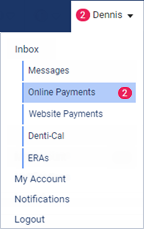
The location's Inbox page opens with the Online Payments tab selected.
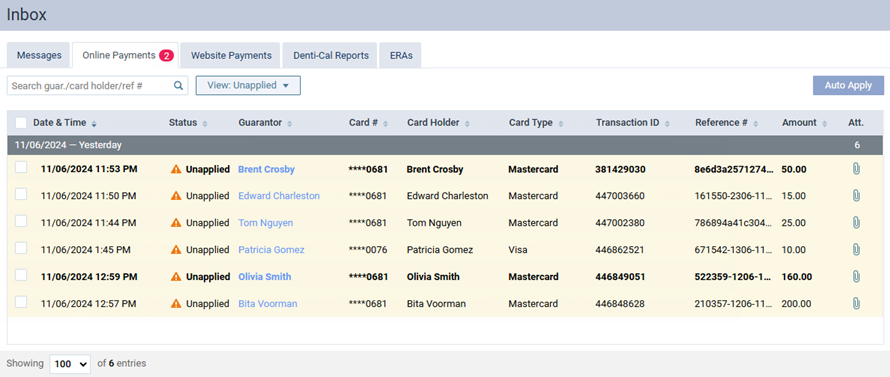
Note: To quickly print a receipt for an online credit card payment in the inbox, click (or tap) the payment's paperclip icon
 in the Att column. The receipt appears in a new browser tab or window so you can print it or download it as a .pdf file.
 -
Click (or tap) the name of the guarantor (in the Guarantor column) that is associated with a payment to open that guarantor's Ledger page.
-
-
To open a patient's Ledger page, do the following:
-
If the correct patient is not already selected, use the Patient Search box to access the patient's record.

-
Do one of the following:
-
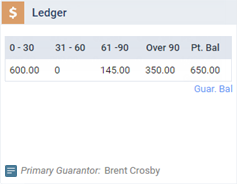
If the patient's Overview page is not already open, on the Patient menu, under General, select Overview. The patient's Overview page opens. Click (or tap) the Ledger box.
-
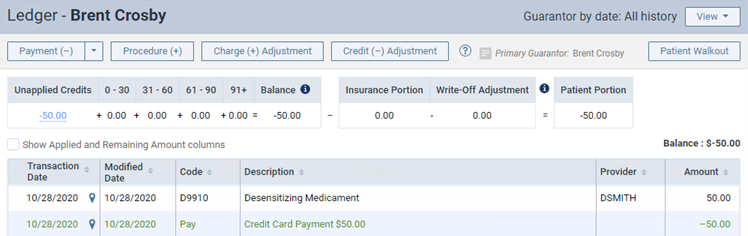
On the Patient menu, under Financial, select Ledger.
The patient's Ledger page opens.
-
-
-
-
Click (or tap) a credit card payment.
-
-
While you are entering a credit card payment, after you have clicked (or tapped) Process Card, if the cardholder has completed his or her interaction with the payment device, and you need to void the transaction, wait until the credit card is done being processed.
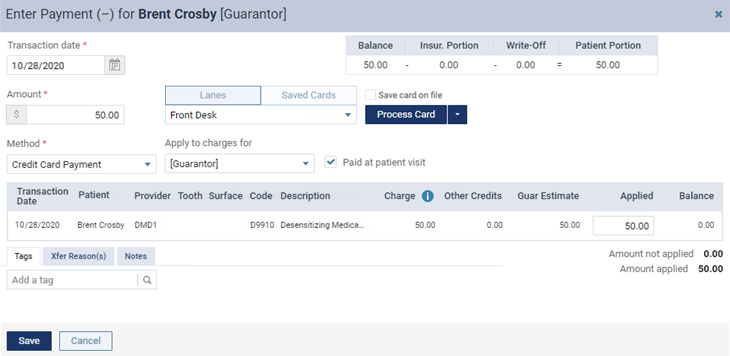

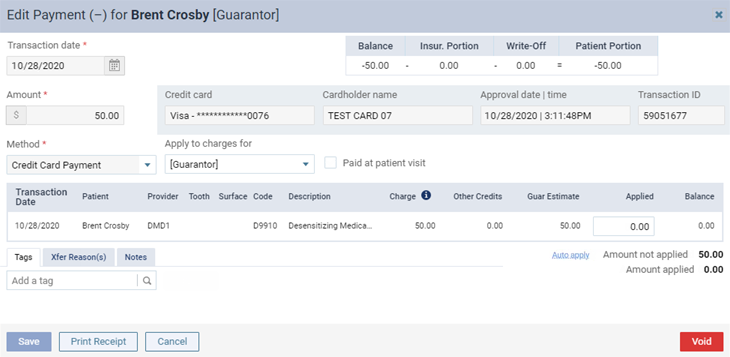
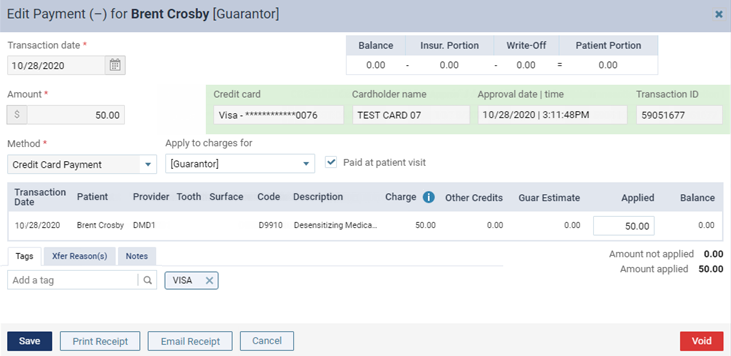
The Edit Payment dialog box appears. The look depends on whether you are editing or posting a payment.
When editing a payment
When posting a payment (immediately after the credit card is processed successfully)
-
-
Unallocate the payment from all procedures by deleting all Applied amounts. (Amount applied should be 0.00.)
Important: If you do not unallocate the payment before you void it, you will not be able to apply another payment to the procedures that the voided payment is applied to.
-
Click (or tap) Void.
A confirmation message appears.
-
Click (or tap) Void.
When the payment is voided successfully, an offsetting charge adjustment is posted to the patient's ledger, and the Edit Charge Adjustment dialog box appears.
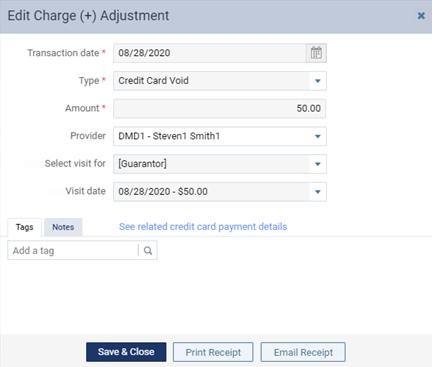
Note: The adjustment Type is Credit Card Void.
-
Select the correct Provider, and add Tags and Notes as needed.
-
To print a void receipt, click (or tap) Print Receipt.
-
Click (or tap) Save & Close.