Emailing credit card receipts
You can email a credit card receipt when you are posting a credit card payment using Dentrix Ascend Pay, but you can also email a receipt after an in-office credit card payment or an online payment (payment that was made online from an electronic statement, a printed statement, a payment request, or a virtual terminal) has been posted. You can also email a receipt for a voided or refunded amount that corresponds to the payment.
To email a receipt
-
Do one of the following:
-
To open a guarantor's Ledger page from the Online Payments tab of a location's Inbox page, do the following:
-
If you are not already viewing the correct location, select it on the Location menu.
-
On the User menu, select Online Payments.
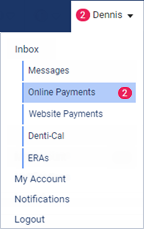
The location's Inbox page opens with the Online Payments tab selected.
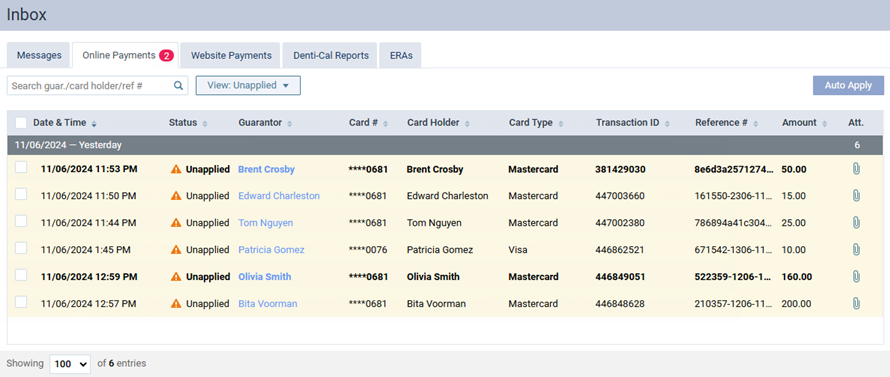
Note: To quickly print a receipt for an online credit card payment in the inbox, click (or tap) the payment's paperclip icon
 in the Att column. The receipt appears in a new browser tab or window so you can print it or download it as a .pdf file.
 -
Click (or tap) the name of the guarantor (in the Guarantor column) that is associated with a payment to open that guarantor's Ledger page.
-
-
To open a patient's Ledger page, do the following:
-
If the correct patient is not already selected, use the Patient Search box to access the patient's record.

-
Do one of the following:
-
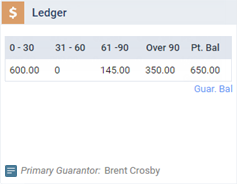
If the patient's Overview page is not already open, on the Patient menu, under General, select Overview. The patient's Overview page opens. Click (or tap) the Ledger box.
-
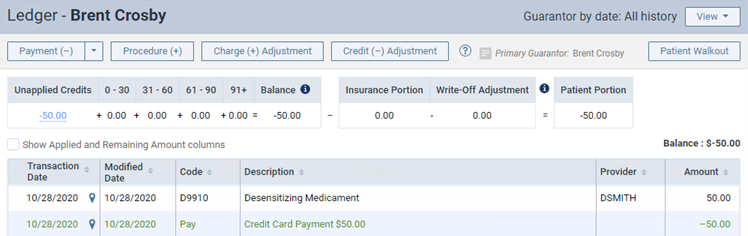
On the Patient menu, under Financial, select Ledger.
The patient's Ledger page opens.
-
-
-
-
Click (or tap) a credit card payment.
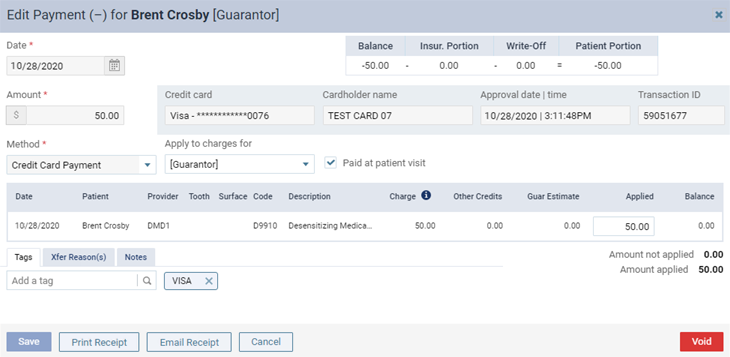
The Edit Payment dialog box (or View Payment dialog box) appears.
-
Click (or tap) Email Receipt.
The receipt appears in a new browser tab or window so you can print it or download it as a .pdf file.
-
If the credit card payment has been voided or refunded, to view the offsetting charge adjustment that corresponds to this payment and email a receipt for the voided or refunded amount, do the following:
-
Click (or tap) the See details here link (in the lower-right corner under the text "This transaction has been voided" or "This transaction has been refunded").
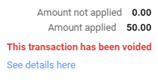
Note: You can also access the void or refund transaction by clicking (or tapping) the corresponding "Credit Card Void" or "Credit Card Refund" adjustment on the patient's ledger.
The Edit Charge Adjustment dialog box appears.
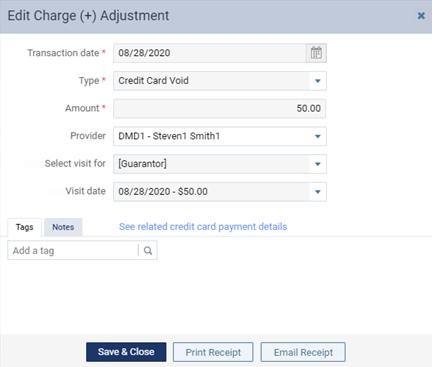
Note: You can click (or tap) the See related credit card payment details link to return to the corresponding payment details.
-
Click (or tap) Email Receipt.
The receipt appears in a new browser tab or window so you can print it or download it as a .pdf file.
-