Handling eligibility verification notifications
Eligibility verification notifications appear (as pop-ups in the lower-right corner) according to your subscriptions. However, even if you are subscribed to this type of notification, a notification appears only if you are logged in to Dentrix Ascend at the time the change that triggers that notification to be sent to you is made. Notifications are visible until you dismiss them or log out.
-
Eligibility Essentials notifications:
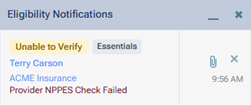
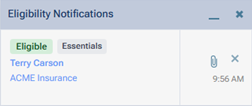
-
Eligibility Pro notification:
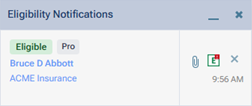
Note: A sound accompanies a notification that you receive if your notification settings have been set up to allow a sound to be played. For you to hear the sound, your computer must have speakers attached and the volume properly set.
To handle eligibility verification notifications
Do any of the following:
-
To open the patient's Overview page, click (or tap) the patient's name, which is a link.
-
To access the plan options on the patient's Insurance Information page, click (or tap) the insurance plan's name, which is a link.
-
To open the patient's eligibility document on a new browser tab, click (or tap) the paperclip icon.
-
If data are available for importing, to view the Import Insurance Benefit Details page so you can import insurance information (deductible and benefit details, coverage exception details, certain plan settings and/or the coverage table for the patient's insurance plan), click (or tap) the "E" icon (green E with red dot on a white background).
-
To dismiss an individual notification, click (or tap) the Close button
 to the right of the notification text.
 -
To dismiss all your notifications at once, click (or tap) the Close All button
 on the Notifications title bar.
 -
To minimize (temporarily hide) all your notifications, click (or tap) the Minimize button
 on the Notifications title bar. When you want to view your notifications, click (or tap) the Restore button
  on the Notifications title bar.