Viewing the chairside dashboard
You can show and hide the progress notes and images while working with a patient's clinical chart. Having the dental chart, progress notes, and images together in one view serves as a chairside dashboard.
Note:
-
The state of the chairside dashboard (the visibility and size of the dental chart and progress notes) is saved automatically per computer (or device).
-
For information about changing the view options, see the topic about customizing the chairside dashboard view.
-
For information about viewing images, see the topic about viewing images on the chairside dashboard.
To view the chairside dashboard
-
If the correct patient is not already selected, use the Patient Search box to access the patient's record.

On the Patient menu, under Clinical, select Chart.
The patient's clinical record opens with the Chart tab selected.
-
Set the Chairside dashboard switch to On.

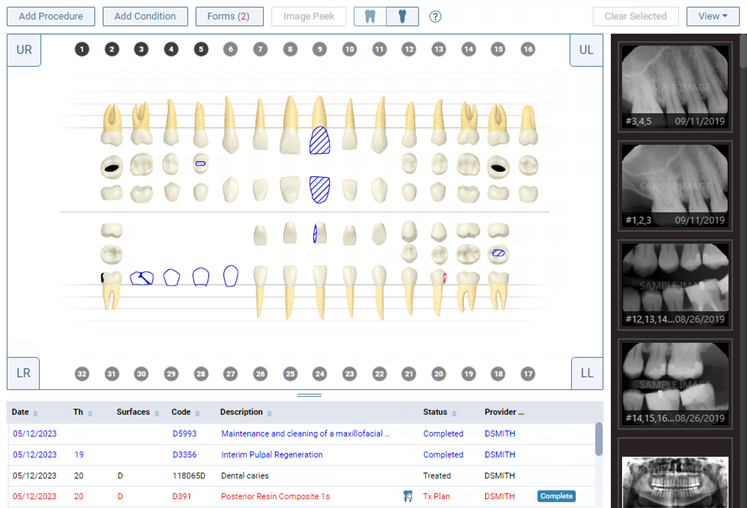
The progress notes panel appears below the tooth chart, and the imaging panel appears on the right.
Notes:
-
On the chairside dashboard, the progress notes function as they do on the Progress Notes tab. For example, you can sort the progress notes by clicking (or tapping) a column header. Also, you can click (or tap) an item, such as a procedure or a condition, to open the corresponding dialog box.
-
To resize the progress notes panel, drag the sizing handle in between the tooth chart and progress notes up or down as needed. The tooth chart is resized accordingly.

-
-
If you do not want to have the chairside dashboard on for the next time you or anyone else accesses a patient's clinical chart from this computer (or device), set the Chairside dashboard switch to Off.
