Viewing images on the chairside dashboard
You can view and quickly switch between images on the chairside dashboard as needed.
To view images on the chairside dashboard
-
If the correct patient is not already selected, use the Patient Search box to access the patient's record.

On the Patient menu, under Clinical, select Chart.
The patient's clinical record opens with the Chart tab selected.
-
If it is not already, set the Chairside dashboard switch to On.

-
To view an image, click (or tap) a thumbnail image on the imaging panel to view a larger version of it in the image viewer.
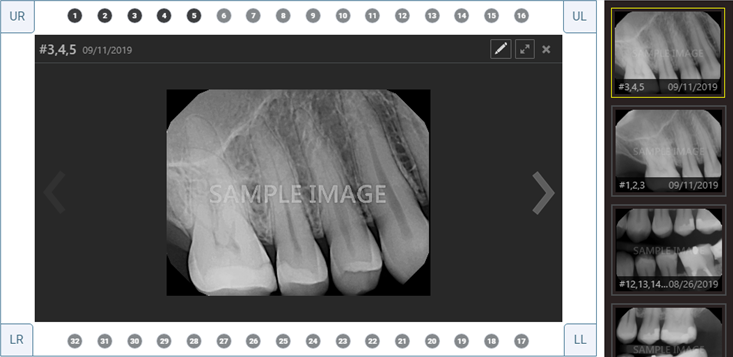
-
With the image viewer, do any of the following as needed:
-
Click the Open for Editing button
 to open the image for editing in Dentrix Ascend's imaging program.
 -
Click the Full Screen button
 to view the image fullscreen. Click the Normal Mode button
  to to exit the fullscreen view.
 -
Click the Previous and Next buttons
 (on the left and right of the image in the viewer) to view other images from the imaging panel as needed.
 -
Click the Close button
 to close the image viewer.
Tip: While the image viewer is open, you can select teeth and chart treatment as needed.
-
-
If you do not want to have the chairside dashboard on for the next time you or anyone else accesses a patient's clinical chart from this computer (or device), set the Chairside dashboard switch to Off.
