Customizing the chairside dashboard view
You can customize the view options for the chairside dashboard to suit your preferences.
Notes:
-
The options on the View menu are computer (or device) and user specific.
-
The state of the chairside dashboard (the visibility and size of the dental chart and progress notes) is saved automatically per computer (or device).
To customize the chairside dashboard view
-
If the correct patient is not already selected, use the Patient Search box to access the patient's record.

On the Patient menu, under Clinical, select Chart.
The patient's clinical record opens with the Chart tab selected.
-
If it is not already, set the Chairside dashboard switch to On.

-
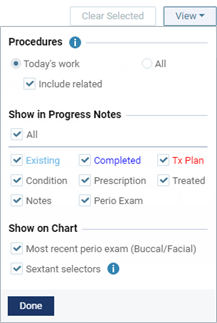
On the View menu, set up the following options as needed:
-
Filter by:
-
To show work and images for any date in the progress notes and on the imaging panel, select the All option.
-
To show work and images by tooth in the progress notes and on the imaging panel, select the Selected teeth option. With the Selected teeth option selected, if you select teeth on the odontogram while you are viewing the chairside dashboard, the following occurs:
-
Only the items that pertain to the selected teeth appear on the progress notes panel.
-
Only the images that pertain to the selected teeth appear on the images panel.
Notes:
-
With the Selected teeth option selected, if no teeth are selected on the odontogram, all items appear on the progress notes panel and images panel.
-
With the Selected teeth option selected, if teeth are selected on the odontogram, but no items pertain to the selected teeth, no items appear on the progress notes panel or the images panel.
-
-
To show only work and images for today in the progress notes and on the imaging panel, select the Today's work option. With Today's work selected, to view previous work and images that are related to (has tooth numbers in common with) any of today's work, select the Include related checkbox.
-
-
Show in Progress Notes:
-
To show work of any type in the progress notes, select the All checkbox.
-
To show or hide specific types of work in the progress notes, select or clear the corresponding checkboxes: Existing, Completed, Tx Plan, Referred, Condition, Notes, Perio Exam, Prescription, and Treated.
-
-
Show on Chart:
-
To show or hide measurements (pocket depths and/or gingival margins) from the patient's most recent perio exam on the odontogram on the Chart tab (whether you are viewing the chairside dashboard or not), select or clear the Most recent perio exam (Buccal/Facial) checkbox.
-
To show or hide the buttons for selecting sextants on the odontogram on the Chart tab (whether you are viewing the chairside dashboard or not) and on the Quick Exam tab, select or clear the Sextant selectors checkbox.
-
-
-
Click (or tap) Done.
-
If you do not want to have the chairside dashboard on for the next time you or anyone else accesses a patient's clinical chart from this computer (or device), set the Chairside dashboard switch to Off.
