Reviewing patient forms
When a patient completes a form with the provider review workflow enabled, a provider can review information, such as clinically relevant information, on that form and mark it as having been reviewed.
To review a patient form
-
Do one of the following:
-
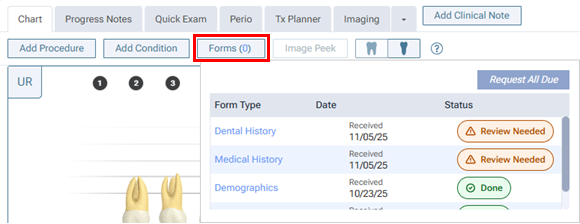
While viewing the Chart tab of a patient's clinical record, click (or tap) Forms and then a form that needs to be reviewed.
Do the following:
-
If the correct patient is not already selected, use the Patient Search box to access the patient's record.

On the Patient menu, under Clinical, select Chart.
The patient's clinical record opens with the Chart tab selected.
-
Click (or tap) Forms to view a pop-up box that displays the published patient forms that are applicable for the patient.
-
If a form has a "Review Needed" Status, click (or tap) the form's name in the Form Type column or the form's status icon in the Status column.
-
-
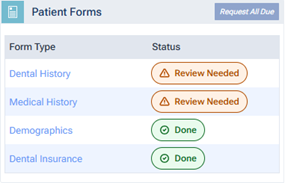
While viewing a patient's Overview page, in the Patient Forms box, click (or tap) a form that needs to be reviewed.
Do the following:
-
If the correct patient is not already selected, use the Patient Search box to access the patient's record.
-
If the patient's Overview page is not already open, do one of the following:
-
Click (or tap) the Patient menu.
-
On the Patient menu, under General, select Overview.
The patient's Overview page opens.
-
-
The Patient Forms box displays the published patient forms that are applicable for the patient. If a form has a "Review Needed" Status, click (or tap) the form's name in the Form Type column or the form's status icon in the Status column.
-
-
While viewing the Patient Forms section of a patient's Patient Information page, click (or tap) a form that needs to be reviewed.
Do the following:
-
If the correct patient is not already selected, use the Patient Search box to access the patient's record.
-
Do one of the following:
-
If the patient's Overview page is not already open, on the Patient menu, under General, select Overview. The patient's Overview page opens. Click (or tap) the title bar (at the top) of the Patient Forms box.
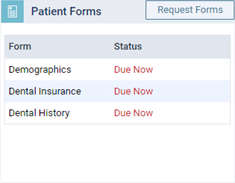
The patient's Patient Information page opens with Patient Forms selected on the navigation panel (on the left).
-
On the Patient menu, under General, select Patient Information. The patient's Patient Information page opens. Select Patient Forms on the navigation panel (on the left).
-
-
The patient forms that are associated with the patient's record appear. If a form has a "Review Needed" Status, click (or tap) the form's View icon
 in the Actions column.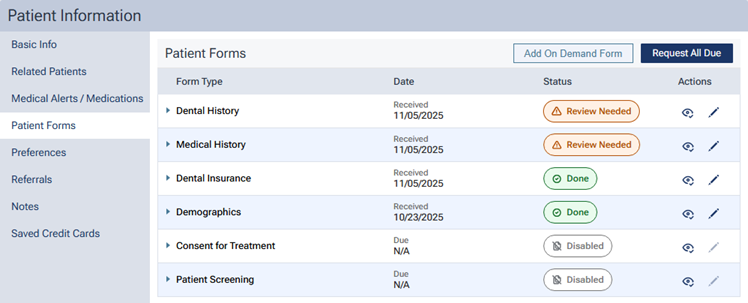
-
-
While viewing a patient's appointment, click (or tap) Forms and then a form that needs to be reviewed.
Do the following:
-
Do one of the following:
-
Click (or tap) the Schedule menu.
-
On the Schedule menu, select Calendar.
The Calendar page opens.
-
Click (or tap) an appointment.
The Appointment Information panel opens.
-
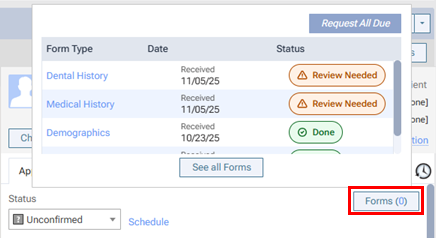
Click (or tap) Forms to view a pop-up box that displays the published patient forms that are applicable for the patient.
-
If a form has a "Review Needed" Status, click (or tap) the form's name in the Form Type column or the form's status icon in the Status column.
-
-
While confirming a patient's appointment, click (or tap) Forms and then a form that needs to be reviewed.
Do the following:
-
On the Schedule menu, select Unconfirmed Appointments.
The Unconfirmed Appts page opens.
-
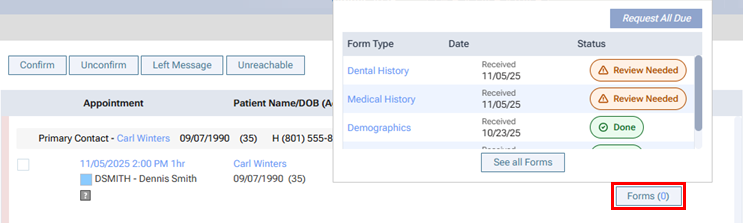
Click (or tap) Forms to view a pop-up box that displays the published patient forms that are applicable for the patient.
-
If a form has a "Review Needed" Status, click (or tap) the form's name in the Form Type column or the form's status icon in the Status column.
-
-
While viewing a patient's appointment card on the routing panel, click (or tap) Forms and then a form that needs to be reviewed.
Do the following:
-
Locate the patient's appointment card.
-
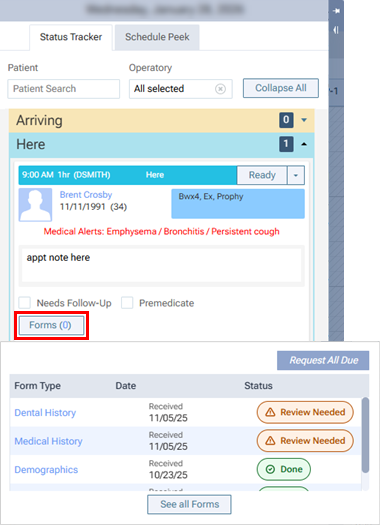
Click (or tap) Forms to view a pop-up box that displays the published patient forms that are applicable for the patient.
-
If a form has a "Review Needed" Status, click (or tap) the form's name in the Form Type column or the form's status icon in the Status column.
-
The completed form appears in the Review Form dialog box.
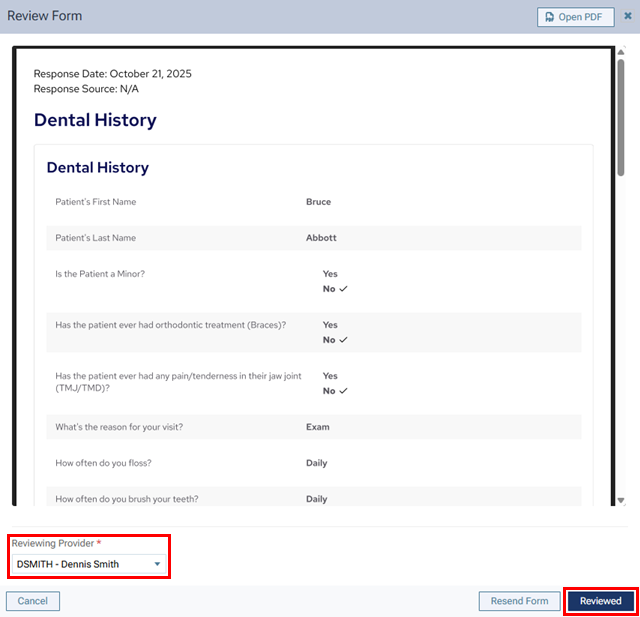
Note: If you need to resend the form, click (or tap) Resend Form, and ignore the remaining steps; otherwise, complete the remaining steps.
-
-
Review the information on the form.
-
From the Reviewing Provider list, select the reviewing provider.
-
Click (or tap) Reviewed.