Reactivating user accounts
You can reactivate a user account that was inactivated previously so that the user can log in to Dentrix Ascend.
Note: When you reactivate a user's account, that user can log in with the same password that was associated with the account before the account was inactivated. Also, the user will receive an email message with a link that the user can click to reset his or her password.
To reactivate a user account
-
On the Settings menu, under Location, select User Accounts.
The User Accounts page opens.
-
To view active and inactive users, on the Filter menu, set the Include Inactive switch to Yes, and then click (or tap) Apply.
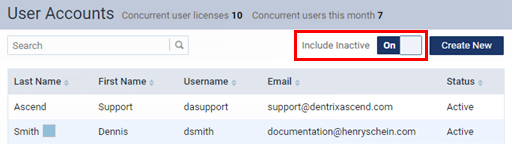
Notes:
-
To filter the user accounts by role and/or location, you can also set up the following options on the Filter menu:
-
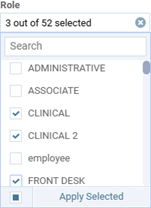
Role - To view only the user accounts that have been assigned to certain user roles, select the checkbox of each of those roles on the list, and then click Apply Selected.
-
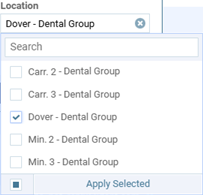
Location - To view only the user accounts that have been granted access to certain locations, select the checkbox of each of those locations on the list, and then click Apply Selected.
-
-
To quickly locate a user account, use the Search box to search for a user account by the user's last name, first name, user name, or email address. As you type your search criteria, the list of matching user accounts is updated automatically.
-
-
Select a user account.

The options for editing the user account become available.
-
Set the Active switch to Yes.

-
Click (or tap) Save.
Note: After you reactivate the user account, you may want to edit the account to make sure that the username and email address for that account meet the requirements for multi-factor authentication (MFA):
-
Username - MFA requires a certain naming convention for usernames. If the username does not follow the approved convention, the user account will not be enrolled in MFA. The approved naming convention for MFA is as follows:
-
Letters (a-z, A-Z) are allowed
-
Numbers (0-9) are allowed
-
The following special characters are allowed: underscore (_), dot (.), plus sign (+), and dash (-)
-
Spaces are NOT allowed
-
The @ symbol, square brackets ( [ ] ), and parentheses ( ( ) ) are NOT allowed
-
Email addresses are NOT allowed
-
-
Email - MFA requires a unique email address for each individual user account. If the email address is not unique across all the user accounts in your organization, the user account will not be enrolled in MFA.