Adding medications
You can set up the medications that you want to have available for attaching to patients. Dentrix Ascend comes with a large set of default medications, but you can add other medications as needed.
Note: Medications are global (available to all locations across your organization).
To add a medication
-
On the Settings menu, under Patient Care, click (or tap) Medical Alerts & Medications.
The Medical Alerts & Medications Library page opens.
-
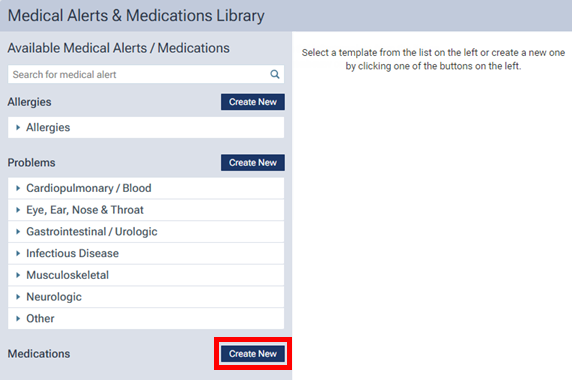
Next to Medications, click (or tap) Create New.
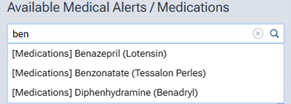
Tip: You may want to verify that the medication that you want to add does not already exist in your practice database before you attempt to add the medication. Under Available Medical Alerts/Medications, begin typing part of a medication name in the search box, continue typing as needed to narrow the search results list.
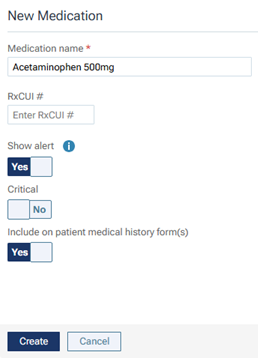
The options for adding the medication become available.
-
Specify the name and other details of the medication as needed.
Set up the following options:
-
Medication name - Enter the name of the medication. It can be up to 60 characters long.
-
RxCUI # - Enter the applicable RXNorm code.
-
Show alert - Set this switch to one of the following options to specify the default state of the Show alert switch that is available when you are attaching a medication to a patient's record:
-
Yes - For a patient with this medication attached, a message that lists the patient's allergies, problems, and medications (as applicable) will appear and display this medication each time you access the patient's information, and the Medical Alerts icon will appear where applicable.
-
No - For a patient with this medication attached, a message will not appear (or if a message does appear, this medication will not be listed on that message) when you access the patient's information, and the Medical Alerts icon will appear where applicable.
Note: When you are attaching this medication to a patient, or when you are editing a patient's medication, you can change the state of the Show alert switch as needed.
-
-
Critical - Set this switch to one of the following states to specify the default state of the Critical switch that is available when you are attaching a medication to a patient's record:
-
Yes - If this medication will usually be considered critical for patients to whom you attach it. If a medication is marked as critical, you cannot mark it as expired.
-
No - If this medication will usually not be considered critical for patients to whom you attach it. If a medication is marked as not critical, you can mark it as expired when applicable.
Note: When you are attaching this medication to a patient, or when you are editing a patient's medication, you can change the state of the Critical switch as needed.
-
-
Include on patient medical history form(s) - Set this switch to one of the following options:
-
Yes - If this medication will be available for patients to select on any patient form that includes the "Medications" element.
-
No - If this medication will not be available for patients to select on any patient form that includes the "Medications" element.
-
-
-
Click (or tap) Create.
Note: If the Show alert switch was set to Yes, a red exclamation point appears next to the name of the medication.
