
Signing structured visit notes
A provider can sign notes if that provider has a digital signature and narrative review password set up.
To sign a structured visit note
In the hard tissue chart or periodontal chart, click a note's Sign link. This option is available only if the note requires a signature and has not been locked.
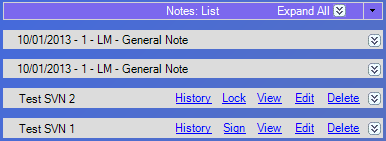
The Sign Structured Visit Note dialog box appears.
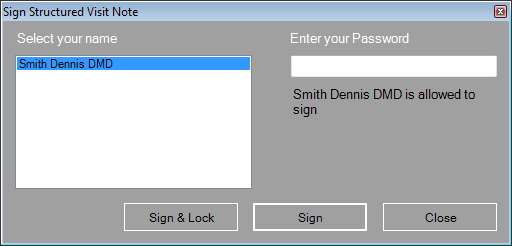
Select your provider name.
Enter your password.
Click Sign & Lock if no other providers need to sign or Sign if other providers still need to sign.
Do any of the following as applicable:
If you attempt to lock a note that other providers are supposed to sign but are not required to sign, a message appears and asks if you want to lock the note. Click Yes or No. Locking the note will prevent any other provider from signing it and prevent further edits to it.
If you attempt to sign a note, if all providers that are required to sign have already signed the note, a message appears and asks if you want to lock the note. Click Yes or No. Locking a note prevents further edits to it, but you can add an addendum (click the note's Edit link).
Need more help?
You can visit our website or contact OMSVision Customer Support.