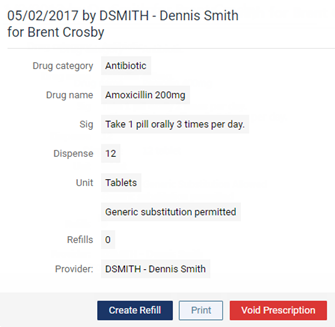
Viewing a patient's prescription history
You can view a patient's prescription history as needed.
To view the prescription history for a patient
-
If the correct patient is not already selected, use the Patient Search box to access the patient's record.

-
On the Patient menu, under General, select Prescriptions.
The patient's Patient Prescriptions page opens.
-
Do any of the following:
-
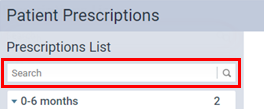
In the Search box, begin typing part of a drug name. The matching prescriptions appear in expandable and collapsible sections by time frame (for example, 0-6 months). Continue typing as needed to narrow the search results.
-
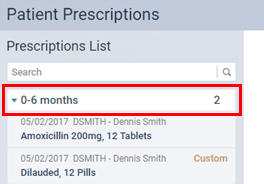
Expand the sections to locate a prescription written in the past six months, six months to a year ago, or longer than a year ago.
-
-
Select a prescription.
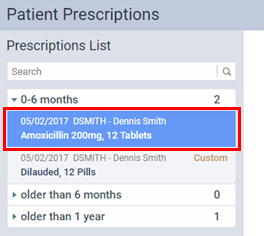
The selected prescription appears.