Unmatching a claim on an ERA
If a claim on an ERA has been matched incorrectly (either manually or automatically) to a claim in Dentrix Ascend, you can unmatch the claim and delete any associated payments and credit adjustments.
Example scenario: A patient has both primary and secondary insurance with the same carrier. The payer issues two ERA payments—one for the primary claim and one for the secondary claim—using the same claim ID. Dentrix Ascend automatically matches ERA payments based on claim ID, and if the secondary claim has not yet been created, both ERA payments may incorrectly be matched to the primary claim. You must unmatch the secondary ERA payment and correctly re-match it once the secondary claim has been created.
Note: Unmatching a claim on an ERA requires the "Unmatch ERA Claim Payment" security right.
To unmatch a claim on an ERA
-
If you are not already viewing the correct location, select it on the Location menu.
-
On the Home menu, under Insurance, select Bulk/ERA Insurance Payments.
The Bulk/ERA Insurance Payments page opens.

-
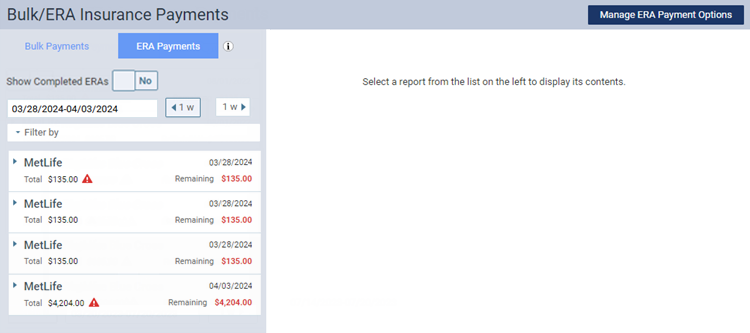
Select the ERA Payments tab on the left panel.
ERAs for claims that correspond to the current location appear.
-
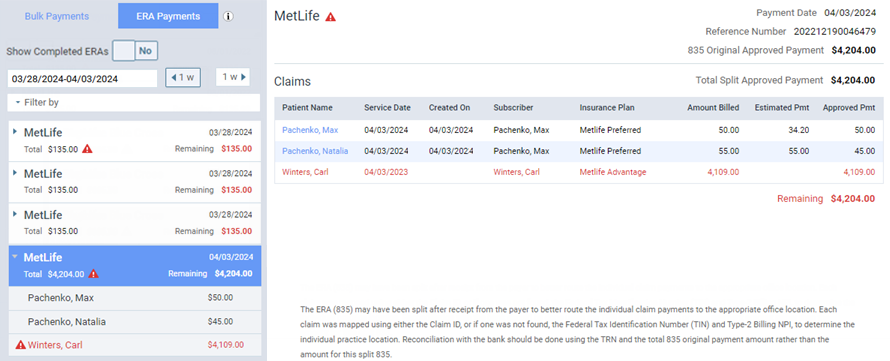
Select an ERA on the left panel.
On the left panel, the patient name and payment amount of each claim that pertains to the selected ERA appears.
-
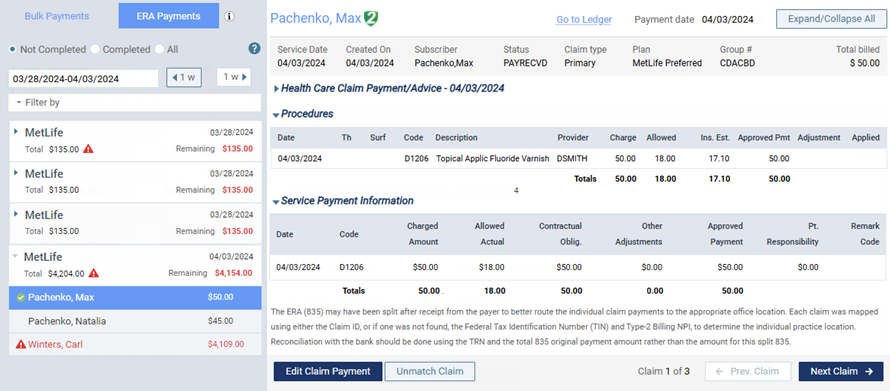
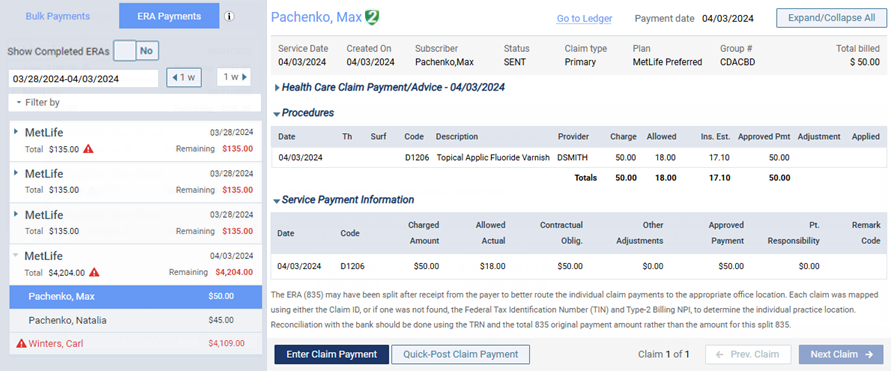
On the left panel, select a paid claim (as indicated by the green checkmark symbol
 ) or an unpaid claim. On the right, the details of the claim appear.
-
Paid claim:
-
Unpaid claim:
-
-
Click (or tap) Unmatch Claim.
A confirmation message appears.
Notes:
-
You should unmatch the claim only if you intend to re-match the claim and re-post a payment.
-
Not only will the claim become unmatched, but any payment and credit adjustments associated with the match will be deleted.
-
-
Click (or tap) Unmatch.
The claim is now unmatched.
Note: The unmatching is recorded in the audit log, and the entry includes details of the payment removal and any related adjustments.