Reviewing insurance updates from patient forms
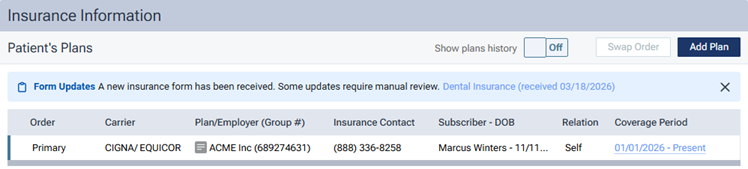
If a patient has submitted dental insurance information through an online form, and the corresponding insurance coverage could not be attached automatically to the patient's record, with that patient selected in Dentrix Ascend, the insurance icon on the patient information ribbon is blue to indicate that a new patient form with insurance information is available. Also, on the patient's Insurance Information page, a blue notification, stating that a new patient form with insurance information is available, appears.
Note: For information about understanding when and how plans are added from patient forms, see the topic about automatically adding insurance plans from patient forms.
To review insurance updates from a patient form
-
With a patient selected in the Patient Search box, if the patient information ribbon is not visible, click (or tap) the arrow button below the box to view the ribbon.

-
On the left side of the patient information ribbon, if a patient form with insurance information for the patient has been received, the insurance icon (shield) is blue with a red dot. Click (or tap) the icon.

Note: For information about the possible colors of the insurance icon, see the topic about understanding insurance icon colors.
The patient's Insurance Information page opens. A blue notification (banner) appears near the top of the page.
-
On the notification, click (or tap) the link (which is the form name followed by the received date) to open the completed form as a PDF document.
The document opens on a new browser tab.
-
Compare the insurance information on that document to the insurance information in the patient's record. Attach insurance plans or make updates to existing insurance plans accordingly.
Note: Updating a patient's insurance information requires the "Edit Ins. Plan for Patient" security right.
-
After you have attached or updated the patient's insurance plans, dismiss the blue notification (banner) by clicking (or tapping) its X. The icon on the patient information ribbon changes to purple or green.
Note: Dismissing the notification requires the "Edit Ins. Plan for Patient" security right.