Quickly sending a letter for referred treatment
You can quickly create and send a custom patient letter for treatment being referred out to another doctor. The letter can include practice information, patient information, referral details (such as the reason for the referral and the procedures being referred), and images.
To quickly create and send a letter for referred treatment
-
If the correct patient is not already selected, use the Patient Search box to access the patient's record.

-
Do one of the following:
-
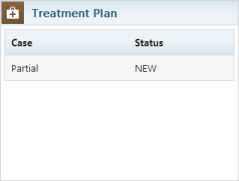
If the patient's Overview page is not already open, on the Patient menu, under General, select Overview. The patient's Overview page opens. Click (or tap) the Treatment Plan box.
-
On the Patient menu, under Clinical, select Treatment Planner.
The patient's clinical record opens with the Tx Planner tab selected.
-
-
Do one of the following:
-
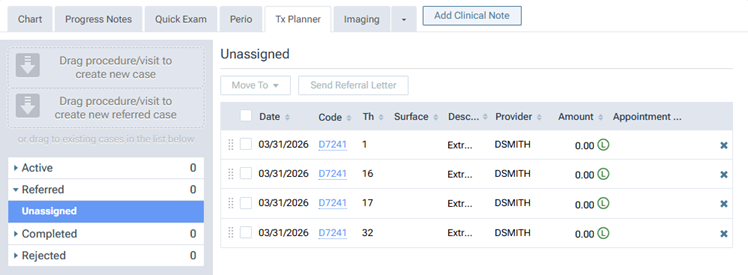
On the navigation panel (on the left), under Referred, select Unassigned. The procedures that have not been assigned to a case appear on the right.
-
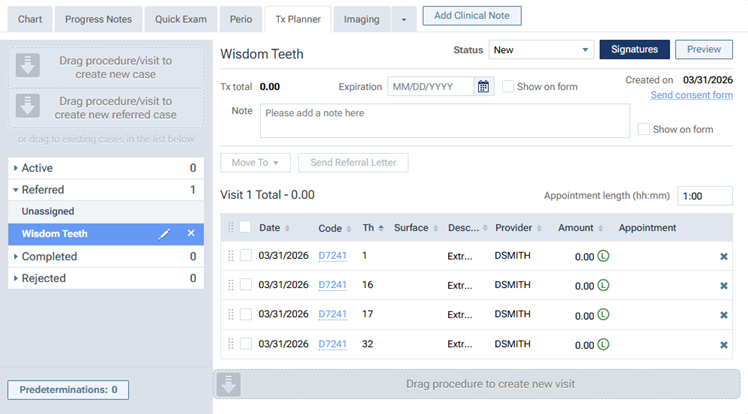
On the navigation panel (on the left), under Referred, select a case. The case details, which include the procedures in that case, appear on the right.
-
-
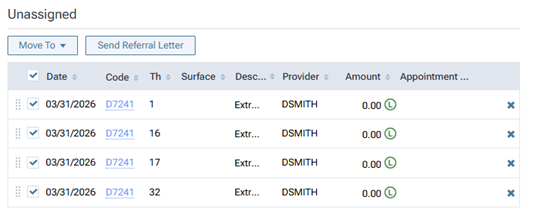
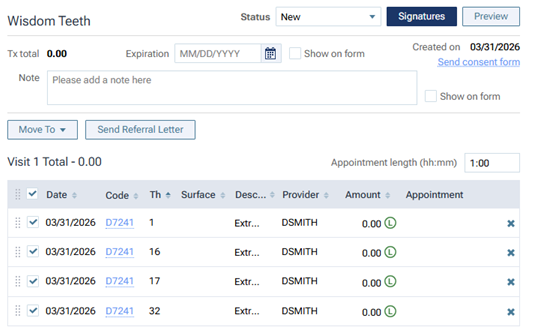
Select the checkbox of each procedure that you want to include in the letter.
-
Unassigned procedures:
-
Procedures in a case:
-
-
Click (or tap) Send Referral Letter.
Note: This button is available only if at least one procedure is selected.
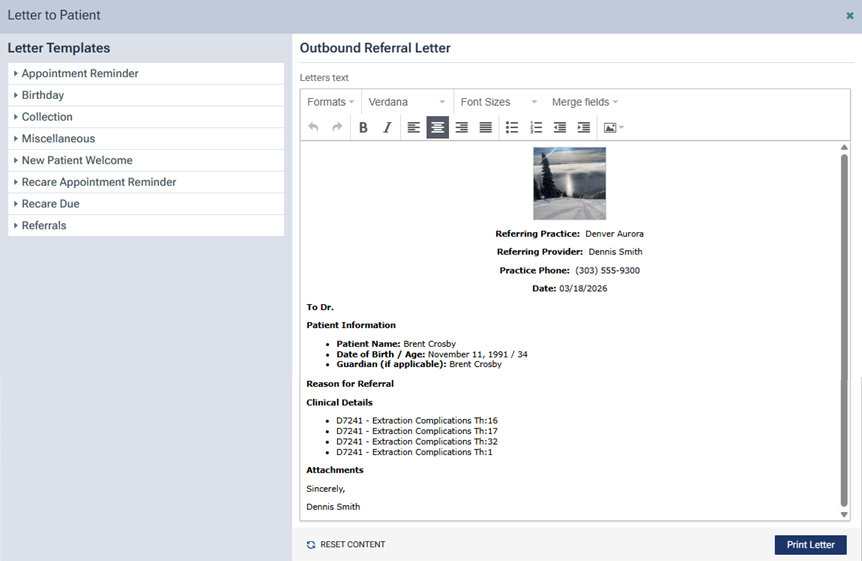
The Letter to Patient dialog box appears. The "Outbound Referral Letter" is loaded automatically, and patient and practice information is merged into it.
-
Change any of the practice or patient information as needed.
Note: Any edits that you make to the letter are not saved and do not change the template.
-
Add the following to the letter as needed:
-
To Dr. - Add the name of the doctor to whom you are referring the patient.
-
Reason for Referral - Add the reason that you are referring this treatment.
-
Clinical Details - The selected procedures are listed automatically, but you can add additional information.
-
Attachments - Insert images from your computer or from the patient's imaging record.
Note: Any edits that you make to the letter are not saved and do not change the template.
-
-
Click (or tap) Print Letter.
-
The letter opens as a PDF document on a new browser tab.
-
Do one of the following:
-
Print the letter. It can then be mailed, faxed, or hand-delivered by the patient to the doctor.
-
Download the letter. It can then be emailed to the patient or doctor.
-