Inserting images into patient letters
You can insert images into a patient letter as needed.
To insert images into a patient letter
-
Do one of the following:
-
In the letter text, position the text cursor where you want to insert images.
-
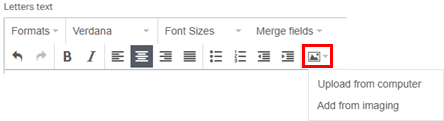
On the toolbar for the letter text, expand the Insert image menu.
-
Do one of the following:
-
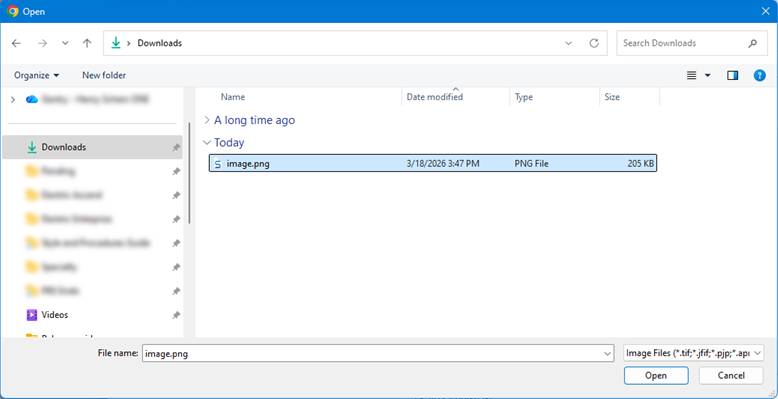
On the menu, select the Upload from computer option. The Open dialog box appears. Navigate to and select the images that you want to include, and then click (or tap) Open.
-
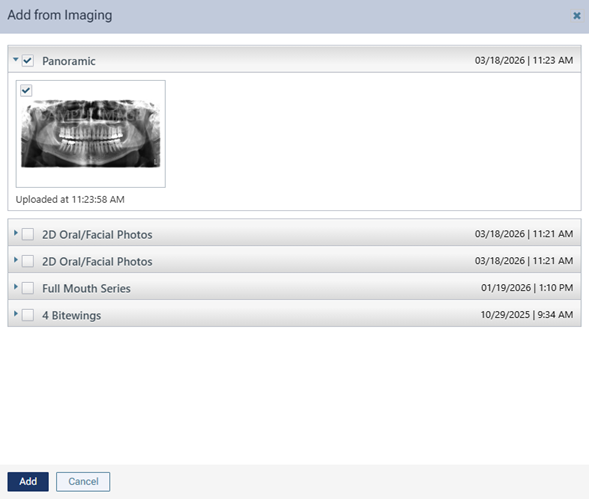
On the menu, select the Add from imaging option if the patient has images attached to his/her record. In the Add from Imaging dialog box that appears, click (or tap) a procedure to view the corresponding images, select the checkboxes of images that you want to include, and then click (or tap) Add.
-