Presenting a treatment plan using the enhanced view
When you are presenting a treatment plan to a patient, you can use the enhanced view to present the financial and clinical aspects of the treatment plan separately. Also, you can present an entire case or only specific visits.
To present a treatment plan using the enhanced view
-
If the correct patient is not already selected, use the Patient Search box to access the patient's record.

-
Do one of the following:
-
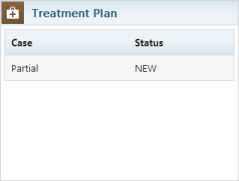
If the patient's Overview page is not already open, on the Patient menu, under General, select Overview. The patient's Overview page opens. Click (or tap) the Treatment Plan box.
-
On the Patient menu, under Clinical, select Treatment Planner.
The patient's clinical record opens with the Tx Planner tab selected.
-
-
Under Active, select a case.
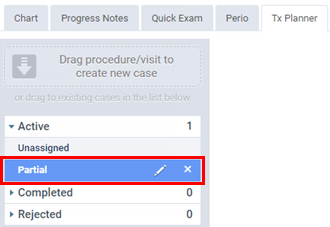
The recommended treatment for the selected case appears.
-
Click (or tap) Preview.

The treatment plan appears.
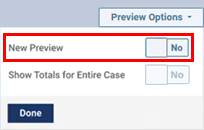
Note: The standard presentation format is used if the New Preview switch on the Preview Options menu is set to No. If the enhanced presentation format is already turned on, you can skip to step 5.
-
On the Preview Options menu, do the following as needed:
-
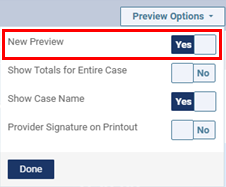
To turn on the enhanced presentation format (if it is not already on), set the New Preview switch to Yes.
-
Set the Show Totals for Entire Case switch to No or Yes. With the switch set to No, case totals section does not appear. With the switch set to Yes, the case totals section does appear.
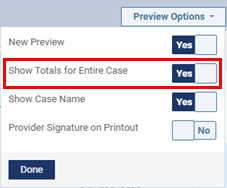
Note: This switch is available only if the New Preview switch is set to Yes.
-
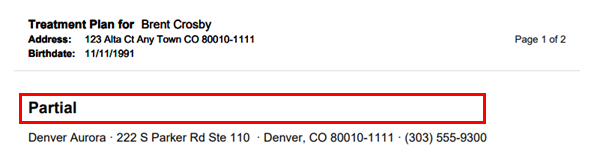
Set the Show Case Name switch to No or Yes. With the switch set to No, the case name does not appear on the preview or the printout. With the switch set to Yes, the case name appears on the preview and the printout.
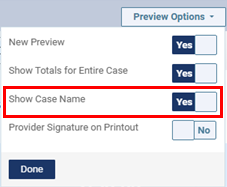
Note: This switch is available only if the New Preview switch is set to Yes.
Examples with case name

-
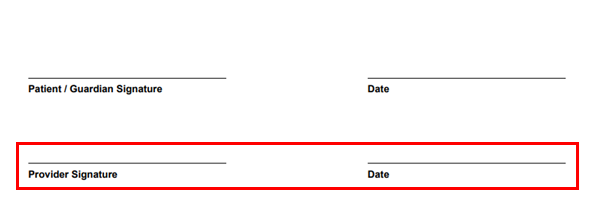
Set the Provider Signature on Printout switch to No or Yes. With the switch set to No, a line for a provider's signature and a date does not appear on the printout. With the switch set to Yes, a line for a provider's signature and a date appears on the printout.
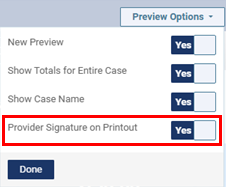
Note: This switch is available only if the New Preview switch is set to Yes.
Example with the provider signature line
Note: These settings are saved per computer.
-
-
Click Done.
The enhanced view of the treatment plan presentation appears.

-
Either leave All visits (entire case) selected from the list (in the upper-left corner) to view information for the entire case, or select specific cases from the list to view information for only those visits.

-
At the top, select the type of detail that you want to view: the Full Details, only the Clinical details, or only the Financial details.
-
Full Details:
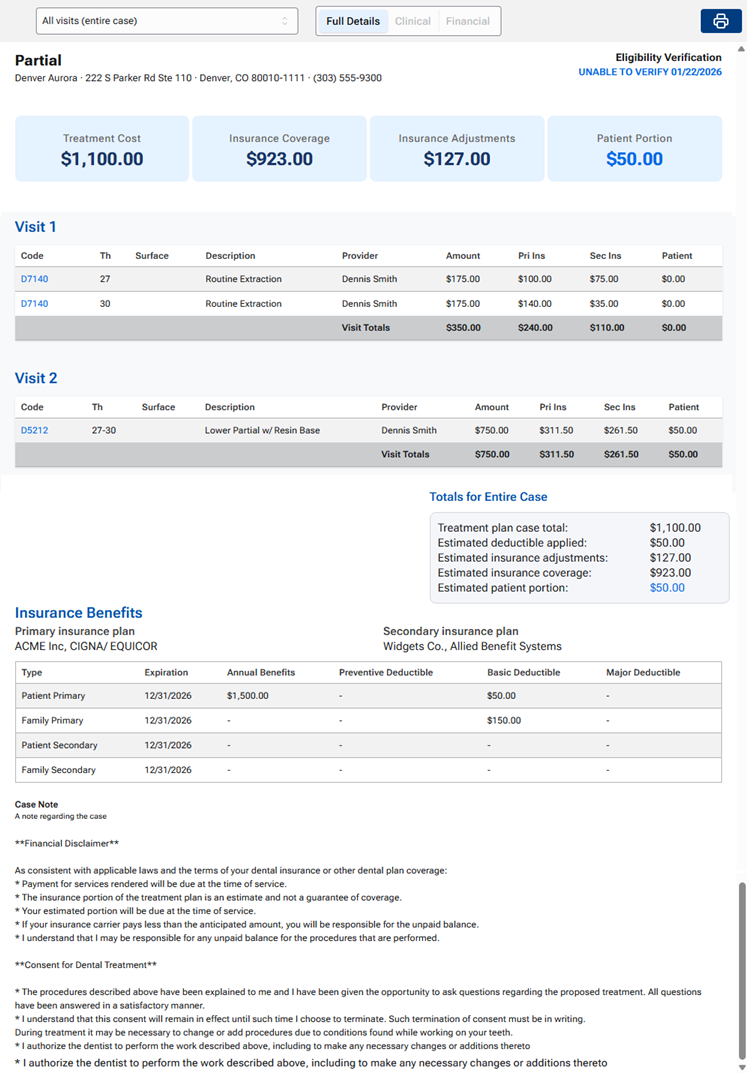
With Full Details selected, the following information appears:
-
Case name (appears only if the Show Case Name switch is set to Yes).
-
Office information (name, address, and phone number).
-
Eligibility verification (patient's eligibility status and date last checked).
-
Financial breakdown:
-
Treatment Cost - The sum of the amounts charged for all the procedures in the visit(s) being displayed.
-
Insurance Coverage - The sum of the primary insurance portions and, if the patient has secondary coverage, the secondary insurance portions for all the procedures in the visit(s) being displayed (this box appears only if the patient has insurance coverage).
Note: If one or more procedures in the treatment plan being presented have coverage exceptions, an orange warning icon
 appears next to the amount in this box. You can click (or tap) the icon to view a message that explains this.
 -
Insurance Adjustments - The sum of the estimated insurance write-off adjustments for all the procedures in the visit(s) being displayed (this box appears only if the patient has insurance coverage).
-
Discount - The sum of the discounted amounts charged for all the procedures in the visit(s) being displayed (this box appears only if the patient does not have insurance but has a discount plan set up).
-
Patient Portion - The sum of the patient portions for all the procedures in the visit(s) being displayed.
-
-
Visits (each presented separately):
-
For each procedure, the code, teeth, surfaces, description, provider, fee, primary insurance portion (if the patient has primary insurance coverage), secondary insurance portion (if the patient has secondary insurance coverage), and patient portion appear.
-
Visit totals.
-
-
Case totals (appear only if the Show Totals for Entire Case switch is set to Yes):
-
Treatment plan case total.
-
Estimated deductible applied.
-
Estimated insurance adjustments.
-
Estimated insurance coverage.
Note: If one or more procedures in the treatment plan being presented have coverage exceptions, an orange warning icon
appears next to this amount. You can click (or tap) the icon to view a message that explains this. -
Estimated patient portion.
-
-
Insurance benefits (this section appears only if the patient has insurance coverage):
-
Primary insurance plan benefits (for the patient and family).
-
Secondary insurance plan benefits (for the patient and family; appear only if the patient has secondary coverage).
-
If the patient has additional insurance beyond primary and secondary insurance (third, fourth, and so on), "The patient has additional insurance coverage" also appears.
-
-
Case note (appears only if the Show on form checkbox next to Note was selected while you were viewing the case details before presenting the case).
-
Treatment consent messages (from Settings > Treatment Plan Settings):
-
Custom messages (a custom message appears only if at least one procedure in the visit(s) being displayed is associated with that message).
-
Insured or uninsured disclaimer (which disclaimer appears depends on whether the patient has insurance coverage or not)
-
Consent for dental treatment disclaimer.
-
The text of a message is displayed in English unless the patient's preferred language is Spanish, in which case, the text from the Spanish version (if it exists) of that consent message is used.
-
-
-
Clinical:
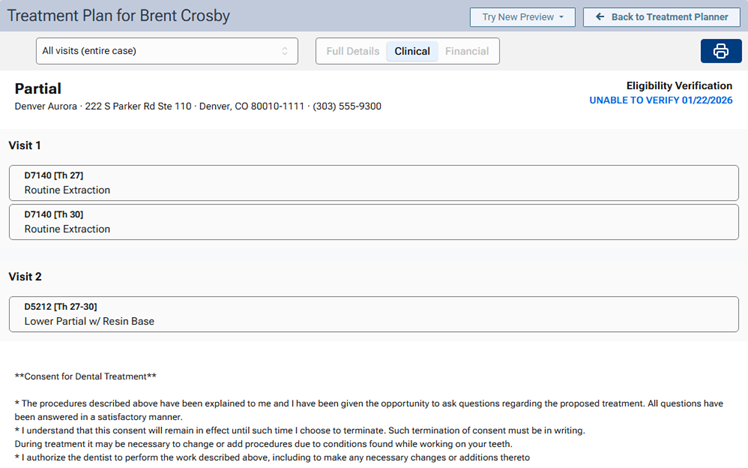
With Clinical selected, the following information appears:
-
Case name (appears only if the Show Case Name switch is set to Yes).
-
Office information (name, address, and phone number).
-
Eligibility verification (patient's eligibility status and date last checked).
-
Visits (each presented separately) - The appointment length for the visit appears. For each procedure, the code, teeth, surfaces, description, and provider appear.
-
Treatment consent messages (from Settings > Treatment Plan Settings):
-
Custom messages (a custom message appears only if at least one procedure in the visit(s) being displayed is associated with that message).
-
Consent for dental treatment disclaimer.
-
The text of a message is displayed in English unless the patient's preferred language is Spanish, in which case, the text from the Spanish version (if it exists) of that consent message is used.
-
-
-
Financial:
With Financial selected, the following information appears:
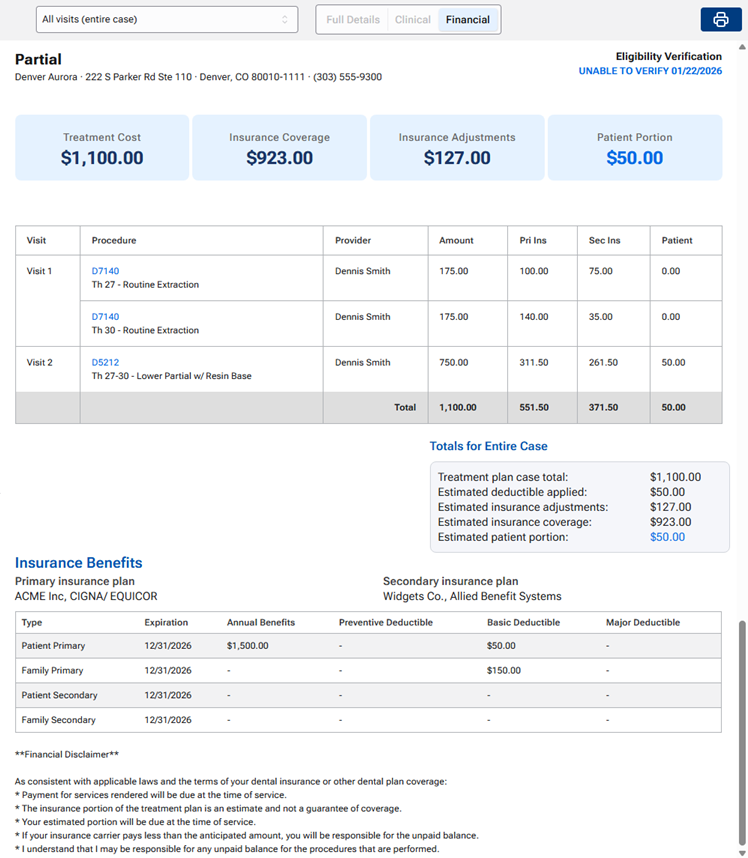
-
Case name (appears only if the Show Case Name switch is set to Yes).
-
Office information (name, address, and phone number).
-
Eligibility verification (patient's eligibility status and date last checked).
-
Financial breakdown:
-
Treatment Cost - The sum of the amounts charged for all the procedures in the visit(s) being displayed.
-
Insurance Coverage - The sum of the primary insurance portions and, if the patient has secondary coverage, the secondary insurance portions for all the procedures in the visit(s) being displayed (this box appears only if the patient has insurance coverage).
Note: If one or more procedures in the treatment plan being presented have coverage exceptions, an orange warning icon
appears next to the amount in this box. You can click (or tap) the icon to view a message that explains this. -
Insurance Adjustments - The sum of the estimated insurance write-off adjustments for all the procedures in the visit(s) being displayed (this box appears only if the patient has insurance coverage).
-
Discount - The sum of the discounted amounts charged for all the procedures in the visit(s) being displayed (this box appears only if the patient does not have insurance but has a discount plan set up).
-
Patient Portion - The sum of the patient portions for all the procedures in the visit(s) being displayed.
-
-
Visits (each presented separately):
-
For each procedure, the code, teeth, surfaces, description, provider, fee, primary insurance portion (if the patient has primary insurance coverage), secondary insurance portion (if the patient has secondary insurance coverage), and patient portion appear.
-
Visit totals.
-
-
Case totals (appear only if the Show Totals for Entire Case switch is set to Yes):
-
Treatment plan case total.
-
Estimated deductible applied.
-
Estimated insurance adjustments.
-
Estimated insurance coverage.
Note: If one or more procedures in the treatment plan being presented have coverage exceptions, an orange warning icon
appears next to this amount. You can click (or tap) the icon to view a message that explains this. -
Estimated patient portion.
-
-
Insurance benefits (this section appears only if the patient has insurance coverage):
-
Primary insurance plan benefits (for the patient and family).
-
Secondary insurance plan benefits (for the patient and family; appear only if the patient has secondary coverage).
-
If the patient has additional insurance beyond primary and secondary insurance (third, fourth, and so on), "The patient has additional insurance coverage" also appears.
-
-
Insured or uninsured disclaimer (from Settings > Treatment Plan Settings):
-
Which disclaimer appears depends on whether the patient has insurance coverage or not.
-
The text of a message is displayed in English unless the patient's preferred language is Spanish, in which case, the text from the Spanish version (if it exists) of that consent message is used.
-
-
-
-
To print the treatment plan as displayed, click (or tap) the Print button
 (in the upper-right corner).
Note: In addition to the treatment plan details, the printout also includes the following:
-
A line for a patient's/guardian's signature and a date
-
A line for a provider's signature and a date (appears only if the Provider Signature on Printout switch is set to Yes.
-
-
If you want to switch back to the standard presentation format, on the Preview Options menu, set the New Preview switch to No.