Posting credit card payments with surcharges
With surcharging turned on, when you post a credit card payment through Dentrix Ascend Pay, surcharges are added as applicable.
Notes:
-
These steps apply only for a credit card payment that you process through an interaction with a physical payment device (a terminal or card reader).
-
The card being processed must be a credit card only. It cannot be a debit card or a credit card that can be run as a debit card.
-
This topic covers posting a credit card payment with a surcharge. For steps on posting a credit card payment without a surcharge, see the topic about posting credit card payments.
To post a credit card payment with a surcharge
-
If the correct patient is not already selected, use the Patient Search box to access the patient's record.

-
Do one of the following:
-
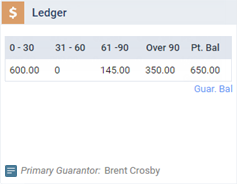
If the patient's Overview page is not already open, on the Patient menu, under General, select Overview. The patient's Overview page opens. Click (or tap) the Ledger box.
-
On the Patient menu, under Financial, select Ledger.
The patient's Ledger page opens.
-
-
Click (or tap) Payment.
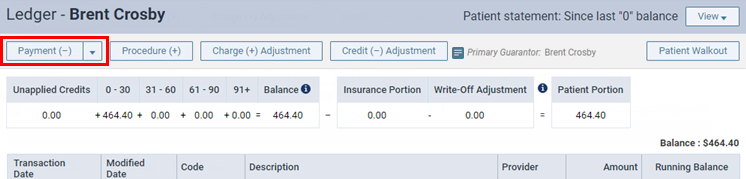
Note: You can also enter a credit card payment as part of the check-out process (on the Payment tab of the Patient Walkout dialog box).
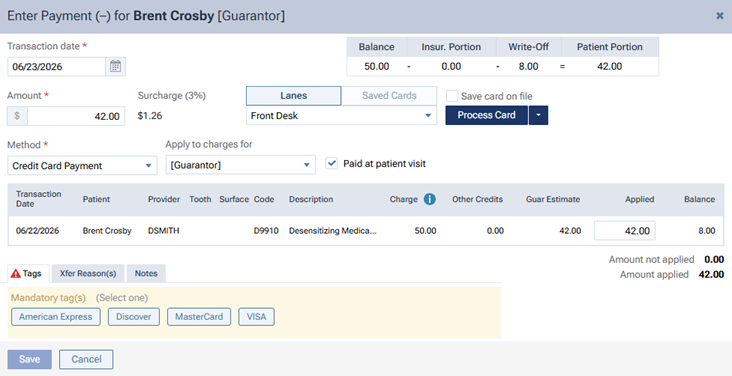
The Enter Payment dialog box appears.
-
Leave the current date entered in the Transaction date box.
-
Enter the Amount of the payment (before the surcharge).
-
From the Method list, select Credit Card Payment. This is the only payment type that you can use to process a credit card payment through Dentrix Ascend Pay.
Note: For your reference, the Surcharge (percentage and dollar amount) appears next to the Amount.
-
Leave the Lanes option selected, and select the correct payment device from the corresponding list.
-
Click (or tap) Process Card.
An animated ready indicator appears. The device is ready for input.

Notes:
-
For information about all the available options for posting credit card payments and how to interact with payment devices, see the topic about posting credit card payments.
-
If the card being processed is not a credit card only, the cardholder will not be asked to confirm the surcharge (as explained in the next step), and the surcharge will not be applied.
-
-
The cardholder interacts with the payment device. During that interaction, on the payment device, the cardholder must confirm the surcharge amount and then the total payment amount (which is the sum of the Amount and the Surcharge).
Once the transaction has been processed, the details of the transaction appear for your reference. In the Edit Payment dialog box, the procedures that the payment has been applied to are listed along with the associated surcharge.
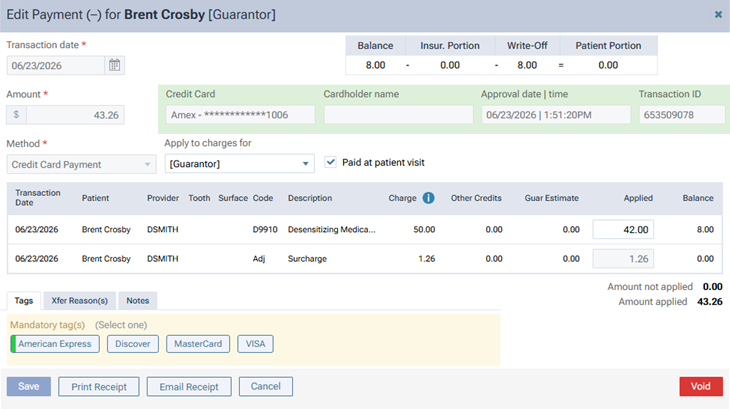
On the patient's ledger, the payment and the surcharge (which is a charge adjustment) are posted separately. The surcharge is assigned to the house provider.
