Enabling or disabling the card-on-file option for patient forms
With Dentrix Ascend Forms and Dentrix Ascend Pay, after a patient completes forms online, there is an option to save a card on file with the office if a certain setting for patient forms has been enabled. Having cards on file before patients' appointments reduces front desk friction, minimizes manual entry errors, and provides touchless payment capabilities. You can enable or disable the card-on-file option for patient forms as needed.
Notes:
-
There is no additional cost to provide this functionality if your office uses Dentrix Ascend Pay (through Worldpay).
-
The workflow is fully PCI-DSS compliant, leveraging Worldpay's hosted solution for all sensitive data handling.
-
No card data is stored in Dentrix Ascend.
To enable or disable the card-on-file option for patient forms
-
On the Settings menu, under Patient Care, select Form Builder.
The Patient Forms page opens on a new browser tab.
-
Click (or tap) the Settings button (gear icon) next to the Create Form button.

Note: The Settings button is available only if your office has an active Worldpay subscription.
The General settings appear.
-
Do one of the following:
-
If the card-on-file option is disabled, enable it:
-
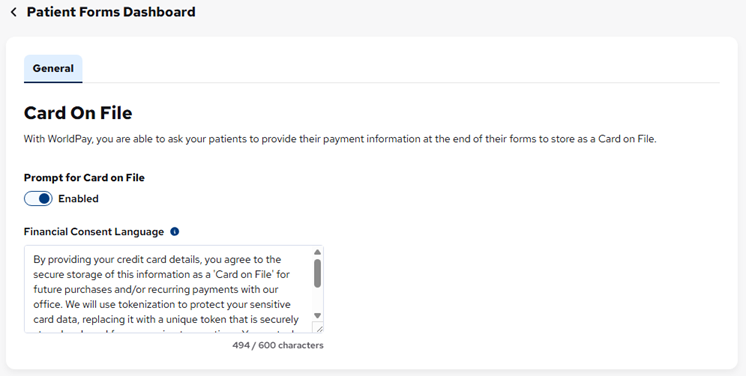
Turn on the Prompt for Card on File switch (the label changes to "Enabled").
-
You can also customize the Financial Consent Language as needed. This is the text of the "Financial Consent" message that appears before the user enters his/her credit card information.
-
-
If the card-on-file option is enabled, disable it:
-
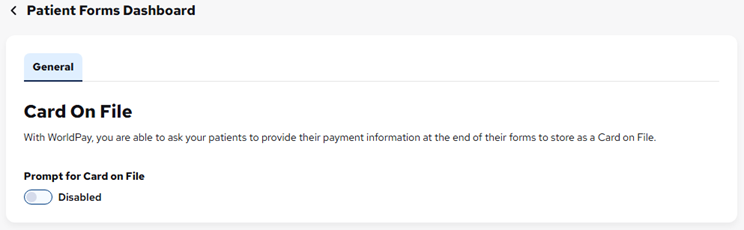
Turn off the Prompt for Card on File switch (the label changes to "Disabled").
-
-