Configuring orthodontic treatment settings
As needed, from the following areas of Dentrix Ascend, you can customize status and visit options for managing orthodontic treatment:
-
From the Orthodontic Settings page (which can be accessed from the Settings menu of Dentrix Ascend).
-
On the Ortho tab in any patient's clinical record.
Notes:
-
The Orthodontic Settings menu option and Ortho tab are available only if you have purchased the Orthodontics package. The Orthodontics package is an add-on feature that you can purchase separately from your Dentrix Ascend subscription. If you do not see the Ortho tab, contact your Henry Schein One account representative.
-
The orthodontic treatment settings are organization specific (they apply to all patients in all locations) even if you configure them from the Ortho tab of a patient's clinical record.
To configure orthodontic treatment settings
-
Do one of the following:
-
On the Settings menu, select Orthodontic Settings.
-
Click (or tap) SETTINGS on the Ortho tab of any patient's clinical record.
Do the following:
-
If a patient is not already selected, use the Patient Search box to access a patient's record.

-
On the Patient menu, under Clinical, select Orthodontics.
The patient's clinical record opens with the Ortho tab selected.
-
Click (or tap) SETTINGS.

-
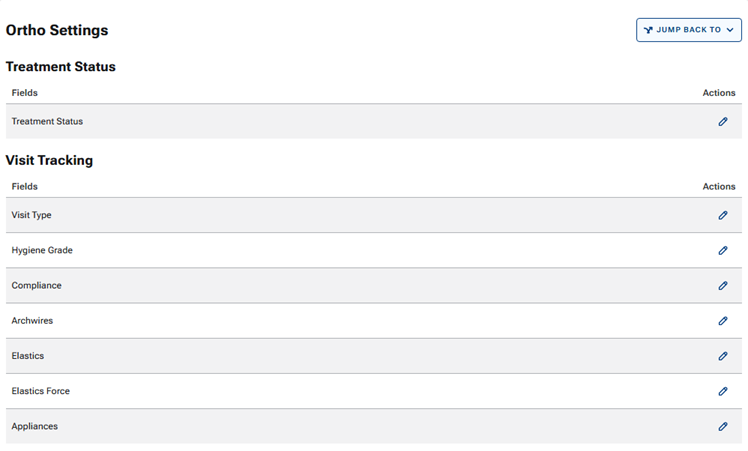
The Ortho Settings page opens.
-
-
For each option that you want to edit (such as Treatment Status), do the following:
-
Click (or tap) the pencil icon in the Action column.
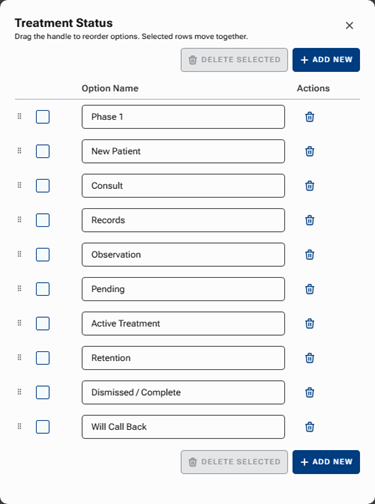
A dialog box appears.
-
Add, edit, reorder, or delete items for the list.
-
Close the dialog box.
-
-
If you accessed the settings from a patient's clinical record, to return to the Ortho tab, expand the JUMP BACK TO menu, and then select ORTHODONTICS.