Changing the write-off option
You can specify whether contracted write-offs are posted automatically when claims are created or contracted write-offs are never posted automatically (any write-offs can be posted manually when insurance payments are posted).
Notes:
-
Changing the write-off option requires the "Manage Ins. Est. And Write-off Config" security right.
-
Changing the write-off option affects all locations in your organization.
-
Changing the write-off option is tracked in the Audit Log.
To change the write-off option
-
On the Settings menu, select Ledger Options.
The Ledger Options page opens.
-
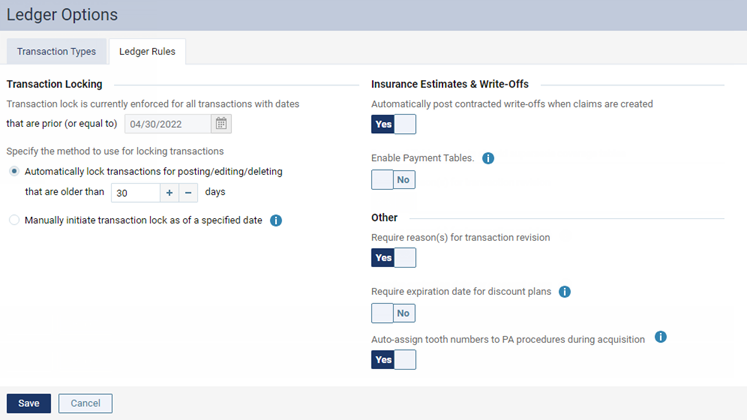
Select the Ledger Rules tab.
-
Under Insurance Estimates & Write-Offs, select one of the following options:
-
Automatically post contracted write-offs when claims are created - When you create a claim for procedures that are contracted with a patient's insurance plan, a write-off adjustment will be posted automatically to the patient's ledger to account for the difference between the allowed amount (from the plan's Max allowable amount fee schedule) and the posted charges. This allows you to see net production amounts in the Ledger and on reports immediately.
Notes:
-
Activating automatic write-offs does not affect claims that have already been posted and does not post automatic write-off adjustments for any existing claims. Because of this, you should carefully choose a clean cutoff date to start using this feature. At the start of a pay period, at the beginning of a new month or quarter, or after you have completed a current goal or bonus period are good transition points.
-
With automatic write-offs active, you cannot split claims with write-offs posted for them unless you first delete those write-offs.
-
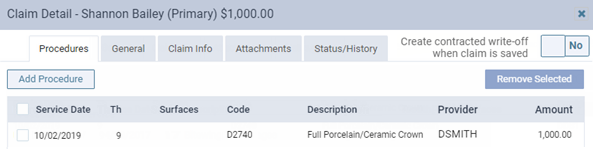
With automatic write-offs active, if an open claim does not have a corresponding contracted write-off adjustment (for example, it has been deleted), when you are viewing the claim details, a Create contracted write-off when claim is saved switch appears. To post a contracted write-off adjustment, set the switch to Yes, and then click (or tap) Save.
-
Be aware that, even with automatic write-offs active, a write-off adjustment is not posted automatically for a primary insurance claim in any of the following situations:
-
The claim billing provider is not contracted with the insurance carrier.
-
For any procedure on the claim, the contracted amount from the secondary insurance carrier's fee schedule is equal to the contracted amount from the primary insurance carrier's fee schedule.
-
For any procedure on the claim, the sum of the estimated primary and secondary insurance payments is equal to the UCR fee.
-
-
-
Manually post contracted write-off during claim adjudication - A contracted write-off adjustment will not be posted automatically. You will have to manually enter the adjustment when you post the insurance payment.
-
No write-off. Post contracted fee, if applicable - When you post a procedure that is contracted with a patient's insurance plan, the allowed amount (from the plan's Max allowable amount fee schedule) will be posted to the patient's ledger or treatment plan. A write-off adjustment will not be posted automatically when you create a claim for that procedure. You may have to manually enter an adjustment when you post the insurance payment.
Important: For information about how treatment plans, ledgers, and other areas of Dentrix Ascend are affected by having the No write-off. Post contracted fee, if applicable option selected, see the topic about understanding how posting contracted fees affects Dentrix Ascend.
Notes:
-
The max allowable rate will be posted only when both of the following criteria are met:
-
The patient has a max allowable fee schedule attached to his/her primary insurance plan.
-
The carrier is in network with your billing provider (typically your location) or rendering provider. Whether the billing or rendering provider is used depends on your location's insurance defaults.
-
-
If the insurance carrier is out of network or does not have a max allowable fee schedule, the UCR fee (provider or office fee) will continue to be posted.
-
Patients without insurance will also continue to see the UCR fee posted.
-
For patients with discount plans, the discounted rate will be posted instead of the UCR fee, and the discount will appear in both the treatment plan and ledger.
-
Claims will still be sent using the UCR fee (provider or office fee).
-
If needed, you can still post the UCR fee for specific procedures by using the Post UCR Fee option in the fee schedule.
-
Statements and route slips will also reflect the contracted/max allowable rate when applicable.
-
-
-
Click (or tap) Save.
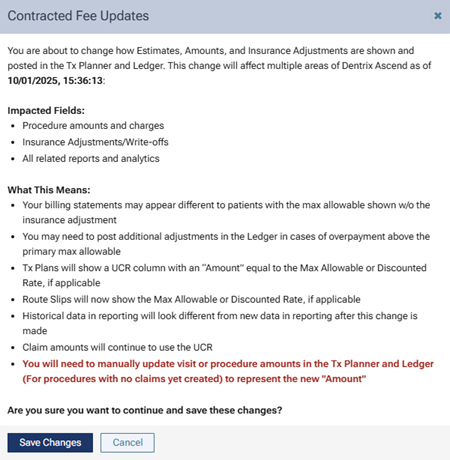
If one of the following has occurred, the Contracted Fee Updates message appears (if not, ignore the remaining steps):
-
If the Automatically post contracted write-offs when claims are created or Manually post contracted write-off during claim adjudication option was selected since the last time the ledger options were saved, and if you selected the No write-off. Post contracted fee, if applicable option and then clicked (or tapped) Save.
-
If the No write-off. Post contracted fee, if applicable option was selected since the last time the ledger options were saved, and if you selected the Automatically post contracted write-offs when claims are created or Manually post contracted write-off during claim adjudication option and then clicked (or tapped) Save.
-
-
Read the message to understand what areas are impacted by the change and the significance of the change.
Note: If you do want to make this change, consider doing so at the end of month because of the impact it will have on reporting.
-
Click (or tap) Save Changes.