Changing the due dates of patient forms
By default, the due date of a patient form is determined by the frequency setting of that form. On a patient-by-patient basis, as the need arises, you can change the date that a patient form is due.
Note: Changing or resetting a due date of a form requires the "Edit forms due for a patient" security right.
To change the due date of a patient form
-
If the correct patient is not already selected, use the Patient Search box to access the patient's record.

-
Do one of the following:
-
If the patient's Overview page is not already open, on the Patient menu, under General, select Overview. The patient's Overview page opens. Click (or tap) the title bar (at the top) of the Patient Forms box.
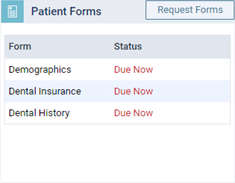
The patient's Patient Information page opens with Patient Forms selected on the navigation panel (on the left).
-
On the Patient menu, under General, select Patient Information. The patient's Patient Information page opens. Select Patient Forms on the navigation panel (on the left).
-
-
The patient forms that are associated with the patient's record appear. Click (or tap) a form's Edit Due Date icon
 (in the Actions column).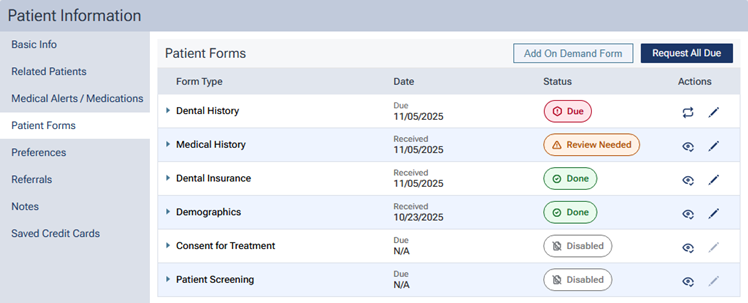
Note: If the form has a "Disabled" status, the icon is gray (not available).
A menu appears with the due date, "Due Now," or "No Expiry" at the top.
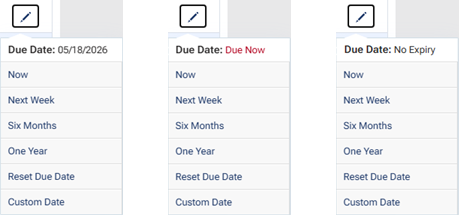
-
Select one of the following options:
-
Now - To make the form due now.
-
Next Week - To make the form due seven days from today.
-
Six Months - To make the form due in six months on the same day as the current month. If today's date is not applicable for the sixth month from the current month (for example, today is the 31st, but the sixth month from the current month only has 30 days), the last day of sixth month from the current month will be the date that the form is due.
-
One Year - To make the form due next year on the same day as today. If today's date is the 29th of February (the current year is a leap year), the 28th of February next year will be the date that the form is due.
-
Reset Due Date - To reset the due date of the form according to the date that the form was last received and the form's frequency setting.
-
Custom Date - To make the form due on a specific date in the future. Select the desired date on the calendar that appears, and then click (or tap) Done.
-