Attaching outbound referrals sources to patients
In a patient's record, you can attach a specialist to whom you have referred the patient.
To attach an outbound referral source to a patient
-
If the correct patient is not already selected, use the Patient Search box to access the patient's record.

-
Do one of the following:
-
On the Patient Information ribbon, click (or tap) the Edit Patient Information button
 .
.Note: If the ribbon is not visible, click (or tap) the arrow button below the Patient Search box.

-
On the Patient menu, under General, select Patient Information.
The patient's Patient Information page opens.
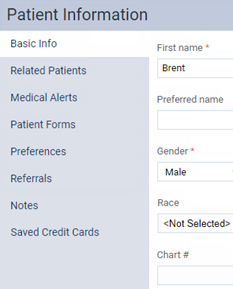
-
-
Select Referrals on the navigation panel (on the left).
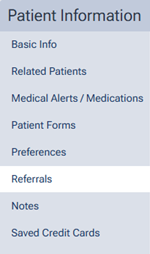
-
Select the Referred To tab, and then click Add Referral.
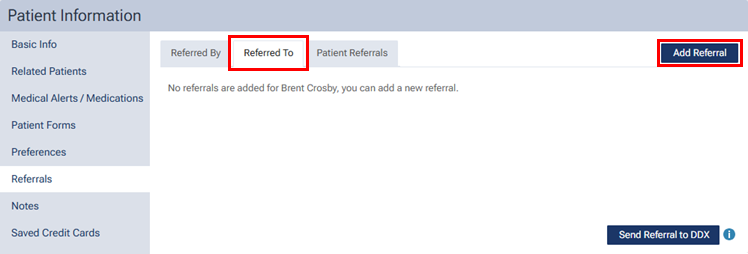
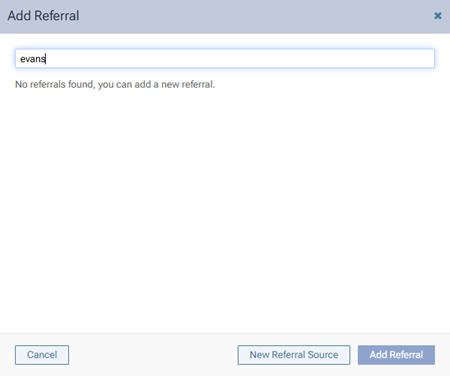
The Add Referral dialog box appears.
-
Do one of the following:
-
Select an existing referral source from your database and attach it to the patient's record - Use the search box to search by name, select the correct referral source, and then click Add Referral.
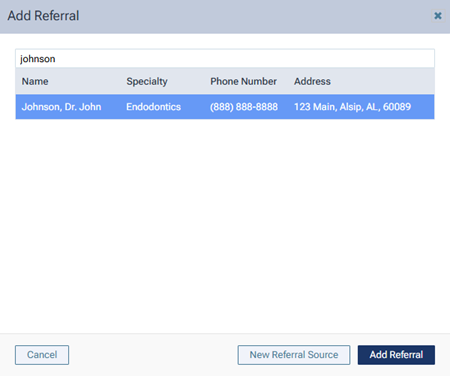
The referral source is now attached to the patient's record.

-
Add a new referral source to your database and attach that to the patient's record - Use the search box to search by name to make sure the referral source does not already exist, click (or tap) New Referral Source, enter the referral's information, and then click (or tap) Save.
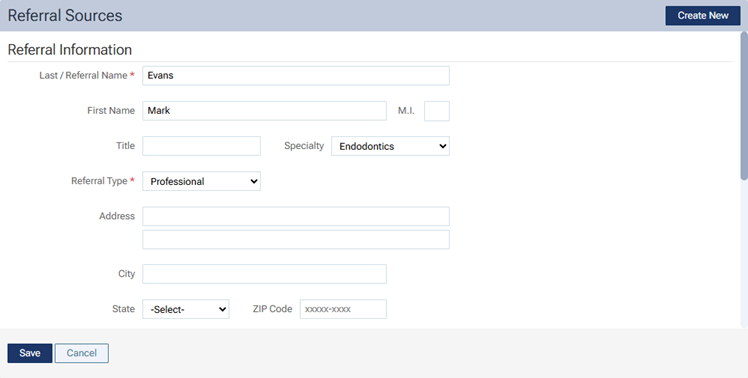
The referral source is now in your database and attached to the patient's record.

-
Note: To remove a referral from the patient's record, click the corresponding X, and then click Delete on the confirmation message that appears.