
You can change any information pertaining to an appointment, such as the provider, reasons for the appointment, appointment time, and notes.
Tip: You can also click the Schedule Appointment button on the Appointment Book toolbar to edit appointment information.
To edit appointment information
1. In the Appointment Book, double-click the appointment that you want to edit.
The Appointment Information dialog box appears.
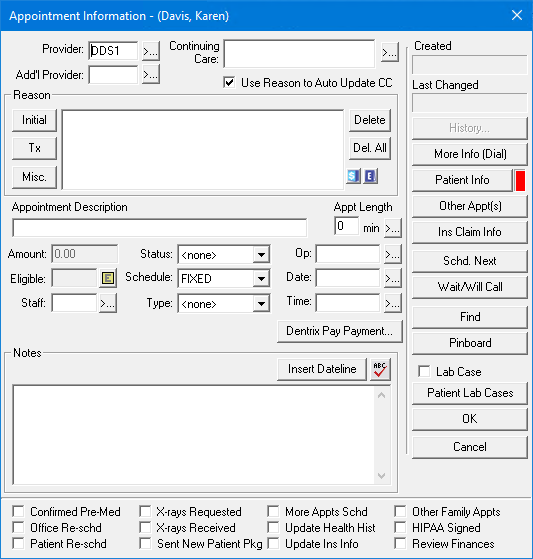
2. Do one or more of the following:
Provider - Click the search button to change a provider.
Continuing Care Attached - Click the search button to attach a continuing care type.
Reason - Set or delete the reasons for the appointment.
Appt Length - Change the length of the appointment.
Amount - Change the amount Dentrix automatically enters for the procedure.
Staff - Click the search button and select a staff member.
Status - Select the patient's status based on your last contact with the patient.
Schedule - Select a schedule type.
Type - Select a production type according to the amount of production the appointment requires.
Op - Click the search button and select an operatory.
Date - Click the search button and change the appointment date.
Time - Click the search button and change the appointment time.
Notes - Type a note adding clarification or detail about the appointment. Click Insert Dateline to insert a date. Click the spell check button to check your note's spelling.
3. Click OK.