
Before using the Office Manager, you need to set up several practice resources, such as your practice name and address, operatory IDs, providers’ information, and staff information.
To learn more about setting up and managing your practice resources, complete the steps following the links, and then click the links below:
Configuring your practice information
Configuring your operatory information
Setting up the ePrescribe administrator
To set up your practice resources
1. In the Office Manager, click Maintenance, point to Practice Setup, and then click Practice Resource Setup.
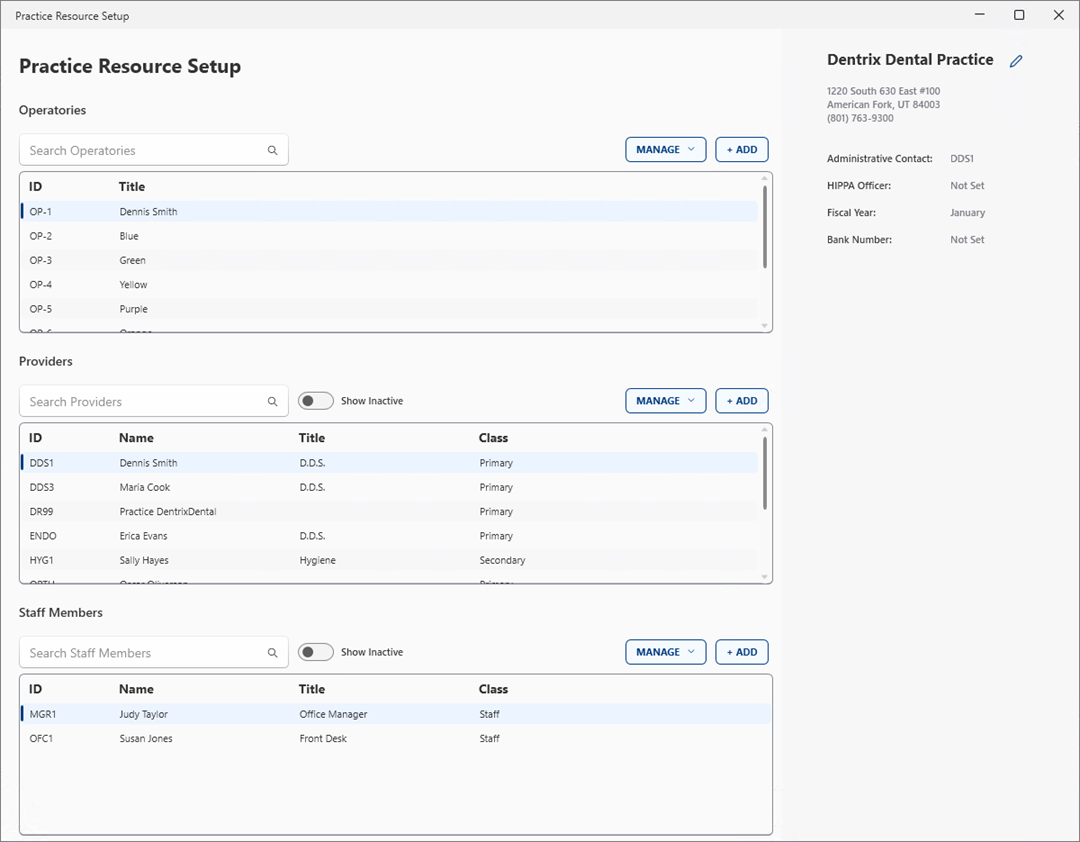
The Practice Resource Setup dialog box appears.
2. Configure your practice information.
3. Configure your operatory information.
4. Add providers.
6. To save your changes, close the Practice Resource Setup dialog box.