
Some insurance plans have their own provider ID numbers, which are needed for claims instead of, or in addition to, the State ID Number or Provider Number. The Provider ID Setup enables you to cross-link multiple IDs to a provider and an insurance company to ensure that the correct ID is printed on insurance claims. You can also add, edit, delete, and copy these IDs.
Note: If you enabled passwords, users must have rights to "Provider ID Setup."
To clear an insurance ID for a provider
1. In the Office Manager, click Maintenance, point to Practice Setup, and then click Practice Resource Setup.
The Practice Resource Setup dialog box appears.
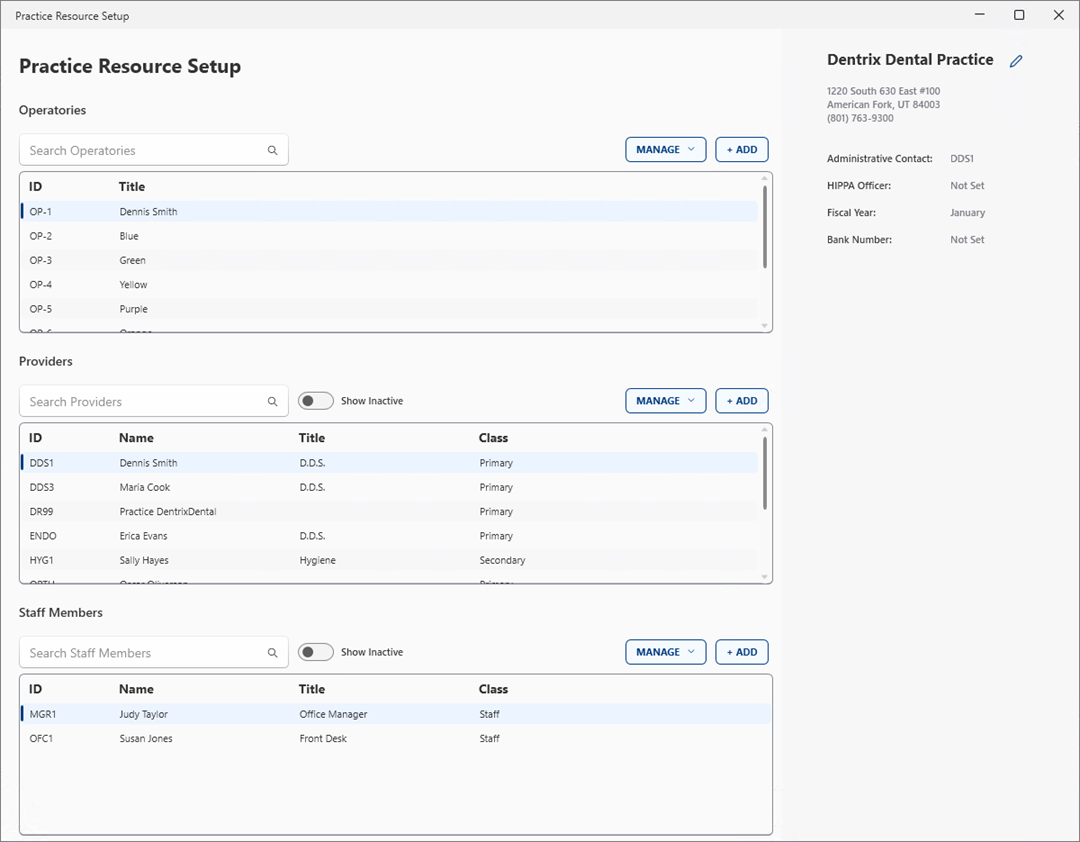
2. Select the provider whose insurance ID you want to edit, Manage, and then click Edit Provider.
The Provider Information dialog box appears.
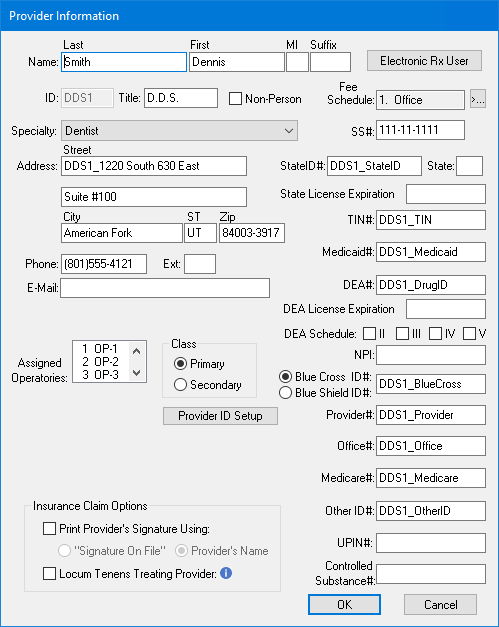
3. Click Provider ID Setup.
The Select Insurance Plan dialog box appears.
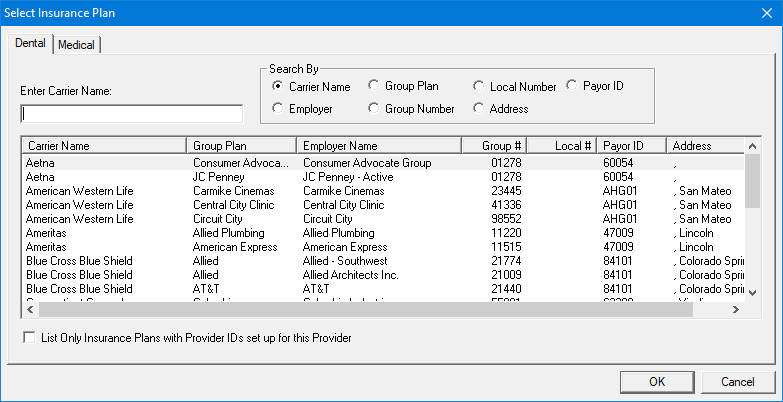
4. Select the appropriate insurance carrier from the list, and then click OK.
The Provider ID Setup dialog box appears.
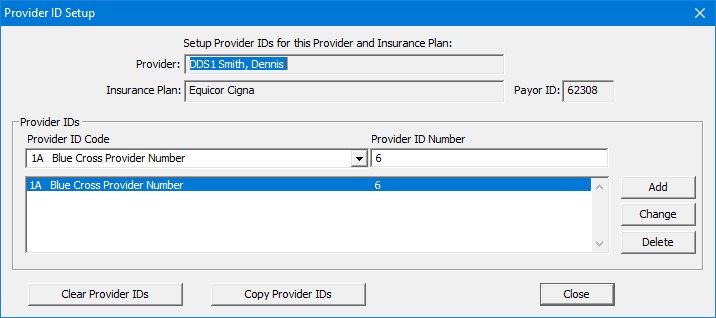
5. In the Provider's IDs list, select the ID that you want to clear, and then click Clear Provider IDs.
The Clear Provider IDs for [provider ID] dialog box appears.
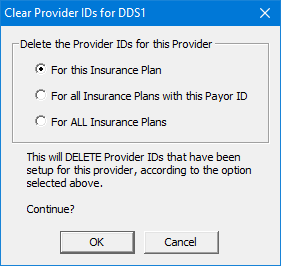
6. Select the appropriate criteria for clearing the Provider IDs:
For this Insurance Plan - To delete all IDs for both the current provider and insurance plan.
For All Insurance Plans with this Payor ID - To delete all IDs for the current provider and any insurance plan with the listed Payor ID number. After you click OK, a message appears displaying the total number of plans affected.
For ALL Insurance Plans - To delete all IDs for the current provider for all insurance plans.
7. Click OK.