
User settings
As part of the set up, you can enter your user ID and password, and you can register to use eTrans.
To enter user settings
In the eTrans Setup dialog box, under User, type your User ID.
Note: Your user ID can be found on the "Key Information" sheet that came with your eTrans Welcome Kit. The user ID is case-sensitive.
Create or change the password:
Click Change Password.
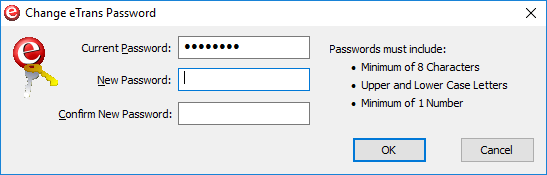
The Change eTrans Password dialog box appears.
Do one of the following:
The Current Password field is unavailable if this is the first time you are entering a password. Type the password from the "Key Information" sheet that came with your eTrans Welcome Kit in the New Password field. Type the password again in the Confirm New Password field. The password is case-sensitive.
If you are changing an existing password, type that password in the Current Password field, a new password in the New Password field, and then the new password again in the Confirm New Password field. The password is case-sensitive.
Click OK.
If you have not registered previously, click Register to open the eServices Registration Wizard from which you can register to use eTrans.
Important: You must complete the eServices registration process before you can begin using eTrans.
Need more help?
You can visit our website or contact OMSVision Customer Support.