
Sending electronic claims
Using eTrans, you can transmit insurance claims electronically from OMSVision to the insurance carriers. Electronic claims can only be sent from a computer with an Internet connection and/or a modem.
To send electronic claims
In OMSVision, create an insurance claim and send it to the electronic claims batch.
When you are ready to submit your claims, from the Report menu, point to Insurance, and then click Electronic Claims.
The Claims Table [Electronic Claims] dialog box appears.
Click OK to begin processing the selected claims.
The eClaims Validation dialog box appears.
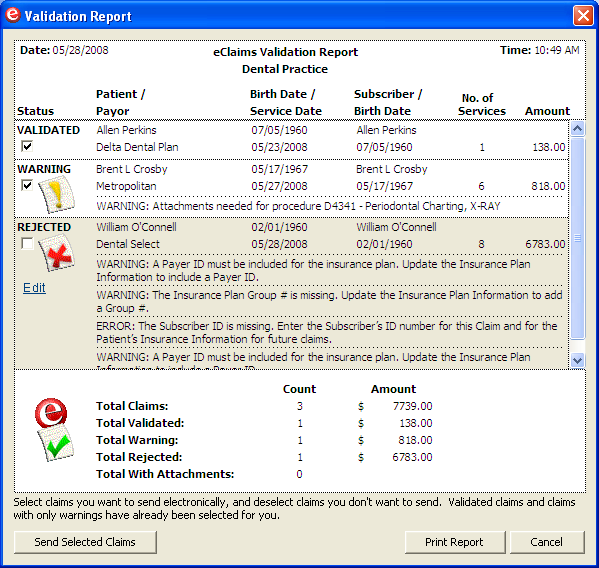
eTrans performs a check on all of the claims you are sending, and each claim is given one of three statuses:
Validated - This status is assigned to claims that contain all the required information and are ready to be sent electronically.
Warning - This status is assigned to claims that are missing information (for example, payor ID numbers and insurance plan numbers). This status is also assigned to claims that require attachments (for example X-rays, panoramic films, and periodontal charting information).
Rejected - This status is assigned to claims that have an error that would cause the insurance company to reject the claim.
If there are any claims with the status of Warning or Rejected, click Print Report to view and print the Validation Report. You can use this report to see which errors need to be corrected on certain claims before they can be sent.
Note: The claims will not be sent if you click Print Report.
Correct the errors listed and/or add any necessary attachments to the claims as indicated on the Validation Report. Then, repeat steps 2 - 4.
Click Send Selected Claims to send all claims that have their check box selected.
The Sending Claims dialog box appears.
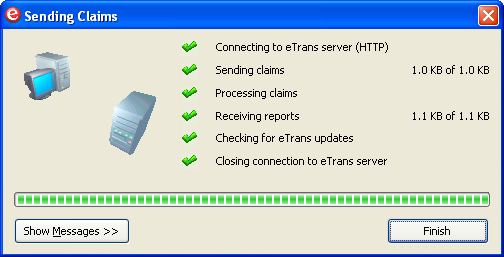
To view a detailed log of the transmission, click Show Messages >>.
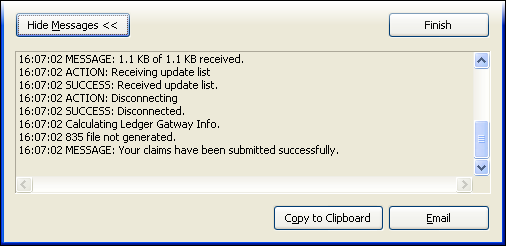
The expanded dialog box, provides the following options for the log:
Copy to Clipboard -To copy the output log to the Windows clipboard to be pasted into another program, click Copy to Clipboard. This is only necessary if there is a problem, and a support representative needs the information for troubleshooting.
Email - To send a message containing the output log, click Email.
After the transmission process is complete, click Finish to exit the Sending Claims dialog box.
After you send electronic claims, eTrans displays reports for you to review. These reports include the Validation Report and the Transmission Report. If any of the claims you sent were rejected, the Error Report will open after you send electronic claims. Review these reports to ensure that your claims are being processed and to view important information about the electronic claims you have sent and about your eTrans account.
Need more help?
You can visit our website or contact OMSVision Customer Support.