
Saving cases in the Document Center
You can save a copy of an attached iConfident case as a PDF in the Document Center.
To save a copy
Open the Implant Case History window.

Cases that are already linked have a check mark in the iConfident column.
Select the attached case that you want to save.
Click the iConfident button.
The View Case dialog box appears.

Click Save a Copy.
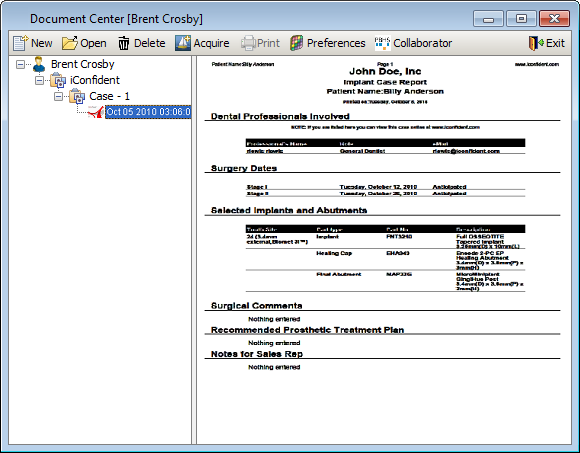
The case is added to the corresponding patient's Document Center as a PDF. The PDF is added to a case category that is a subcategory of the iConfident category. These categories are created automatically if they do not already exist for the patient (the patient does not have any prior iConfident cases saved).
Need more help?
You can visit our website or contact OMSVision Customer Support.