
Attaching cases
You can link cases created from the iConfident website to cases you create in OMSVision.
To link a case
Open the Implant Case History window.
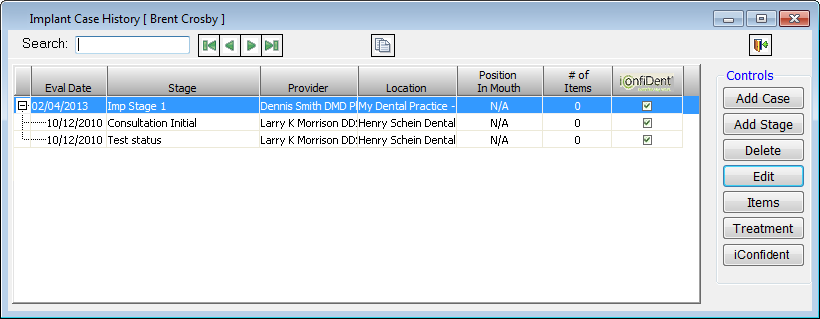
Cases that are already linked have a check mark in the iConfident column. You cannot link an individual stage of a multi-stage case; you can link only a whole case.
Select an unlinked case that you want attached to an iConfident case.
Click the iConfident button.
If no cases are found in iConfident that are not already attached to a case in OMSVision and that match the current patient and his or her birth date, a message appears to inform you that there are no unattached cases. However, if unattached cases are found, the Unattached Case List dialog box appears.

Select the iConfident case that you want to attach.
To verify that you are attaching to correct case, click Go To Case to open the case overview page of your iConfident account.
To view a PDF version of the selected case, click View Case.
Note: You must have the Adobe Reader add-on installed properly for your Web browser in order to view the PDF.
Click Attach Case to attach the case.
Need more help?
You can visit our website or contact OMSVision Customer Support.