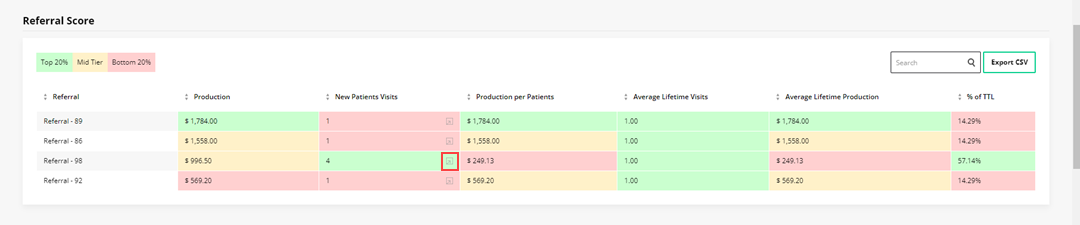
The Referral Score displays the total amount of production associated with each referral source.
To view referral score data
1. To view the referral score data, open the Dashboard, and then click the Metrics tab.
2. Go to Referral Score.
Note: Referral scores are color-coded so you can see at a glance the top 20% (green), mid tier (yellow), and bottom 20% (pink).
3. To view a breakdown of the referral data, click the More Info icon.
The Referral - New Patients Breakdown screen appears.
Note: To export the data to a .csv file, click Export CSV.
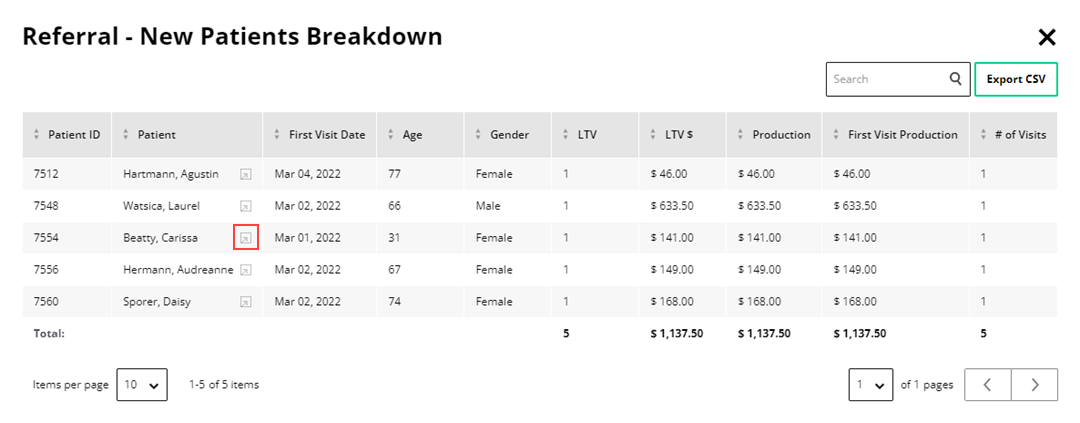
4. To view a patient's information, click the More Info icon to the right of the patient's name.
The Patient Information screen appears.

5. To view more detailed information, click the following tabs:
· Family – Lists the patient's family members.
· Employer – Lists the patient's employer.
· Ledger – Lists the procedure codes, procedure descriptions, tooth (if applicable), surface (if applicable), amount, provider (click More Info icon for breakdown of provider), and date the procedure was performed.
· TX Plans – Lists patient's treatment-planned procedures including procedure codes, procedure descriptions, tooth (if applicable), surface (if applicable), amount, provider (click More Info icon for breakdown of provider), status (scheduled, completed, unscheduled), planned (when planned), scheduled (when scheduled), and completed (when completed).
· AR Summary – Summarizes patient's accounts receivables listing procedures, total amount, insurance claims, and whether account is current or 30+, 60+, or 90+ days over.
· Activities and Notes – Lists any account activities or patient notes.
6. To add a reminder, click Add Reminder.
7. To export the Referral Score data to a .csv file, click Export CSV.