With a certain global setting enabled, when you open a patient's Chart record, the Medical History Review dialog box appears automatically so you can complete a review of the patient's medical history prior to starting any clinical procedures. Also, a Medical History Review button is available in several modules so you can complete and update medical history reviews.
To review medical history
Do one of the following:
If a review has not been saved for a patient today, to start a medical history review automatically, do one of the following:
If Chart is not open, in Windows, do the following:
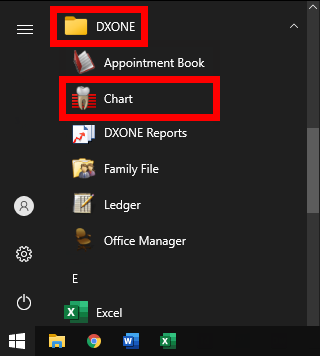
Double-click the Patient Chart shortcut icon on the desktop, or click the Chart option on the Windows Start menu.
|
|
|
In Chart, select the correct patient.
With the correct patient selected in Ledger or Family File, do one of the following:
Click the Patient Chart button  on the toolbar.
On the File menu, point to Switch To, and then click Chart.
With the correct patient selected in Treatment Planner or Document Center, do one of the following:
Click the Patient Chart button  on the toolbar.
On the File menu, point to Switch To, and then click Patient Chart.
With the correct patient's appointment selected in Appointment Book, do one of the following:
Click the Patient Chart button on the toolbar.
On the File menu, point to Switch To, and then click Chart.
Note: While you have a patient's appointment selected, you may want to take the opportunity to update the appointment status (for instance, to indicate that the patient is seated in the dental chair) before opening Chart.
Right-click the correct patient's appointment in Appointment Book, and then click Chart.
With the correct guarantor selected in Collections Manager, do one of the following:
Click the Patient Chart button on the toolbar.
On the File menu, click Chart.
With the correct patient selected in More Information, click the Patient Chart button  on the toolbar.
If Chart is not open, or if it is open but without a patient selected, in Office Manager, do the following:
Do one of the following:
Click the Patient Chart button on the toolbar.
On the File menu, click Chart.
In Chart, select the correct patient.
If Chart is not open, or if it is open but without a patient selected, in DXOne Reporting, do the following:
Click the Patient Chart button  on the toolbar.
In Chart, select the correct patient.
In Chart, if a patient is not selected, select the correct patient.
In Chart, if the wrong patient is selected, select the correct patient.
If you canceled a medical history review for a patient earlier today, or if you need to update a medical history review for a patient that was saved today, to start or update a medical history review manually, do one of the following:
With the correct patient selected in More Information or Patient Prescription, click the Medical History Review button  on the toolbar.
Without a patient selected in Family File, do the following:
Click the Medical History Review button  on the toolbar.
Without a patient selected in Chart, or in Office Manager, do the following:
Do one of the following:
Click the Medical History Review button on the toolbar.
On the File menu, click Medical History Review.
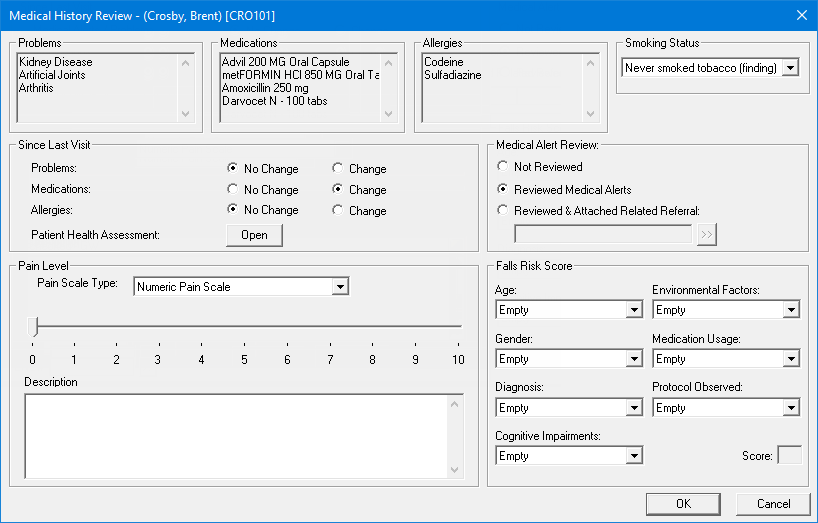
The Medical History Review dialog box appears.
Note: To not perform a medical history review for the patient at this time, click Cancel. Otherwise, complete the following steps.
Under Smoking Status, change the patient's smoking status if applicable.
If any active problems, allergies, and medications (PAM) have been entered in the patient's Medical Alerts record, those appear in the Problems, Medications, and Allergies boxes at the top of the dialog box. If no active problems, allergies, or medications have been entered for the patient, the boxes are empty. As you ask the patient about his or her problems, allergies, and medications, do the following under Since Last Visit:
For Problems, select one of the following options:
No Change - There has not been a change in any of the problems listed, and no problems need to be added.
Change - There has been a change in any of the problems listed, or problems need to be added.
No Problems - No problems are listed, and no problems need to be added.
For Medications, select one of the following options:
No Change - There has not been a change in any of the medications listed, and no medications need to be added.
Change - There has been a change in any of the medications listed, or medications need to be added.
No Medications - No medications are listed, and no medications need to be added.
For Allergies, select one of the following options:
No Change - There has not been a change in any of the allergies listed, and no allergies need to be added.
Change - There has been a change in any of the allergies listed, or allergies need to be added.
No Allergies - No allergies are listed, and no allergies need to be added.
Notes:
For each of the three PAM items, you must select the No Change, Change, or "none" option (No Problems/No Medications/No Allergies) to save the medical history review.
If the Change option is selected for any of the three PAM items, after you save the medical history review, the patient's Medical Alerts window will open so you can add, edit, remove, or inactivate medical alerts as needed. At that time, if you do not make changes to the patient's medical alerts, Dentrix Enterprise will provide you with the option to discard the medical history review or return to the medical history review to make changes.
If no active problems, allergies, and medications are attached to the patient's record, a medical alerts icon does not appear on the patient's appointments.
To enter the patient's vitals as part of a patient health assessment, next to Patient Health Assessment, click Open. You can also view, delete, edit, or print existing patient health assessments entered for the patient.
Under Medical Alert Review, specify if you have reviewed the patient's medical alerts.
Under Pain Level, specify the patient's pain level (according to the selected scale):
From the Pain Scale Type list, select one of the following options: Numeric Pain Scale, Infant Pain Scale (FLACC), Faces Pain Scale, Observational Pain Scale (OPS), Cognitively Impaired Pain Scale (FLACCr), or CRIES Pain Scale.
Do one of the following:
For the numeric, infant (FLACC), faces, or observational scale, select a pain level (by clicking a number on the slide bar, dragging the slider, scrolling, pressing the left/right/up/down arrow key, pressing the Page Up/Page Down key, or pressing the Home/End key).
For the cognitively-impaired (FLACCr) or CRIES scale, select an option for Face, Legs, Activity, Cry, and/or Consolability as applicable.
For the numeric, infant (FLACC), faces, or observational scale, if the specified pain level is greater than 3, the Pain Details dialog box appears. Do one of the following:
To specify pain details, select at least one checkbox in any of the groups, and then click OK.
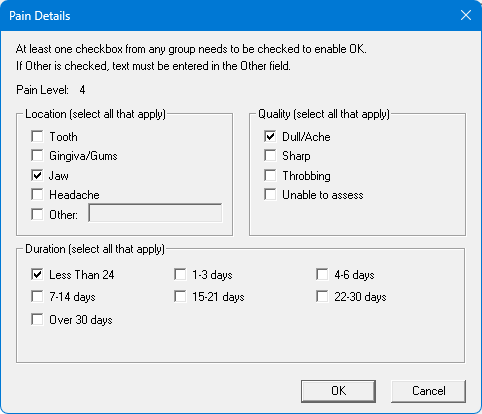
The following options are available:
Location - If you want to specify the location of the pain, select Tooth, Gingiva/Gums, Jaw, Headache, and/or Other (with this checkbox selected, you must enter text in the accompanying box).
Quality - If you want to specify the quality of the pain, select Dull/Ache, Sharp, Throbbing, and/or Unable to assess.
Duration - If you want to specify the duration of the pain, select Less Than 24 (hours), 1-3 days, 4-6 days, 7-14 days, 15-21 days, 22-30 days, and/or Over 30 days.
Notes:
Multiple selections are allowed in any group.
The OK button is available only if at least one checkbox in at least one group is selected.
To skip the entering of pain details, do not select any checkboxes, and click Cancel.
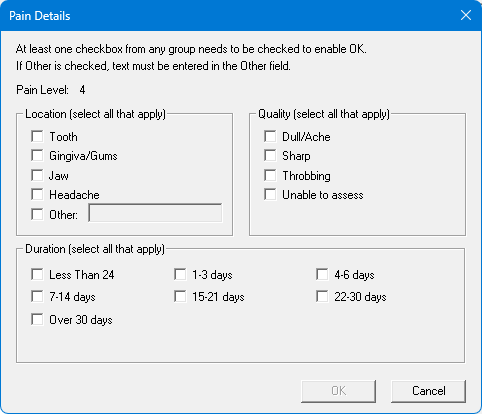
Note: When you click OK in the Medical History Review dialog box to save the medical history review, the Pain Details dialog box will appear again. At that time, you can specify pain details or skip the entering of pain details.
In the Description box, enter notes to describe the pain.
To specify information about the patient and have Dentrix Enterprise calculate a Falls Risk Score, under Falls Risk Score, select an option for Age, Gender, Diagnosis, Cognitive Impairments, Environmental Factors, Medication Usage, and Protocol Observed.
Note: For the score to be calculated, you must make a selection, other than "Empty," for all the risk assessment options, except Protocol Observed.
If the ENC# box is available (a certain global setting must be enabled), enter an encounter number (numeric or alphanumeric, depending on a certain global setting), or click the search button  to select it (if the appropriate global setting is enabled). Also, depending upon a certain global setting, the number may have to be unique for each patient, for each day, or for each patient per day.
Click OK.
Note: This button is available only the No Change, Change, or "none" option (No Problems/No Medications/No Allergies) is selected for all three PAM items under Since Last Visit.
If the Change option was selected for any PAM item under Since Last Visit, the Medical Alerts opens automatically, so you can add, edit, remove, or inactivate the patient's medical alerts as needed.
Note: If you return to the medical history review after Medical Alerts opens automatically, Dentrix Enterprise can help prevent information from not being entered or saved:
If you close Medical Alerts without making or saving any changes, a confirmation message appears.
Clicking OK closes the medical history review without changes.
Clicking Cancel returns you to the medical history review.
If you leave Medical Alerts open without making or saving any changes:
With at least one of the Change options selected for problems, allergies, and medications, if you cancel the review without making any changes, a confirmation message appears.
Clicking OK closes the medical history review without changes. You can close Medical Alerts or access a different patient's medical alerts as needed.
Clicking Cancel returns you to the medical history review.
With at least one of the Change options selected for problems, allergies, and medications, if you re-save the review, you are returned to Medical Alerts to update the patient's problems, allergies, and/or medications.
With all the No Change options selected for problems, allergies, and medications, if you cancel the review after making the change, a confirmation message appears.
Clicking OK closes the medical history review without changes. You can close Medical Alerts or access a different patient's medical alerts as needed.
Clicking Cancel returns you to the medical history review.
With all the No Change options selected for problems, allergies, and medications, if you re-save the review after making the change, the medical history review closes. You can close Medical Alerts or access a different patient's medical alerts as needed.
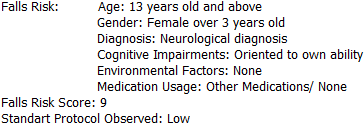
After you save the medical history review and make any necessary changes to the patient's medical alerts, a clinical note is created automatically. The clinical note can contain the following details of the medical history review:
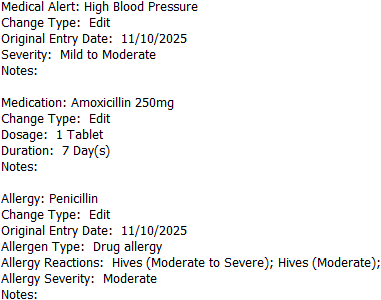
Medical alerts (problems), medications, and allergies that were changed and some details for each.
List of active medical alerts (problems), medications, and allergies.
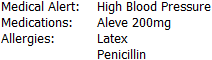
If the patient does not have any medical alerts, and the No Change option was selected for any of the PAM items under Since Last Visit on the review, no text appears next to the item in the note:
For problems - "Medical Alert: " appears without any text next to it.
For medications - "Medications: " appears without any text next to it.
For allergies - "Allergies: " appears without any text next to it.

However, if the "none" option (No Problems/No Medications/No Allergies) was selected for any of the PAM items under Since Last Visit on the review, text appears next to the item in the note, explaining the patient's response:
For a "none" response to problems - "Medical Alert: The patient reports no known medical conditions or problems"
For a "none" response to medications - "Medications: The patient is not currently taking any prescription medications"
For a "none" response to allergies - "Allergies: The patient has no known allergies"

Selected option for each PAM item under Since Last Visit on the review.

Pain scale type and selected pain level.

Pain description.

If a description was not entered, "Description: " appears without any text next to it.

For pain details:
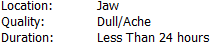
If pain details were specified - The following text appears in the note as applicable:
"Location: [Tooth, Gingiva/Gums, Jaw, Headache, and/or Other (patient specified: {text})]"
"Quality: [Dull/Ache, Sharp, Throbbing, and/or Unable to assess]"
"Duration: [Less Than 24 hours, 1-3 days, 4-6 days, 7-14 days, 15-21 days, 22-30 days, and/or Over 30 days]"
If pain details were skipped - The following text appears in the note: "No Pain Details: Canceled by [user]"

Falls Risk details and score.