
The primary goal of a continuous assessment of a patient's oral health status (OHS) is to reduce the likelihood of a patient suffering a preventable urgent or life-threatening oral health condition. Most dental "emergencies" are due to an acute flare-up of an existing condition—usually a periapical or periodontal abscess.
From the standpoint of overall healthcare system cost effectiveness, this prevention-oriented program, which provides a way to record and track oral health, leading to early diagnosis and timely intervention, should decrease the number of emergency room visits for evaluation and/or treatment of serious oral infections.
From a program implementation perspective, the OHS survey makes the process of entering OHS metrics as efficient and consistent as possible. The simplified objective data collection and criteria may also prove to be appropriate for oral assessments done in "visual exam only" scenarios, which may increase its use in non-clinical, oral health evaluation settings.
OHS classifications (a classification is current if an OHS survey has been done within the past 24 months):
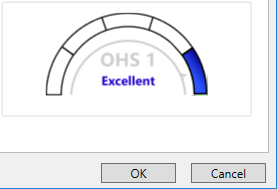
OHS 1 - Excellent. No dental treatment is required.
OHS 2 - Moderate/Good. The patient has moderate dental treatment needs.
OHS 3 - Compromised. Urgent dental treatment is indicated.
OHS 4 - Poor. Very urgent dental treatment is indicated.
OHS 5 - Poor. For a class 4 patient, it has been 24-36 months since the last completed OHS survey.
Note: This classification allows you to track class 4 patients for another 12 months for continued identification and, therefore, treatment.
OHS 6 - Unknown. One of the following conditions is met:
The patient does not have a completed OHS survey.
For a class 1, 2, or 3 patient, it has been 24 months since the last completed OHS survey.
For a class 5 patient, it has been 36 months since the last completed OHS survey.
Note: OHS surveys are available only if a certain global setting is enabled.
To enter or update OHS
If the patient has a prior completed OHS survey, a message appears and displays the date of that OHS survey and the classification that was calculated from that survey. Proceed to step 2; otherwise, skip to step 3.
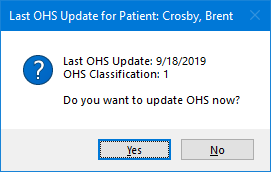
To update the OHS, click Yes.
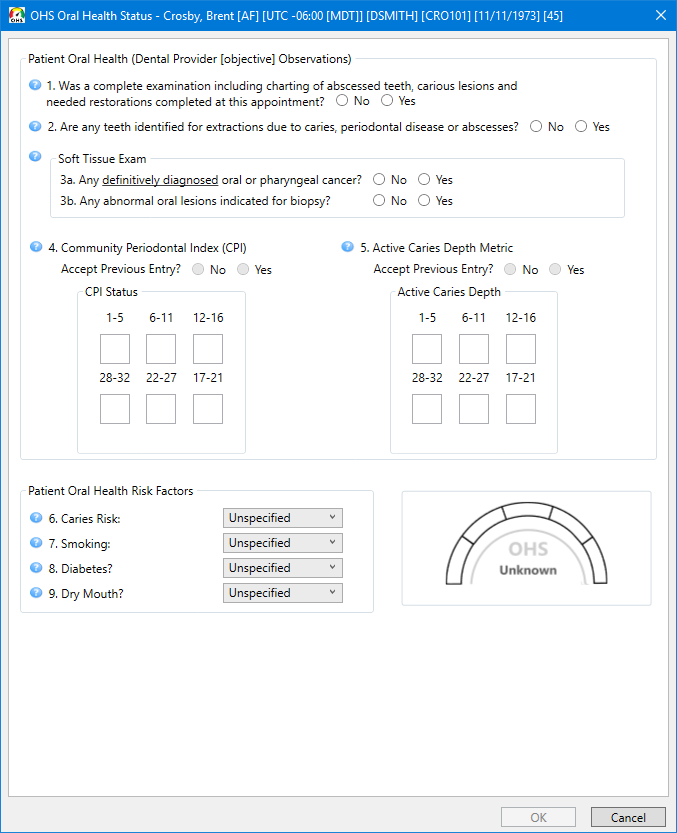
The OHS Oral Health Status dialog box appears.
Patient does not have a completed OHS survey
Patient has a prior completed OHS survey
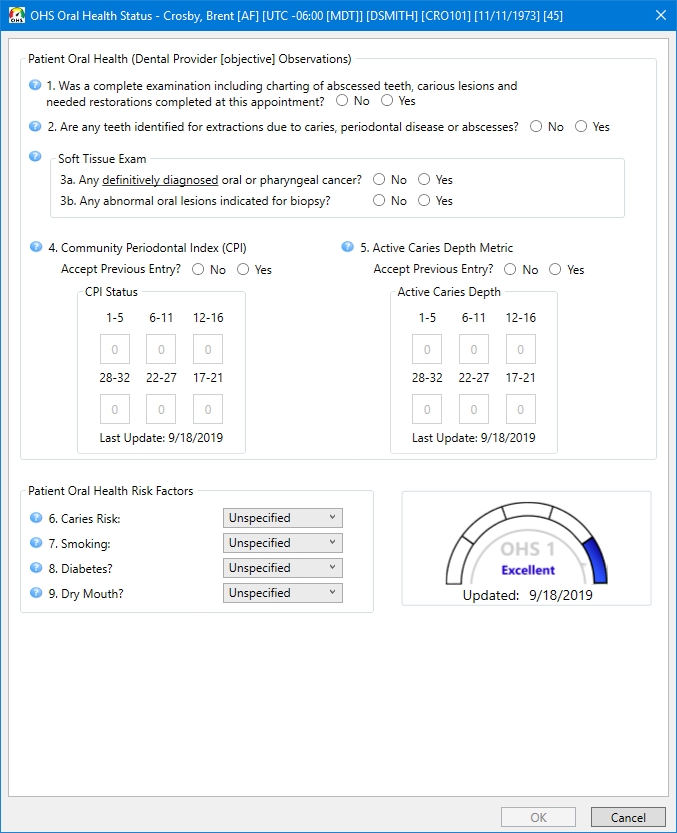
Enter responses for the following:
#1 Was a complete examination including charting of abscessed teeth, carious lesions and needed restoration completed at this appointment? - Select No or Yes.
Notes:
Charting of all conditions is not required. Treatment planning of proposed procedures by specific appointments is not required. An immediate treatment/restoration query applies to caries-related procedures and elective (non-caries related) restorative, endodontic, surgical, or prosthetic procedures.
Your response does not affect the overall OHS status.
If you select No, other options become available.
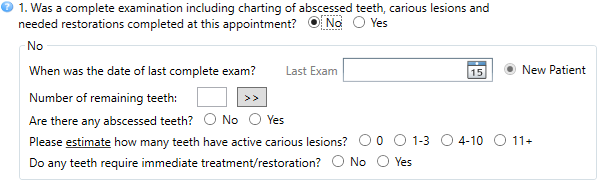
When was the date of last complete exam? - The Last Exam date can be populated automatically from a procedure or a clinical note:

If a procedure was posted:
If a clinical note was created using the "*OHSM_2: Exam complted today?" prompt:
With a "Yes" response to that prompt, the date of the clinical note is inserted as the Last Exam date.
With a "No" response to that prompt, the date of the procedure is inserted as the Last Exam date.
If a clinical note was not created using the "*OHSM_2: Exam complted today?" prompt, the date of the procedure is inserted as the Last Exam date.
Notes:
If multiple applicable clinical notes exist, the most recent one is used.
If multiple procedures exist, the most recent one is used. However, if the most recent cannot be determined by date because multiple procedures exist on the same date, whichever one of those was entered into the system last on that date is used.
If a procedure was not posted:
If a clinical note was created using the "*OHSM_2: Exam complted today?" prompt:
With a "Yes" response to that prompt, the date of the clinical note is inserted as the Last Exam date.
With a "No" response to that prompt, no date is inserted:
If a previous survey exists:
If a last exam date was specified on that survey, that date is inserted as the Last Exam date.
If a last exam date was not specified on that survey, no date is inserted. Enter or select the Last Exam date.
If a previous survey does not exist, no date is inserted. Enter or select the Last Exam date.
Note: If multiple applicable clinical notes exist, the most recent one is used.
If a clinical note was not created using the "*OHSM_2: Exam complted today?" prompt:
If a previous survey exists:
If a last exam date was specified on that survey, that date is inserted as the Last Exam date.
If a last exam date was not specified on that survey, no date is inserted. Enter or select the Last Exam date.
If a previous survey does not exist, no date is inserted. Enter or select the Last Exam date.
Note: You cannot select New Patient manually, so it is always unavailable. New Patient is selected automatically if the patient does not have a prior completed survey or a survey was not completed on the specified Last Exam date.
Number of remaining teeth - The count can be populated automatically from Chart and/or a clinical note:

For each missing tooth that is charted in Chart, the tooth is marked as missing on the survey. The number of remaining teeth is calculated and inserted in the Number of remaining teeth box. If you click the corresponding search button  , the missing teeth are indicated by an X.
Note: The Chart icon appears to the right of the search button . You can position your pointer over the icon to view the applicable tooth numbers.
If a clinical note was created using the "OHSM_4: # remng natrl teeth" prompt with teeth selected for the response, that number is inserted in the Number of remaining teeth box.
Notes:
The Clinical Notes icon appears to the right of the search button ; or if the Chart icon is visible, the Clinical Note icon appears to the right of the Chart icon. You can position your pointer over the icon to view the applicable clinical note text, prompt name, and date.
If multiple applicable clinical notes exist, the most recent one is used.
Note: Depending on the primary/permanent dentition in the patient's chart, unerupted teeth might not count as missing teeth. For example, for a 13-year-old patient whose wisdom teeth have not erupted and have not been extracted, teeth 1, 16, 17, and 32 do not count as missing.
If necessary, enter a value in the Number of remaining teeth box, or click the search button to select the missed teeth (the correct number of remaining teeth will be inserted into the Number of remaining teeth box automatically).
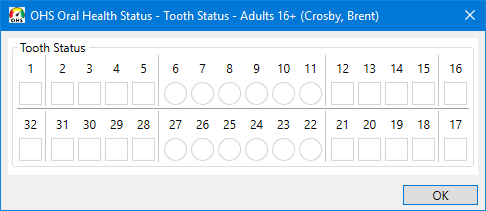
Note: The options in the tooth selection dialog box vary according to the age of the patient.
Are there any abscessed teeth? - The No or Yes option can be selected automatically from a condition and/or a clinical note:

If a valid condition (not marked as invalidated) using the "Abscess" paint type exists:
If a clinical note was also created in the past six months using the "*OHSM_5: Abscessed teeth?" prompt:
With a "Yes" response to that prompt, Yes is selected.
With a "No" response to that prompt, No is selected.
Notes:
The Enter Procedure and Clinical Note icons appear to the right of the No/Yes options. You can position your pointer over the Enter Procedure icon to view the tooth number, condition code and description, and date. You can position your pointer over the Clinical Note icon to view the clinical note prompt name and date.
If multiple applicable conditions exist, the most recent one is used. However, if the most recent cannot be determined by date because multiple applicable conditions exist on the same date, whichever one of those was entered into the system last on that date is used.
If multiple applicable clinical notes exist, the most recent one is used.
If a clinical note was not created in the past six months using the "*OHSM_5: Abscessed teeth?" prompt, Yes is selected.
Notes:
The Enter Procedure icon appears to the right of the No/Yes options. You can position your pointer over the icon to view the tooth number, condition code and description, and date.
If multiple applicable conditions exist, the most recent one is used. However, if the most recent cannot be determined by date because multiple applicable conditions exist on the same date, whichever one of those was entered into the system last on that date is used.
If a valid condition (not marked as invalidated) using the "Abscess" paint type does not exist:
If a clinical note was created in the past six months using the "*OHSM_5: Abscessed teeth?" prompt:
With a "Yes" response to that prompt, Yes is selected.
With a "No" response to that prompt, No is selected.
Notes:
The Clinical Notes icon appears to the right of the No/Yes options. You can position your pointer over the icon to view the clinical note prompt name and date.
If multiple applicable clinical notes exist, the most recent one is used.
If a clinical note was not created in the past six months using the "*OHSM_5: Abscessed teeth?" prompt, No is selected.
Note: The Enter Procedure and Clinical Notes icons appear to the right of the No/Yes options. You can position your pointer over an icon to view a message that no applicable procedure or clinical note exists.
If necessary, select No (class 1) or Yes (class 4).
Please estimate how many teeth have active carious lesions? - The correct number of teeth can be selected automatically from procedures and conditions, or a clinical note:


If an applicable procedure (planned) or condition was not posted for any tooth in the past six months:
If a clinical note was created in the past six months using the "*OHSM_6: #tth w active caries" prompt, 0; or 1-3, 4-10, or 11+ is selected.
Notes:
The Clinical Notes icon appears to the right of the 11+ option. You can position your pointer over the icon to view the clinical note prompt name, response, and date.
If multiple applicable clinical notes exist, the most recent one is used.
If a clinical note was not created in the past six months using the "*OHSM_6: #tth w active caries" prompt, 0 is selected.
If an applicable procedure (planned) or condition was posted for a given tooth in the past six months, that tooth is included in the total number of teeth with caries. After all procedures and conditions in the past six months have been analyzed, the total number of teeth with caries is determined.
If a clinical note was created in the past six months using the "*OHSM_6: #tth w active caries" prompt , 0; or 1-3, 4-10, or 11+ is selected.
Notes:
The Clinical Notes icon appears to the right of the 11+ option. You can position your pointer over the icon to view the clinical note prompt name, response, and date.
If multiple applicable clinical notes exist, the most recent one is used.
If a clinical note was not created in the past six months using the "*OHSM_6: #tth w active caries" prompt, as determined by the analysis of the procedures and conditions in the past six months, 1-3, 4-10, or 11+ is selected.
Notes:
If multiple applicable procedures or conditions exist for a given tooth, that tooth is counted only once.
The Enter Procedure icon appears to the right of the 11+ option. You can position your pointer over the icon to view the date, tooth number, code, and description of each procedure/condition.
If multiple applicable procedures or conditions exist, the most recent one is used. However, if the most recent cannot be determined by date because multiple applicable procedures or conditions exist on the same date, whichever one of those was entered into the system last on that date is used.
Applicable condition and procedure codes for carious lesions: 15104, 15105, 15106, 15107, D1352, D1354, D1355, D2140, D2150, D2160, D2161, D2330, D2331, D2332, D2335, D2391, D2392, D2393, D2394, D2740, D2750, D2751, D2752, D2792, D2930, D2931, D2940, D2950, D2952, D2954, D2989, D2991, D3120, D3220, D3310, D3320, D3330, D7140, and D7210.
If necessary, select an applicable option: 0 (class 1), 1-3 (class 2), 4-10 (class 3), or 11+ (class 4).
Do any teeth require immediate treatment/restoration? - The No or Yes option can be selected automatically from a clinical note:

If a clinical note was created in the past six months using the "*OHSM_7: teeth need Imm Tx?" prompt:
With a "Yes" response to that prompt, Yes is selected.
With a "No" response to that prompt, No is selected.
Notes:
The Clinical Notes icon appears to the right of the No/Yes options. You can position your pointer over the icon to view the clinical note prompt name and date.
If multiple applicable clinical notes exist, the most recent one is used.
If a clinical note was not created in the past six months using the "*OHSM_7: teeth need Imm Tx?" prompt, neither the No nor the Yes option is selected; you must manually select an option.
If necessary, select No (class 1) or Yes (class 4).
Note: If you select Yes for this survey, if No is selected for the next survey, the current date will be inserted as the Last Exam date.
If you select Yes, other options become available.
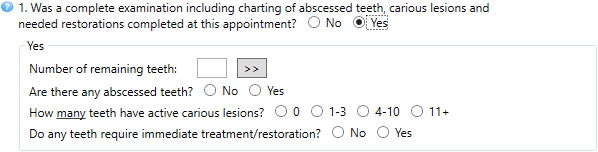
Number of remaining teeth - The count can be populated automatically from Chart and/or a clinical note:
For each missing tooth that is charted in Chart, the tooth is marked as missing on the survey. The number of remaining teeth is calculated and inserted in the Number of remaining teeth box. If you click the corresponding search button , the missing teeth are indicated by an X.
Note: The Chart icon appears to the right of the search button . You can position your pointer over the icon to view the applicable tooth numbers.
If a clinical note was created using the "OHSM_4: # remng natrl teeth" prompt with teeth selected for the response, that number is inserted in the Number of remaining teeth box.
Notes:
The Clinical Notes icon appears to the right of the search button ; or if the Chart icon is visible, the Clinical Note icon appears to the right of the Chart icon. You can position your pointer over the icon to view the applicable clinical note text, prompt name, and date.
If multiple applicable clinical notes exist, the most recent one is used.
Note: Depending on the primary/permanent dentition in the patient's chart, unerupted teeth might not count as missing teeth. For example, for a 13-year-old patient whose wisdom teeth have not erupted and have not been extracted, teeth 1, 16, 17, and 32 do not count as missing.
If necessary, enter a value in the Number of remaining teeth box, or click the search button to select the missed teeth (the correct number of remaining teeth will be inserted into the Number of remaining teeth box automatically).
Note: The options in the tooth selection dialog box vary according to the age of the patient.
Are there any abscessed teeth? - The No or Yes option can be selected automatically from a condition and/or a clinical note:
If a valid condition (not marked as invalidated) using the "Abscess" paint type exists:
If a clinical note was also created in the past six months using the "*OHSM_5: Abscessed teeth?" prompt:
With a "Yes" response to that prompt, Yes is selected.
With a "No" response to that prompt, No is selected.
Notes:
The Enter Procedure and Clinical Note icons appear to the right of the No/Yes options. You can position your pointer over the Enter Procedure icon to view the tooth number, condition code and description, and date. You can position your pointer over the Clinical Note icon to view the clinical note prompt name and date.
If multiple applicable conditions exist, the most recent one is used. However, if the most recent cannot be determined by date because multiple applicable conditions exist on the same date, whichever one of those was entered into the system last on that date is used.
If multiple applicable clinical notes exist, the most recent one is used.
If a clinical note was not created in the past six months using the "*OHSM_5: Abscessed teeth?" prompt, Yes is selected.
Notes:
The Enter Procedure icon appears to the right of the No/Yes options. You can position your pointer over the icon to view the tooth number, condition code and description, and date.
If multiple applicable conditions exist, the most recent one is used. However, if the most recent cannot be determined by date because multiple applicable conditions exist on the same date, whichever one of those was entered into the system last on that date is used.
If a valid condition (not marked as invalidated) using the "Abscess" paint type does not exist:
If a clinical note was created in the past six months using the "*OHSM_5: Abscessed teeth?" prompt:
With a "Yes" response to that prompt, Yes is selected.
With a "No" response to that prompt, No is selected.
Notes:
The Clinical Notes icon appears to the right of the No/Yes options. You can position your pointer over the icon to view the clinical note prompt name and date.
If multiple applicable clinical notes exist, the most recent one is used.
If a clinical note was not created in the past six months using the "*OHSM_5: Abscessed teeth?" prompt, No is selected.
Note: The Enter Procedure and Clinical Notes icons appear to the right of the No/Yes options. You can position your pointer over an icon to view a message that no applicable procedure or clinical note exists.
If necessary, select No (class 1) or Yes (class 4).
How many teeth have active carious lesions? - The correct number of teeth can be selected automatically from conditions or a clinical note:


If an applicable caries condition (15104, 15105, or 15107; not marked as invalidated) does not exist for any tooth:
If a clinical note was created in the past six months using the "*OHSM_6: #tth w active caries" prompt, 0; or 1-3, 4-10, or 11+ is selected.
Notes:
The Clinical Notes icon appears to the right of the 11+ option. You can position your pointer over the icon to view the clinical note prompt name, response, and date.
If multiple applicable clinical notes exist, the most recent one is used.
If a clinical note was not created in the past six months using the "*OHSM_6: #tth w active caries" prompt, 0 is selected.
If an applicable caries condition (15104, 15105, or 15107; not marked as invalidated) exists for a given tooth, that tooth is included in the total number of teeth with caries. After all conditions have been analyzed, the total number of teeth with caries is determined.
If a clinical note was created using the "*OHSM_6: #tth w active caries" prompt , 0; or 1-3, 4-10, or 11+ is selected.
Notes:
The Clinical Notes icon appears to the right of the 11+ option. You can position your pointer over the icon to view the clinical note prompt name, response, and date.
If multiple applicable clinical notes exist, the most recent one is used.
If a clinical note was not created using the "*OHSM_6: #tth w active caries" prompt, as determined by the analysis of the procedures and conditions in the past six months, 1-3, 4-10, or 11+ is selected.
Notes:
If multiple applicable conditions exist for a given tooth, that tooth is counted only once.
The Enter Procedure icon appears to the right of the 11+ option. You can position your pointer over the icon to view the date, tooth number, code, and description of each condition.
If multiple applicable conditions exist, the most recent one is used. However, if the most recent cannot be determined by date because multiple applicable conditions exist on the same date, whichever one of those was entered into the system last on that date is used.
If necessary, select an applicable option: 0 (class 1), 1-3 (class 2), 4-10 (class 3), or 11+ (class 4).
Do any teeth require immediate treatment/restoration? - The No or Yes option can be selected automatically from a clinical note:
If a clinical note was created in the past six months using the "*OHSM_7: teeth need Imm Tx?" prompt:
With a "Yes" response to that prompt, Yes is selected.
With a "No" response to that prompt, No is selected.
Notes:
The Clinical Notes icon appears to the right of the No/Yes options. You can position your pointer over the icon to view the clinical note prompt name and date.
If multiple applicable clinical notes exist, the most recent one is used.
If a clinical note was not created in the past six months using the "*OHSM_7: teeth need Imm Tx?" prompt, neither the No nor the Yes option is selected; you must manually select an option.
If necessary, select No (class 1) or Yes (class 4).
Note: If you select Yes for this survey, if No is selected for the next survey, the current date will be inserted as the Last Exam date.
#2 Are any teeth identified for extractions due to caries, periodontal disease or abscesses? - The No or Yes option can be selected automatically from a procedure and/or a clinical note:

If a treatment-planned procedure using the "Extraction" paint type was posted in the past six months:
If a clinical note was also created in the past six months using the "*OHSM_8: teeth need Ext?" prompt:
With a "Yes" response to that prompt, Yes is selected.
With a "No" response to that prompt, No is selected.
Notes:
The Enter Procedure and Clinical Notes icons appear to the right of the No/Yes options. You can position your pointer over the Enter Procedure icon to view the tooth number, procedure code and description, and date. You can position your pointer over the Clinical Note icon to view the clinical note prompt name and date.
If multiple applicable procedures exist, the most recent one is used. However, if the most recent cannot be determined by date because multiple applicable procedures exist on the same date, whichever one of those was entered into the system last on that date is used.
If multiple applicable clinical notes exist, the most recent one is used.
If a clinical note was not created in the past six months using the "*OHSM_8: teeth need Ext?" prompt, Yes is selected.
Notes:
The Enter Procedure icon appears to the right of the No/Yes options. You can position your pointer over the icon to view the tooth number, procedure code and description, and date.
If multiple applicable procedures exist, the most recent one is used. However, if the most recent cannot be determined by date because multiple applicable procedures exist on the same date, whichever one of those was entered into the system last on that date is used.
If a treatment-planned procedure using the "Extraction" paint type was not posted in the past six months:
If a clinical note was created in the past six months using the "*OHSM_8: teeth need Ext?" prompt:
With a "Yes" response to that prompt, Yes is selected.
With a "No" response to that prompt, No is selected.
Notes:
The Clinical Notes icon appears to the right of the No/Yes options. You can position your pointer over the icon to view the clinical note prompt name and date.
If multiple applicable clinical notes exist, the most recent one is used.
If a clinical note was not created in the past six months using the "*OHSM_8: teeth need Ext?" prompt, neither the No nor the Yes option is selected; you must manually select an option.
If necessary, select No or Yes.
Note: This includes any teeth that are recommended for extraction due to problematic exfoliation (deciduous teeth), non-restorable caries, periodontal bone loss, periodontal or periapical abscess, or any other non-elective reason. This includes third molars with probability for urgent treatment within 24 months.
#3 Soft Tissue Exam:
#3a Any definitively diagnosed oral or pharyngeal cancer? - The No or Yes option can be selected automatically from a clinical note:

If a clinical note was created in the past six months using the "*OHSM_9: diagnosed pathology?" prompt:
With a "Yes" response to that prompt, Yes is selected.
With a "No" response to that prompt, No is selected.
Notes:
The Clinical Notes icon appears to the right of the No/Yes options. You can position your pointer over the icon to view the clinical note prompt name and date.
If multiple applicable clinical notes exist, the most recent one is used. However, if the most recent cannot be determined by date because multiple applicable clinical notes exist on the same date, whichever one of those was entered into the system last on that date is used.
If a clinical note was not created in the past six months using the "*OHSM_9: diagnosed pathology?" prompt, neither the No nor the Yes option is selected; you must manually select an option.
If necessary, select No or Yes.
Note: A Yes response requires definitive diagnosis by biopsy.
#3b Any abnormal oral lesions indicated for biopsy? - The No or Yes option can be selected automatically from a clinical note:

If a clinical note was created in the past six months using the "*OHSM_10: STE_need biopsy?" prompt:
With a "Yes" response to that prompt, Yes is selected.
With a "No" response to that prompt, No is selected.
Notes:
The Clinical Notes icon appears to the right of the No/Yes options. You can position your pointer over the icon to view the clinical note prompt name and date.
If multiple applicable clinical notes exist, the most recent one is used. However, if the most recent cannot be determined by date because multiple applicable clinical notes exist on the same date, whichever one of those was entered into the system last on that date is used.
If a clinical note was not created in the past six months using the "*OHSM_10: STE_need biopsy?" prompt, neither No nor Yes is selected; you must manually select an option.
If necessary, select No or Yes.
#4 Community Periodontal Index (CPI):
If there is a prior OHS survey for the patient, Accept Previous Entry? is available, and the community periodontal indexes (CPI) that were entered in the previous survey appear in the sextant boxes.
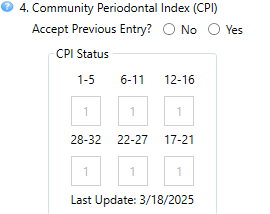
If no changes are needed, select Yes (which leaves the indexes entered in the sextant boxes).
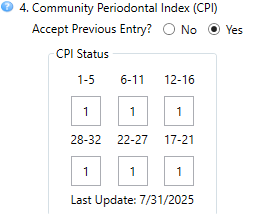
To update any of the entries, select No.
The indexes can be populated automatically from today's clinical note:
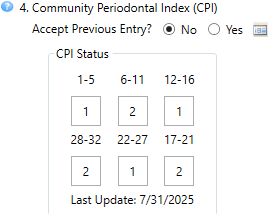
If X or a number from 0 to 4 was entered in the clinical note as a response to the "*OHSM_11_CPI_S1/UR #1-5" prompt, the 1-5 box is populated with the correct value.
If the number 9 was entered in the clinical note as a response to the "*OHSM_11_CPI_S1/UR #1-5" prompt, the 1-5 box is empty; you must manually enter a value.
If X or a number from 0 to 4 was entered in the clinical note as a response to the "*OHSM_11_CPI_S2/UA #6-11" prompt, the 6-11 box is populated with the correct value.
If the number 9 was entered in the clinical note as a response to the "*OHSM_11_CPI_S2/UA #6-11" prompt, the 6-11 box is empty; you must manually enter a value.
If X or a number from 0-4 was entered in the clinical note as a response to the "*OHSM_11_CPI_S3/UL #12-16" prompt, the 12-16 box is populated with the correct value.
If the number 9 was entered in the clinical note as a response to the "*OHSM_11_CPI_S3/UL #12-16" prompt, the 12-16 box is empty; you must manually enter a value.
If X or a number from 0-4 was entered in the clinical note as a response to the "*OHSM_11_CPI_S4/LL #17-21" prompt, the 17-21 box is populated with the correct value.
If the number 9 was entered in the clinical note as a response to the "*OHSM_11_CPI_S4/LL #17-21" prompt, the 17-21 box is empty; you must manually enter a value.
If X or a number from 0-4 was entered in the clinical note as a response to the "*OHSM_11_CPI_S5/LA#22-27" prompt, the 22-27 box is populated with the correct value.
If the number 9 was entered in the clinical note as a response to the "*OHSM_11_CPI_S5/LA#22-27" prompt, the 22-27 box is empty; you must manually enter a value.
If X or a number from 0-4 was entered in the clinical note as a response to the "*OHSM_11_CPI_S6/LR #28-32" prompt, the 28-32 box is populated with the correct value.
If the number 9 was entered in the clinical note as a response to the "*OHSM_11_CPI_S6/LR #28-32" prompt, the 28-32 box is empty; you must manually enter a value.
Notes:
If any of the six aforementioned prompts is not included in the clinical note, all the sextant boxes are empty; you must manually enter values for all six sextants.
If the sextant boxes are populated from the clinical note, the Clinical Notes icon appears to the right of the label for question #4. You can position your pointer over the icon to view the clinical note date, prompt name, and results.
If No is selected for Accept Previous Entry?, but responses for the six prompts are detected in the clinic note, the Clinical Notes icon appears to the right of the label for question #4. You can position your pointer over the icon to view the clinical note date, prompt names, and results.
If necessary, enter the one of the following community periodontal indexes for the applicable sextants:
X - No teeth in sextant.
0 - No pockets > 3.5mm (black band fully visible).
1 - No pockets > 3.5mm, bleeding on probing (black band fully visible).
2 - No pockets > 3.5mm, calculus present (black band fully visible).
3 - Pocket > 3.5mm but < 5.5mm (black band partially visible).
4 - Pocket > 5.5mm (blank band not visible).
If there is not a prior OHS survey for the patient, Accept Previous Entry? is not available.
The indexes can be populated automatically from today's clinical note:
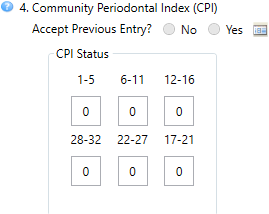
If X or a number from 0 to 4 was entered in the clinical note as a response to the "*OHSM_11_CPI_S1/UR #1-5" prompt, the 1-5 box is populated with the correct value.
If the number 9 was entered in the clinical note as a response to the "*OHSM_11_CPI_S1/UR #1-5" prompt, the 1-5 box is empty; you must manually enter a value.
If X or a number from 0 to 4 was entered in the clinical note as a response to the "*OHSM_11_CPI_S2/UA #6-11" prompt, the 6-11 box is populated with the correct value.
If the number 9 was entered in the clinical note as a response to the "*OHSM_11_CPI_S2/UA #6-11" prompt, the 6-11 box is empty; you must manually enter a value.
If X or a number from 0-4 was entered in the clinical note as a response to the "*OHSM_11_CPI_S3/UL #12-16" prompt, the 12-16 box is populated with the correct value.
If the number 9 was entered in the clinical note as a response to the "*OHSM_11_CPI_S3/UL #12-16" prompt, the 12-16 box is empty; you must manually enter a value.
If X or a number from 0-4 was entered in the clinical note as a response to the "*OHSM_11_CPI_S4/LL #17-21" prompt, the 17-21 box is populated with the correct value.
If the number 9 was entered in the clinical note as a response to the "*OHSM_11_CPI_S4/LL #17-21" prompt, the 17-21 box is empty; you must manually enter a value.
If X or a number from 0-4 was entered in the clinical note as a response to the "*OHSM_11_CPI_S5/LA#22-27" prompt, the 22-27 box is populated with the correct value.
If the number 9 was entered in the clinical note as a response to the "*OHSM_11_CPI_S5/LA#22-27" prompt, the 22-27 box is empty; you must manually enter a value.
If X or a number from 0-4 was entered in the clinical note as a response to the "*OHSM_11_CPI_S6/LR #28-32" prompt, the 28-32 box is populated with the correct value.
If the number 9 was entered in the clinical note as a response to the "*OHSM_11_CPI_S6/LR #28-32" prompt, the 28-32 box is empty; you must manually enter a value.
Notes:
If any of the six aforementioned prompts is not included in the clinical note, all the sextant boxes are empty; you must manually enter values for all six sextants.
If the sextant boxes are populated from the clinical note, the Clinical Notes icon appears to the right of the label for question #4. You can position your pointer over the icon to view the clinical note date, prompt name, and results.
If No is selected for Accept Previous Entry?, but responses for the six prompts are detected in the clinic note, the Clinical Notes icon appears to the right of the label for question #4. You can position your pointer over the icon to view the clinical note date, prompt names, and results.
If necessary, enter one of the following community periodontal indexes for each sextant:
X - No teeth in sextant.
0 - No pockets > 3.5mm (black band fully visible).
1 - No pockets > 3.5mm, bleeding on probing (black band fully visible).
2 - No pockets > 3.5mm, calculus present (black band fully visible).
3 - Pocket > 3.5mm but < 5.5mm (black band partially visible).
4 - Pocket > 5.5mm (blank band not visible).
The class is determined according to the following criteria:
Class 1 - No more than one CPI score of 3 and no CPI score of 4.
Class 2 - Three or fewer CPI scores of 3 and no CPI score of 4.
Class 3 - Four or more CPI scores of 3 and three or fewer CPI scores of 4.
Class 4 - Four or more CPI scores of 4.
Notes:
Third molars are excluded unless they are in the functional position of second or first molars. As a general rule for scoring, if in doubt, enter the lower score. When heavy extrinsic stain is present in the absence of calculus or pockets, the sextant may be scored as 2 if dental services are needed to remove the stains.
The CPI options are available only if the patient is 15 years old or older.
#5 Active Caries Depth Metric:
If there is a prior OHS survey for the patient, Accept Previous Entry? is available, and the active caries depths that were entered in the previous survey appear in the sextant boxes.
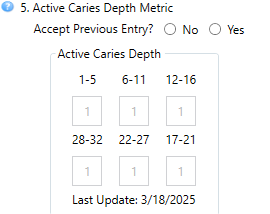
If no changes are needed, select Yes (which leaves the depths entered in the sextant boxes).
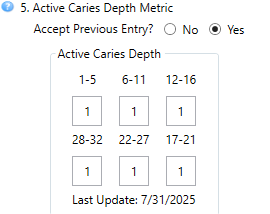
To update any of the entries, select No.
The depths can be populated automatically from today's clinical note:
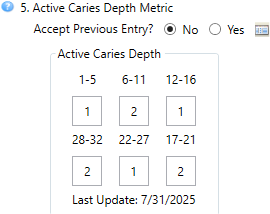
If X or a number from 0 to 4 was entered in the clinical note as a response to the "*OHSM_12_ACD_S1/UR #1-5" prompt, the 1-5 box is populated with the correct value.
If the number 9 was entered in the clinical note as a response to the "*OHSM_12_ACD_S1/UR #1-5" prompt, the 1-5 box is empty; you must manually enter a value.
If X or a number from 0 to 4 was entered in the clinical note as a response to the "*OHSM_12_ACD_S2/UA #6-11" prompt, the 6-11 box is populated with the correct value.
If the number 9 was entered in the clinical note as a response to the "*OHSM_12_ACD_S2/UA #6-11" prompt, the 6-11 box is empty; you must manually enter a value.
If X or a number from 0-4 was entered in the clinical note as a response to the "*OHSM_12_ACD_S3/UL #12-16" prompt, the 12-16 box is populated with the correct value.
If the number 9 was entered in the clinical note as a response to the "*OHSM_12_ACD_S3/UL #12-16" prompt, the 12-16 box is empty; you must manually enter a value.
If X or a number from 0-4 was entered in the clinical note as a response to the "*OHSM_12_ACD_S4/LL #17-21" prompt, the 17-21 box is populated with the correct value.
If the number 9 was entered in the clinical note as a response to the "*OHSM_12_ACD_S4/LL #17-21" prompt, the 17-21 box is empty; you must manually enter a value.
If X or a number from 0-4 was entered in the clinical note as a response to the "*OHSM_12_ACD_S5/LA#22-27" prompt, the 22-27 box is populated with the correct value.
If the number 9 was entered in the clinical note as a response to the "*OHSM_12_ACD_S5/LA#22-27" prompt, the 22-27 box is empty; you must manually enter a value.
If X or a number from 0-4 was entered in the clinical note as a response to the "*OHSM_12_ACD_S6/LR #28-32" prompt, the 28-32 box is populated with the correct value.
If the number 9 was entered in the clinical note as a response to the "*OHSM_12_ACD_S6/LR #28-32" prompt, the 28-32 box is empty; you must manually enter a value.
Notes:
If any of the six aforementioned prompts is not included in the clinical note, all the sextant boxes are empty; you must manually enter values for all six sextants.
If the sextant boxes are populated from the clinical note, the Clinical Notes icon appears to the right of the label for question #4. You can position your pointer over the icon to view the clinical note date, prompt name, and results.
If No is selected for Accept Previous Entry?, but responses for the six prompts are detected in the clinic note, the Clinical Notes icon appears to the right of the label for question #4. You can position your pointer over the icon to view the clinical note date, prompt names, and results.
If necessary, enter one of the following active caries depths for the applicable sextants:
X - All teeth in sextant are missing.
0 - No caries are present in sextant.
1 - Caries present; deepest caries does not penetrate past DEJ.
2 - Deepest caries penetrating past DEJ (includes any root surface caries).
3 - Deepest carious lesions encroaching on pulp chamber (from any surface).
4 - Deepest carious lesion penetrating into pulp chamber.
If there is not a prior OHS survey for the patient, Accept Previous Entry? is not available.
The depths can be populated automatically from today's clinical note:
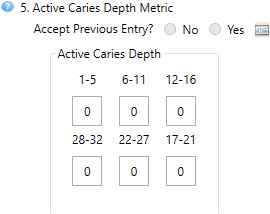
If X or a number from 0 to 4 was entered in the clinical note as a response to the "*OHSM_12_ACD_S1/UR #1-5" prompt, the 1-5 box is populated with the correct value.
If the number 9 was entered in the clinical note as a response to the "*OHSM_12_ACD_S1/UR #1-5" prompt, the 1-5 box is empty; you must manually enter a value.
If X or a number from 0 to 4 was entered in the clinical note as a response to the "*OHSM_12_ACD_S2/UA #6-11" prompt, the 6-11 box is populated with the correct value.
If the number 9 was entered in the clinical note as a response to the "*OHSM_12_ACD_S2/UA #6-11" prompt, the 6-11 box is empty; you must manually enter a value.
If X or a number from 0-4 was entered in the clinical note as a response to the "*OHSM_12_ACD_S3/UL #12-16" prompt, the 12-16 box is populated with the correct value.
If the number 9 was entered in the clinical note as a response to the "*OHSM_12_ACD_S3/UL #12-16" prompt, the 12-16 box is empty; you must manually enter a value.
If X or a number from 0-4 was entered in the clinical note as a response to the "*OHSM_12_ACD_S4/LL #17-21" prompt, the 17-21 box is populated with the correct value.
If the number 9 was entered in the clinical note as a response to the "*OHSM_12_ACD_S4/LL #17-21" prompt, the 17-21 box is empty; you must manually enter a value.
If X or a number from 0-4 was entered in the clinical note as a response to the "*OHSM_12_ACD_S5/LA#22-27" prompt, the 22-27 box is populated with the correct value.
If the number 9 was entered in the clinical note as a response to the "*OHSM_12_ACD_S5/LA#22-27" prompt, the 22-27 box is empty; you must manually enter a value.
If X or a number from 0-4 was entered in the clinical note as a response to the "*OHSM_12_ACD_S6/LR #28-32" prompt, the 28-32 box is populated with the correct value.
If the number 9 was entered in the clinical note as a response to the "*OHSM_12_ACD_S6/LR #28-32" prompt, the 28-32 box is empty; you must manually enter a value.
Notes:
If any of the six aforementioned prompts is not included in the clinical note, all the sextant boxes are empty; you must manually enter values for all six sextants.
If the sextant boxes are populated from the clinical note, the Clinical Notes icon appears to the right of the label for question #4. You can position your pointer over the icon to view the clinical note date, prompt name, and results.
If No is selected for Accept Previous Entry?, but responses for the six prompts are detected in the clinic note, the Clinical Notes icon appears to the right of the label for question #4. You can position your pointer over the icon to view the clinical note date, prompt names, and results.
If necessary, enter one of the following active caries depths for each sextant.
X - All teeth in sextant are missing.
0 - No caries are present in sextant.
1 - Caries present; deepest caries does not penetrate past DEJ.
2 - Deepest caries penetrating past DEJ (includes any root surface caries).
3 - Deepest carious lesions encroaching on pulp chamber (from any surface).
4 - Deepest carious lesion penetrating into pulp chamber.
The class is determined according to the following criteria:
Class 1 - All depth scores are X or 0.
Class 2 - All depth scores are X, 0, 1 or 2 (no 3 or 4).
Class 3 - All depth scores are X, 0, 1, 2 or 3 (no 4).
Class 4 - Any depth score of 4.
Note: As a general rule for scoring, if in doubt, enter the lower score.
#6 Caries Risk - An option is selected automatically according to the following criteria:
If one of the following procedure codes was posted in the past six months:
D0601 (Caries risk assessment - Low) - The Low option is selected automatically for #6. Caries Risk on the survey.
D0602 (Caries risk assessment - Mod) - The Moderate option is selected automatically for #6. Caries Risk on the survey.
D0603 (Caries risk assessment - High) - The High option is selected automatically for #6. Caries Risk on the survey.

If a procedure code determines which option is selected for #6. Caries Risk on the survey, the Enter Procedure icon appears to the right of the corresponding list.

Note: If multiple applicable procedure codes and/or clinical notes exist within the past six months, the most recent one is used. However, if the most recent cannot be determined by date because multiple applicable procedure codes and/or clinical notes exist on the same date, whichever one of those was entered into the system last on that date is used.
If a clinical note was entered using a template with the "*OHSM_13: Caries Risk assessmt" clinical note prompt in the past six months and contains one of the following values:
Caries risk assessment: Low - The Low option is selected automatically for #6. Caries Risk on the survey.
Caries risk assessment: Moderate - The Moderate option is selected automatically for #6. Caries Risk on the survey.
Caries risk assessment: High - The High option is selected automatically for #6. Caries Risk on the survey.
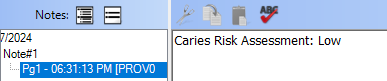
If a clinical note determines which option is selected for #6. Caries Risk on the survey, the Clinical Notes icon appears to the right of the corresponding list.

Note: If multiple applicable procedure codes and/or clinical notes exist within the past six months, the most recent one is used. However, if the most recent cannot be determined by date because multiple applicable procedure codes and/or clinical notes exist on the same date, whichever one of those was entered into the system last on that date is used.
If an applicable procedure code or clinical note does not exist within the past six months, the Unspecified option is selected by default for #6. Caries Risk on the survey.
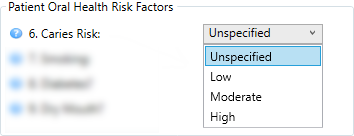
If necessary, select a different option:
Unspecified.
Low - No restorations or new active carious lesions within last 36 months.
Medium - 1-2 replacement restorations or new active carious lesions within 36 months.
High - 3 or more replacement restorations or new active carious lesions within 36 months.
Note: Your response does not affect the overall OHS status.
#7 Smoking - A smoking status can be selected automatically from Medical Alerts or a clinical note:


If a smoking status was specified in the patient's Medical Alerts record in the past six months:
If a clinical note was also created in the past six months using the "*OHSM_14: Tobacco Use" prompt:
With a status selected for that response, that status is selected.
Notes:
The Clinical Notes icon appears to the right of the list. You can position your pointer over the icon to view the clinical note prompt name and date.
If multiple applicable clinical notes exist, the most recent one is used.
Without a status selected for that response, the status from Medical Alerts is selected.
Notes:
The Smoking icon appears to the right of the list. You can position your pointer over the icon to view the date, SNOMED Concept ID, and SNOMED Description of the smoking status selection in Medical Alerts.
If multiple applicable smoking status changes exist, the most recent one is used.
If a clinical note was not created in the past six months using the "*OHSM_14: Tobacco Use" prompt, the status from Medical Alerts is selected.
Notes:
The Smoking icon appears to the right of the list. You can position your pointer over the icon to view the date, SNOMED Concept ID, and SNOMED Description of the smoking status selection in Medical Alerts.
If multiple applicable smoking status changes exist, the most recent one is used.
If a smoking status was not specified in the patient's Medical Alerts record in the past six months:
If a clinical note was created in the past six months using the "*OHSM_14: Tobacco Use" prompt:
With a status selected for that response, that status is selected.
Notes:
The Clinical Notes icon appears to the right of the list. You can position your pointer over the icon to view the clinical note prompt name and date.
If multiple applicable clinical notes exist, the most recent one is used.
Without a status selected for that response, Unspecified is selected. Select one of the following options:
Traditional; Ceremonial; Ritual; Tobacco use
Never used tobacco (cigar, cigarette, e-cigarette, vaping)
Tobacco use consumption unknown
Thinking about stopping
Not interested in stopping
Cannabis (substance) use
Occasional tobacco smoker
Light tobacco smoker (10 or less per day)
Heavy tobacco smoker (over 20 per day)
Failed attempt to stop smoking
Smokes tobacco daily
Moderate smoker (20 or less per day)
Cigar smoker
User of smokeless tobacco
E-cigarette user (includes Vaping)
Smoker
Ex-smoker (cigar, cigarette, e-cigarette, vaping)
If a clinical note was not created in the past six months using the "*OHSM_14: Tobacco Use" prompt, Unspecified is selected. Select one of the following options:
Traditional; Ceremonial; Ritual; Tobacco use
Never used tobacco (cigar, cigarette, e-cigarette, vaping)
Tobacco use consumption unknown
Thinking about stopping
Not interested in stopping
Cannabis (substance) use
Occasional tobacco smoker
Light tobacco smoker (10 or less per day)
Heavy tobacco smoker (over 20 per day)
Failed attempt to stop smoking
Smokes tobacco daily
Moderate smoker (20 or less per day)
Cigar smoker
User of smokeless tobacco
E-cigarette user (includes Vaping)
Smoker
Ex-smoker (cigar, cigarette, e-cigarette, vaping)
Notes:
Your response does not affect the overall OHS status.
The smoking option is available only if the patient is 10 years old or older.
#8 Diabetes? - An option can be selected automatically from a clinical note:

If a clinical note was created in the past six months using the "*OHSM_15: diabetes history" prompt, the response from that prompt is selected.
Notes:
The Clinical Notes icon appears to the right of the list. You can position your pointer over the icon to view the clinical note prompt name and date.
If multiple applicable clinical notes exist, the most recent one is used.
If a clinical was not created in the past six months using the "*OHSM_15: diabetes history" prompt, Unspecified is selected. Select one of the following options:
No patient history of diabetes
Type I; well controlled
Type I; not well controlled
Type II; well controlled
Type II; not well controlled
Notes:
A laboratory test/report is not required. Input is based on the provider's discussion with the patient.
Your response does not affect the overall OHS status.
The diabetes option is available only if the patient is 5 years old or older.
#9 Dry Mouth? - An option can be selected automatically from a clinical note:

If a clinical note was created in the past six months using the "*OHSM_16: Dry Mouth" prompt, Normal saliva, Reduced saliva flow, or Very dry mouth is selected.
With Very dry mouth selected, another list appears. An option for this second list can now be selected automatically:
If the clinical note has a "N/a (no very dry mouth)" or "Other txs" response for the "*OHSM_17: Dry Mouth mitigation" prompt, no option is selected. Select one of the following options:
Patient using saliva substitute
Patient Using fluoride rinse
Patient using prescription strength fluoride toothpaste
Patient using fluoride trays
None
If the clinical note has a "No prevention/treatments/meds" response for the "*OHSM_17: Dry Mouth mitigation" prompt, None is selected.
If the clinical note has a "Saliva substitute" response for the "*OHSM_17: Dry Mouth mitigation" prompt, Patient using saliva substitute is selected.
If the clinical note has a "Fluoride rinse" response for the "*OHSM_17: Dry Mouth mitigation" prompt, Patient using fluoride rinse is selected.
If the clinical note has a "Prescription strength fluoride toothpaste" response for the "*OHSM_17: Dry Mouth mitigation" prompt, Patient using prescription strength fluoride toothpaste is selected.
If the clinical note has a "Fluoride trays" response for the "*OHSM_17: Dry Mouth mitigation" prompt, Patient using fluoride trays is selected.
Notes:
The Clinical Notes icon appears to the right of the upper list. You can position your pointer over the icon to view the clinical note prompt name and date.
If multiple applicable clinical notes exist, the most recent one is used.
If a clinical was not created in the past six months using the "*OHSM_16: Dry Mouth" prompt, Unspecified is selected. Select one of the following options:
Normal saliva
Reduced saliva flow
Very dry mouth
With Very dry mouth selected, another list appears. Select one of the following options:
Patient using saliva substitute
Patient Using fluoride rinse
Patient using prescription strength fluoride toothpaste
Patient using fluoride trays
None
Notes:
A laboratory test/report is not required. Input based on the provider's discussion with the patient.
Your response does not affect the overall OHS status.
The dry mouth option is available only if the patient is 7 years old or older.
The indicator reflects the OHS status as determined by the responses on the survey.
Click OK.
Notes:
The OK button is available only if the survey is complete.
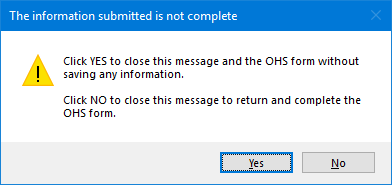
If you attempt to close the dialog box before the survey is complete, a message appears and asks if you want to close without saving or if you want to return to the survey to complete it.
If you close the module from which you opened Clinical Notes (Family File, Ledger, Chart, or Appointment Book), the OHS Oral Health Status dialog box closes too.
If you close Clinical Notes, the OHS Oral Health Status dialog box remains open.
In the patient's More Information window, you can view or edit OHS surveys and view OHS graphs.