

|

Making credit card payments
After setting up Dentrix Pay, you can process and post payments and refund or void credit/debit card transactions using the Ingenico iPP320 PINpad device.
To make a credit card payment
1. With a patient selected in the Ledger, in the menu, click Transaction, and then click Enter Payment.
The Enter Payment dialog box appears.
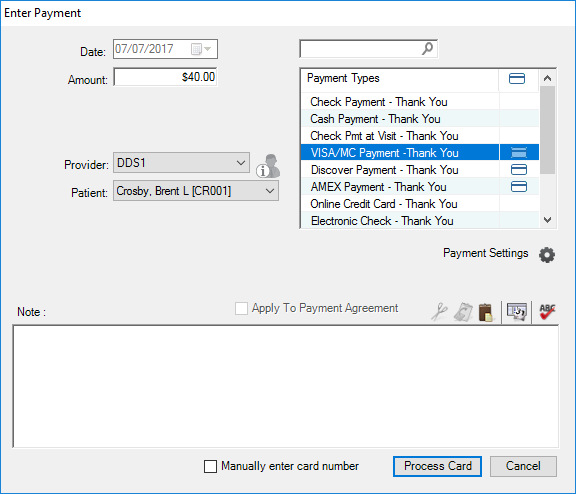
2. As appropriate, enter or set the following:
· Amount – Type the amount of the payment.
· Provider – Select the appropriate provider from the list.
· Patient – Select the appropriate patient from the list, or select Split By Family Members. (Default is to apply the payment to the selected patient in the Ledger. If you select Split By Family Members, Dentrix applies the payment to the oldest family balance and posts it to the guarantor’s ledger.)
· Note – Type any notes pertaining to the transaction.
3. Select the Payment Type corresponding to the credit card you want to process (indicated by the credit card icon).
4. To process the payment, complete one of the following tasks:
· Insert, swipe, or tap a credit or debit card:
a. Click the Process Card button.
The Dentrix Pay – Insert, swipe, or tap the card dialog box appears.
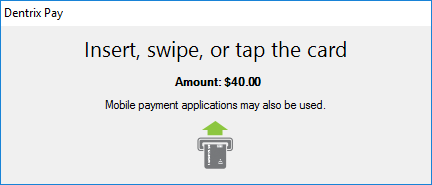
b. On the iPP320 device, select Debit or Credit.
c. Follow the prompts on the device to insert, swipe, or tap a card or mobile payment application on a smartphone.
The card processes through the Moneris gateway.
· Manually enter the credit or debit card number:
a. Select Manually enter card number.
b. Click the Process Card button.
The Dentrix Pay – Enter the card number on the PINpad dialog box appears.
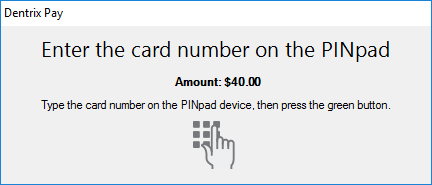
c. On the iPP320 device, type the full card number and press the green button.
d. Follow the prompts to enter the expiration date and the CVD code on the back of the card.
The card is processed through the Moneris gateway. If the transaction is approved and if you selected Sign with ePad in the Dentrix Pay Setup dialog box, the cardholder is prompted for a signature. The Dentrix Pay Transaction Completed dialog box appears indicating whether the card was approved or denied.
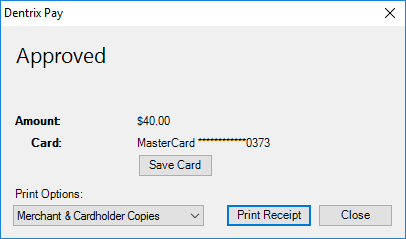
5. To print a receipt, click Print Receipt.
Note: You can set the default state for this option in the Dentrix Pay Setup dialog box.
The payment posts to the patient's ledger.