
Besides phone and e-mail, you can also contact patients using Quick Letters.
To contact a patient using Quick Letters
1. In the Lab Case Manager window, select the patient (for the appropriate lab case) that you want to contact.
2. Click the Quick Letters button on the toolbar.
The Quick Letters dialog box appears.
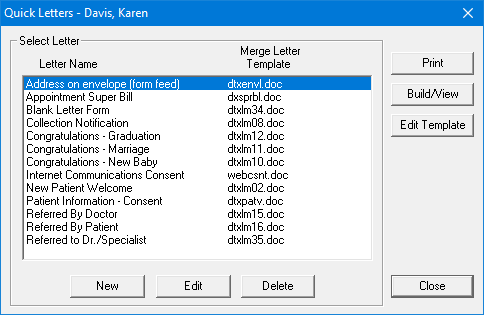
3. Select the letter that you want to merge.
4. To merge the letter in Microsoft Word, click Build/View.
Note: You may need to open and minimize Microsoft Word before merging the letter.
5. Once the letter has been successfully merged, make any changes, and then click Print.
6. After you have printed the letter, in Word, click File, and then click Close.
A message appears, asking if you want to save the changes.
7. Click No.