Viewing the campaigns dashboard
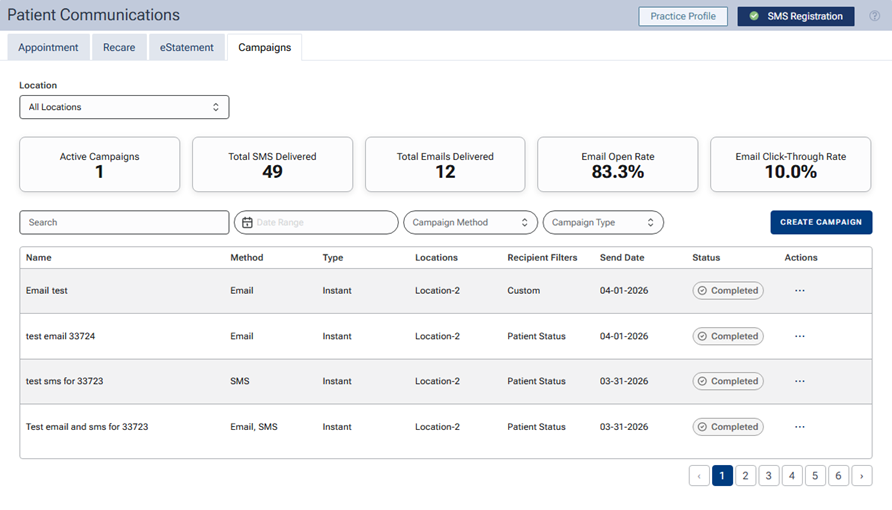
The dashboard for campaigns provides a view of all campaigns. You can filter by locations, type, and/or method. The metrics displayed provide an overview of campaign statuses.
To view the campaigns dashboard
-
On the Settings menu, under Patient Care, select Patient Communications.
The Patient Communications page opens.
Note: Accessing this page requires the "Review Communications setup" security right.
-
Select the Campaigns tab.
-
Do any of the following to filter the list of campaigns:
-
By default, campaigns for all locations appear. To display campaigns for a specific location only, select that location from the Location list.
Note: Only the locations to which your user account has access are available for selection.
-
To search for a campaign by name, begin typing in the Search box. As you type, only the campaigns whose name contains what you type in the Search box appear.
-
To display campaigns for a specific date, click (or tap) in the Date Range box, and then select a date on the calendar that appears. Only the campaigns whose "Send Date" is on the selected date appear.
Note: To remove the date filter, click (or tap) in the Date Range box, and the click (or tap) the select date to deselect it.
-
To display campaigns for a specific date range, click (or tap) in the Date Range box, select the first date of the range on the calendar that appears, and then select the last date of the range on the calendar. Only the campaigns whose "Send Date" is on any of the dates of the selected date range appear.
Note: To remove the date filter, click (or tap) in the Date Range box, click the first date of the range to deselect the last date of the range, and then click (or tap) the same date again to deselect it.
-
To display campaigns with a specific delivery method only, select that method (SMS or Email) from the Campaign Method list.
-
To display campaigns of a specific type only, select that type (Instant or Scheduled) from the Campaign Type list.
As you apply filters, the metrics above the list update automatically based on the campaigns that match the filter criteria. The following metrics appear:
-
Active Campaigns - The number of campaigns with a "Scheduled" status.
Note: A campaign, whether its type is Instant or Scheduled, remains active until all messages have been sent or delivery has been attempted.
-
Total SMS Delivered - The number of text messages that have been sent successfully.
-
Total Emails Delivered - The number of email messages that have been sent successfully.
-
Email Open Rate - The percentage of delivered email messages that have been opened either automatically (such as by Apple Mail Privacy Protection) or by the recipient.
-
Email Click-Through Rate - The percentage of delivered email messages in which the recipient has clicked a link (text or a button that links to a website).
Note: If all campaigns are not being displayed, you can click (or tap) the Previous button (left arrow icon), Next button (right arrow icon), or a Page Number button to navigate between the pages of the list.
-