Viewing patient connections
You can view a history of communications (connections) with a patient. Currently, the only connections that you can view the history of are billing statements and text messages.
To view a patient's connections
-
If the correct patient is not already selected, use the Patient Search box to access the patient's record.

-
On the Patient menu, under General, select Patient Connection.
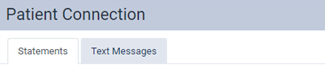
The patient's Patient Connection page opens.
-
View histories on any of the following tabs:
-
Statements - A history of statements appears. For a patient who is not a guarantor, the list includes his or her own statements and the guarantor's statements; for a guarantor, the list includes his or her statements and the statements of all patients who he or she is the guarantor for.

Each item is a summary of a statement not the actual statement. There are two types of statement summaries:
-
Patient - A patient's billing statement or walkout statement.
-
Guarantor - A regular billing statement for an account, or a patient's billing statement or walkout statement if he or she is not a guarantor for other patients.
Tips:
-
You can click (or tap) a name link in the Patient column to go to the Overview page of the corresponding patient's record.
-
You can click (or tap) a paperclip icon
 to open the corresponding patient's statement. The paperclip icon is available only if the Add to Patient Connection checkbox was selected when generating that statement.
-
-
Text Messages - A history of text messages appears. For a patient who is not a primary contact, the list includes automated messages to and replies from the patient's primary contact. For a primary contact, the list includes automated messages to and replies from that person.
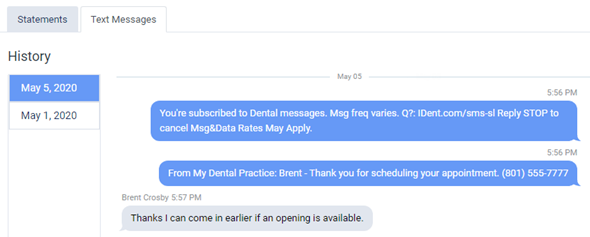
Select a date to view the corresponding messages.
-