Viewing a patient's insurance plans
A patient's dental and medical insurance information can be stored in his or her patient record.
To view a patient's insurance plans
-
If the correct patient is not already selected, use the Patient Search box to access the patient's record.

-
Do one of the following:
-
Use the patient ribbon:
-
If the patient information ribbon is not visible, click (or tap) the arrow button below the box to view the ribbon.

-
On the left side of the patient information ribbon, click (or tap) the insurance icon (shield).

Note: For information about the possible colors of the insurance icon, see the topic about understanding insurance icon colors.
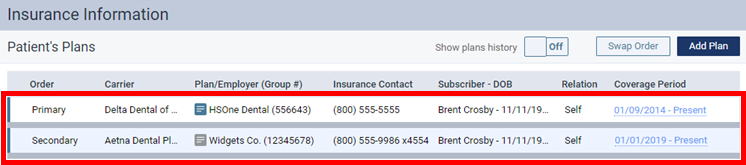
The patient's Insurance Information page opens.
-
-
Use the patient's overview:
-
If the patient's Overview page is not already open, do one of the following:
-
Click (or tap) the Patient menu.
-
On the Patient menu, under General, select Overview.
The patient's Overview page opens.
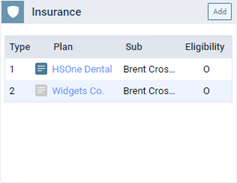
The Insurance box displays the patient's insurance plans.
-
-
To view all the patient's insurance plans, including inactive plans, click (or tap) the box's title bar or anywhere in the box where there is not a button, a plan, or a note icon.
The patient's Insurance Information page opens.
-
-
Use the menu option:
On the Patient menu, under Insurance, select Insurance Information.
The patient's Insurance Information page opens.
Note: If the patient has multiple insurance plans, one of those plans is a Medicaid plan, but that plan is not last in the coverage order, Dentrix Ascend notifies you that the patient's Medicaid plan is not last in the coordination order.
-