Using the patient overview
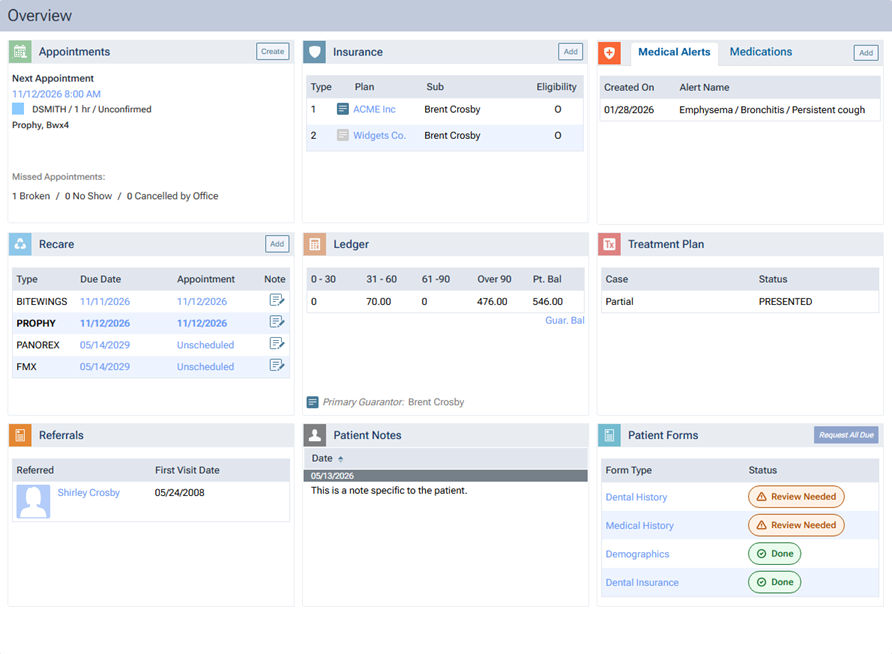
The patient overview displays different boxes of information that provide access to various areas of a patient's record.
To use the patient overview
-
If the correct patient is not already selected, use the Patient Search box to access the patient's record.

-
If the patient's Overview page is not already open, do one of the following:
-
Click (or tap) the Patient menu.
-
On the Patient menu, under General, select Overview.
The patient's Overview page opens.
-
-
Each box that is displayed provides insight into the patient's record. Click (or tap) a box to explore or update the patient's information. One or more of the following boxes may be available:
-
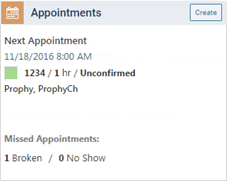
Appointments - This box displays the patient's last appointment and next appointment and the number of missed appointments (the number that were broken, the number that were no shows, and the number that were cancelled by the office). For any appointment listed, the following details appear: date, time, provider, duration, status, and reasons.
Do any of the following:
-
To schedule an appointment for the patient, click (or tap) Create.
-
If an appointment is displayed, to view it on the calendar, click (or tap) the appointment's date and time, which is a link.
-
To view all the patient's recare, future, past, and missed appointments, click (or tap) the box's title bar or anywhere in the box where there is not a button or a link.
-
-
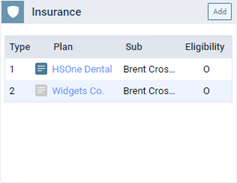
Insurance - This box displays the patient's insurance plans. For any plan listed, the following details appear: coverage type (1, for primary; 2, for secondary; and so forth); note indicator (an icon indicating if there is a note or not); plan name; subscriber's name; and eligibility status (O, for Unable to Verify; N, for Ineligible; or Y, for Eligible) and date verified (if the status is Eligible).
Do any of the following:
-
To attach an insurance plan to the patient's record, click (or tap) Add.
-
To add or view notes for one of the plans listed, click (or tap) that plan's note icon, which appears next to the name of the plan (if a note has not been entered, the icon is gray; if a note has been entered, the icon is blue).
-
To view the details of one of the plans listed, click (or tap) that plan.
-
To view all the patient's insurance plans, including inactive plans, click (or tap) the box's title bar or anywhere in the box where there is not a button, a plan, or a note icon.
-
-
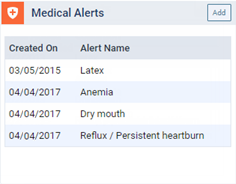
Medical Alerts / Medications - This box displays medical alerts (problems and allergies) and medications that have been entered for the patient. Medical alerts appear on the Medical Alerts tab. Medications appear on the Medications tab. For any medical alert or medication listed, the creation date and name appear.
Do any of the following:
-
To attach a medical alert to the patient's record, with the Medical Alerts tab selected, click (or tap) Add.
-
To attach a medication to the patient's record, with the Medications tab selected, click (or tap) Add.
-
To view all the patient's medical alerts, medications, and vital signs readings, click (or tap) the box's title bar or anywhere in the box where there is not a tab or a button.
-
-
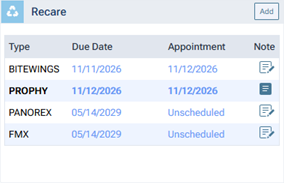
Recare - This box displays the recare types that are attached to the patient's record. For each recare type, the following details appear: type; due date; appointment (if scheduled, the date; otherwise, "Unscheduled"); note indicator (an icon indicating if there is a note or not).
Do any of the following:
-
To attach a recare type to the patient's record, click (or tap) Add.
-
To add or view notes for one of the recare types listed, click (or tap) that type's note icon (if a note has not been entered, the icon is white; if a note has been entered, the icon is blue).
-
To view all the patient's recare types, click (or tap) the box's title bar, one of the plans listed, or anywhere in the box where there is not a button or a note icon.
-
-
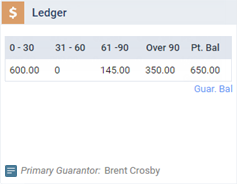
Ledger - This box displays the patient view of what is on the ledger by default. The box also displays the name of the primary guarantor and an account note indicator (an icon indicating if there is a note or not).
Do any of the following:
-
To view the guarantor view of what is on the ledger (without having to open the ledger and then change the view), click (or tap) the Guar. Bal link.
-
To add or view notes for the account, click (or tap) the account note icon (if a note has not been entered, the icon is gray; if a note has been entered, the icon is blue).
-
To view the patient's ledger, click (or tap) the box's title bar or anywhere in the box where there is not a link or a note icon.
-
-
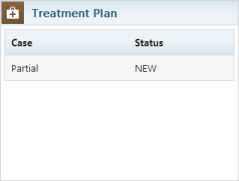
Treatment Plan - This box displays the patient's treatment plans. For any case listed, the name and status appear.
Do any of the following:
-
To view one of the cases listed, click (or tap) that case.
-
To view all the patient's planned and referred procedures, click (or tap) the box's title bar or anywhere in the box where there is not a case.
-
-
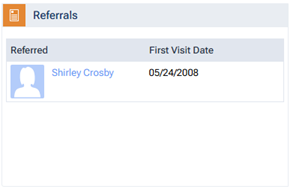
Referrals - This box displays anyone who the patient has referred to your practice.
Do any of the following:
-
To view the the patient record of the referred patient, click (or tap) the person's name, which is a link.
-
To view all the patient's referrals (referred by, referred to, and patient referrals), click (or tap) the box's title bar or anywhere in the box where there is not a link.
-
-
Patient Notes - This box displays notes that have been entered in the patient's record. The notes are grouped by date. For any note listed, the following details appear: the text of the note; and if the note triggers any notifications, a notification indicator (a bell icon).
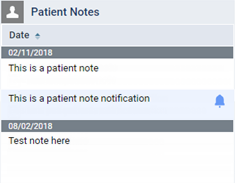
Note: By default, notes are sorted chronologically in ascending order (oldest first). If you change the sort order, that sort order will persist for your user account until you change it.
To view all the patient's notes, click (or tap) the box's title bar or anywhere in the box.
-
Patient Forms - This box displays the published patient forms that are applicable for the patient.
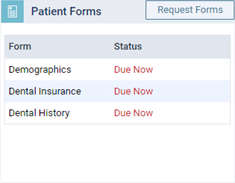
Do any of the following:
-
If any forms have a "Due" Status, to request patient forms, click (or tap) Request All Due.
-
If a form has a "Done" or "Review Needed" Status, to view that completed form or request that form be redone, click (or tap) the form's name in the Form Type column or the form's status icon in the Status column.
-
If a form has a "Review Needed" Status, to review that completed form, click (or tap) the form's name in the Form Type column or the form's status icon in the Status column.
-
To view all the patient's patient form history, click (or tap) the box's title bar (but not where there is a button).
-
-