Shining 3D Software Bridge Setup Guide
This guide describes the setup of the Shining 3D software bridge for use with Dentrix Ascend Imaging.
Last updated: 3/2/2026
Overview
Dentrix Ascend Imaging supports the acquisition of CAD/CAM images from the Shining 3D software through a software bridge.
Notes:
-
All acquisition devices must be configured and functioning in the Shining 3D software on each computer that will acquire images using the Shining 3D software bridge. Please contact Shining 3D Support for assistance.
-
The acquisition agent application must be installed on each computer that will acquire images using the Shining 3D software bridge. Refer to Setting up the acquisition agent for instructions on downloading and installing the acquisition agent..
Recommended Version
-
Shining 3D 2022 v3.6.6.4
Minimum Versions
-
Shining 3D 2022 v3.6.6.4
-
Acquisition agent v173.0.xxxx.xxxxx
Testing
To acquire a test CAD/CAM scan, do the following:
-
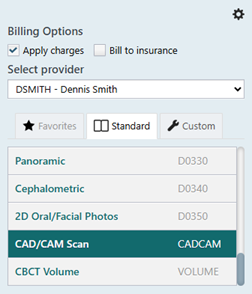
Select the CAD/CAM Scan imaging procedure.
-
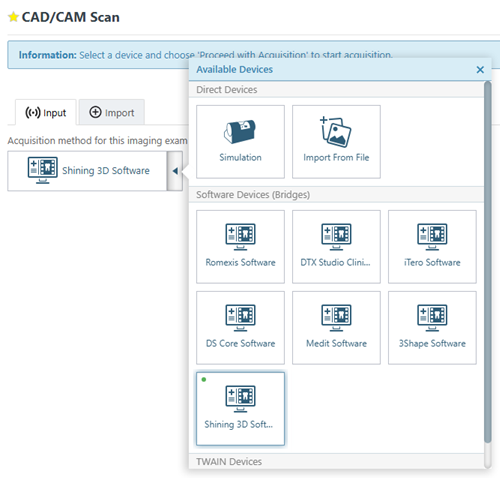
On the Available Devices menu, select Shining 3D Software.
-
Click Start.
-
When the Shining 3D program opens, log in.
-
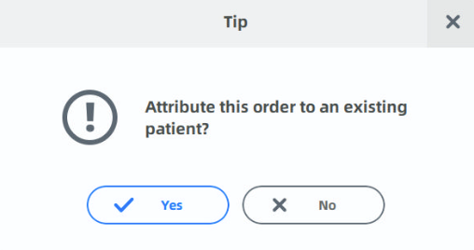
If you are asked to attribute the order to an existing patient, click Yes.
-
Select the correct patient, and then click Confirm.
-
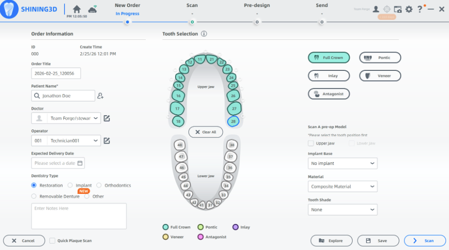
Select the teeth to be scanned, and then click Scan in the lower-right corner.
-
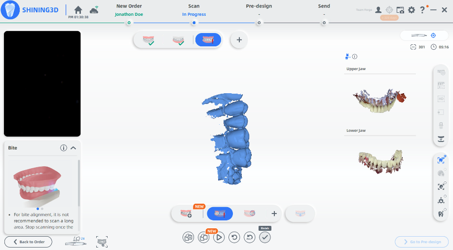
Click the Start button (play icon) at the bottom to start scanning.

-
When you are finished scanning, click the Finish button (the checkmark icon).
-
Click the Confirm button (the same checkmark icon as in the previous step) to complete the scan.
-
You are taken to the next scan. Follow the same steps until all scans are complete. After the last scan, click Finish.
-
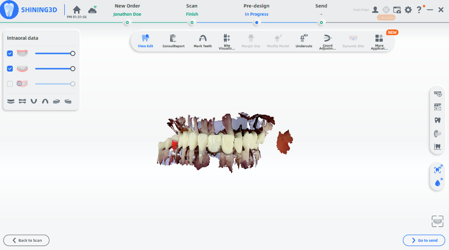
In the lower-right corner, click Go to Send.
-
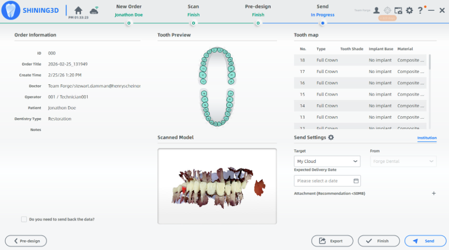
Click Send.
-
Return to Dentrix Ascend Imaging, and then drag the scans to the correct slots.
-
Click (or tap) Begin Uploading.
Troubleshooting
For any issues related to a device not working in the Shining 3D software, please contact Shining 3D Support.