Requesting a specific patient form
Dentrix Ascend provides an online portal where patients can complete forms. In addition, to requesting all forms that are due based on each form's frequency setting, you can send or resend a request for a specific patient form to be completed.
To request a specific patient form
-
If the correct patient is not already selected, use the Patient Search box to access the patient's record.

-
Do one of the following:
-
If the patient's Overview page is not already open, on the Patient menu, under General, select Overview. The patient's Overview page opens. Click (or tap) the title bar (at the top) of the Patient Forms box.
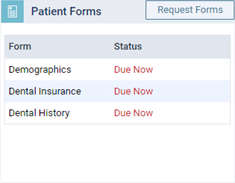
The patient's Patient Information page opens with Patient Forms selected on the navigation panel (on the left).
-
On the Patient menu, under General, select Patient Information. The patient's Patient Information page opens. Select Patient Forms on the navigation panel (on the left).
-
-
The patient forms that are associated with the patient's record appear. For a form with a "Due" or "Sent" Status, click (or tap) the Resend icon
 in the Actions column to send a request for only that form to be completed (instead of all due forms).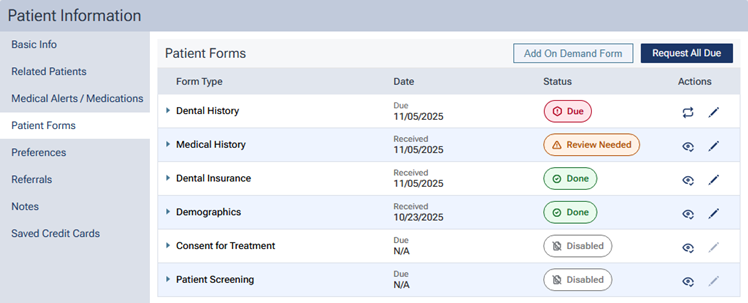
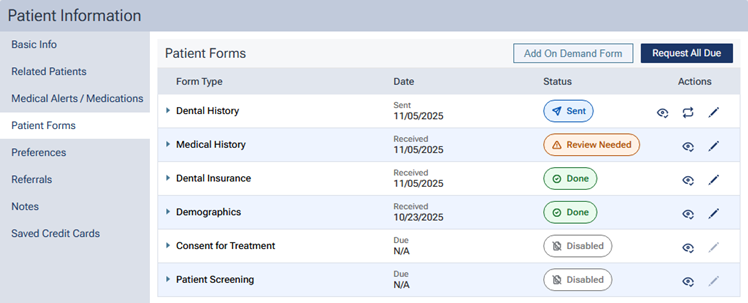
Note: The Resend icon appears only if the form has a "Due," "Sent," or "Due Later" status. If the form has a "Due Later" status, the icon is gray (not available).
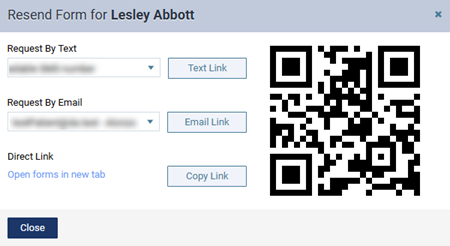
The Resend Form for [Patient Name] dialog box appears.
-
Do one of the following:
-
To send the portal link to a mobile phone number, select the desired number from the list, and then click (or tap) Text Link. This button is available only if the patient has a mobile phone number entered in his or her record. The mobile phone numbers of the patient and his or her primary contact are available for selection.
-
To send the portal link to an email address, select the desired address from the list, and then click (or tap) Email Link. This button is available only if the patient has an email address entered in his or her record. The email addresses of the patient and his or her primary contact are available for selection.
-
To copy the portal link to the Windows Clipboard, click (or tap) Copy Link. You can then paste the link in a document or email message for the patient.
-
To open the patient's portal on another tab of your Web browser (for instance, if you are opening it on a practice-owned mobile device that the patient can use to complete forms in the office; be sure to close any other Dentrix Ascend tabs before giving the device to the patient), you can click (or tap) the Open forms in new tab link.
-
To access the patient's portal link on a mobile device, use the camera on that device to scan the QR code, and then tap the link that appears on the mobile device.
Important:
-
Since using a mobile device to scan a QR Code to open a patient's portal registers that mobile device with Dentrix Ascend, you should use a mobile device that is owned by your practice.
-
Using a QR code requires that your mobile device meet the following specifications: for an Apple device, iOS 11 and the Safari browser; or for an Android device, Android 4 or newer and the Chrome browser.
-
-