Refunding credit card payments by line item
You can post a refund by line item for a credit card payment that was posted through Dentrix Ascend Pay up to 45 days ago. When you itemize the refund amount, you apply a specific refund amount per procedure/charge associated with a payment. You can use this refund method if, for example, you need to refund amounts only for certain charges that are associated with the payment. This refund method can help ensure accurate provider production and collection totals if the payment being refunded has been applied to multiple procedures that were performed by different providers.
Notes:
-
For steps on posting a refund by line item for any type of payment, or for alternative steps on posting a refund by line item for a credit card payment that was posted through Dentrix Ascend Pay, see the topic about refunding payments by line item.
-
For steps on posting a full or partial refund for a credit card payment without itemizing the refund amount, see the topic about refunding credit card payments. You can use this refund method only if the payment was posted through Dentrix Ascend Pay.
-
For steps on posting a refund for a credit card payment with a surcharge, see the topic about refunding credit card payments with surcharges. You can use this refund method only if the payment was posted with a surcharge through Dentrix Ascend Pay.
-
For steps on posting a charge adjustment to record a refund, see the topic about posting charge adjustments.
To refund a credit card payment by line item
A refund adjustment appears in the patient's ledger.
Notes:
-
If the correct patient is not already selected, use the Patient Search box to access the patient's record.

-
Do one of the following:
-
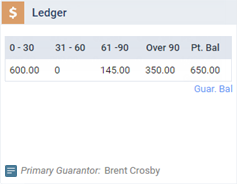
If the patient's Overview page is not already open, on the Patient menu, under General, select Overview. The patient's Overview page opens. Click (or tap) the Ledger box.
-
On the Patient menu, under Financial, select Ledger.
The patient's Ledger page opens.
-
-
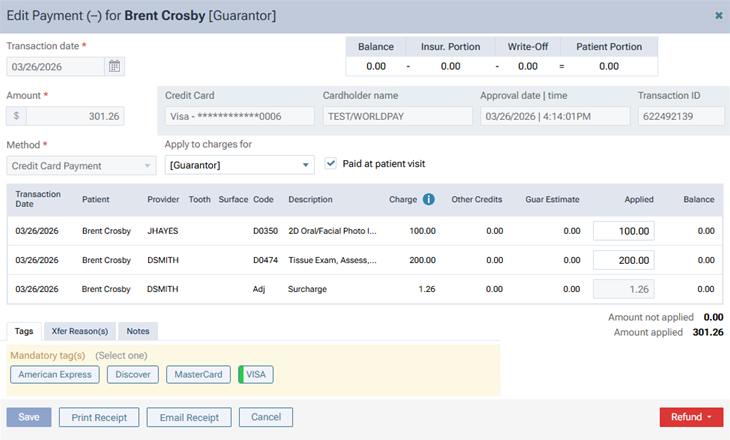
Click a credit card payment on the ledger that is up to 45 days old.

The Edit Payment dialog box appears.
-
On the Refund menu, select Partial Refund.

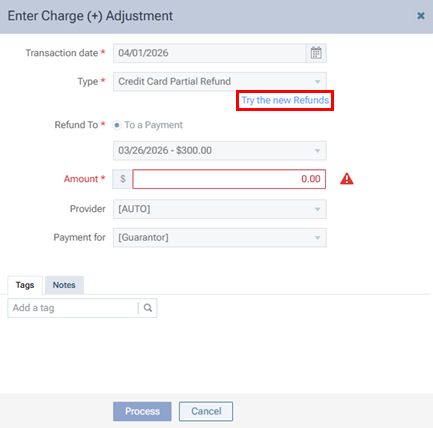
The Enter Charge Adjustment dialog box appears.
-
Click the Try the new Refunds link.
-
The Enter Refund Adjustment Amount dialog box appears.
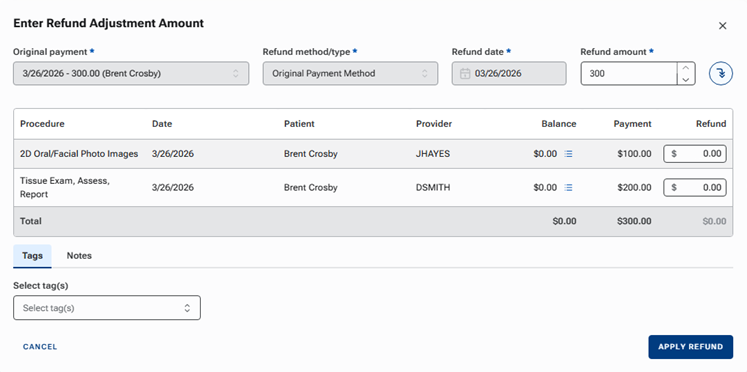
The payment that you clicked (or tapped) on the ledger (in step 3) is selected as the Original payment automatically.
The associated charges appear.
Original Payment Method is selected for Refund method/type automatically. With this option selected, funds will be returned to the credit/debit card that was used for the original payment.
The Refund date is the date of the original payment and cannot be changed.
-
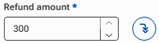
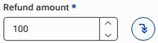
By default, the Refund amount is the amount of the original payment. If necessary, change the amount to reflect the correct amount of the refund.
-
To distribute the Refund amount proportionally to all associated procedures, click the Distribute proportionally button
 ; otherwise, skip to the next step.
One of the following occurs:
-
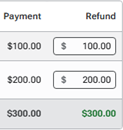
If the Refund amount equals the payment amount (it is a full refund), for each line item, the applied amount (in the Payment column) is inserted in the Refund box automatically.
-
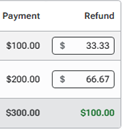
If the Refund amount is less than the payment amount (it is a partial refund), for each line item, a portion of the total refund amount is inserted in the Refund box automatically. The portion of the total refund amount that is entered as the refund amount for a charge is equal to the ratio of the applied amount (in the Payment column) to the total payment amount.
-
-
Do one of the following:
-
If you skipped the previous step, for each charge, in the Refund box, enter the amount of the total refund to be applied, or leave 0.00 entered.
-
If you want to change the amounts proportionally distributed between the charges, in the Refund box of any charges, enter the amount of the total refund to be applied.
Notes:
-
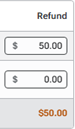
If the sum of each box in the Refund column does not equal the Refund amount, the total at the bottom of the Refund column is displayed in orange text.
-
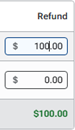
If the sum of each box in the Refund column equals the Refund amount, the total at the bottom of the Refund column is displayed in green text.
-
-
On the Tags tab, add tags to the refund as needed.
-
On the Notes tab, enter any notes regarding the refund.
-
Click Apply Refund.
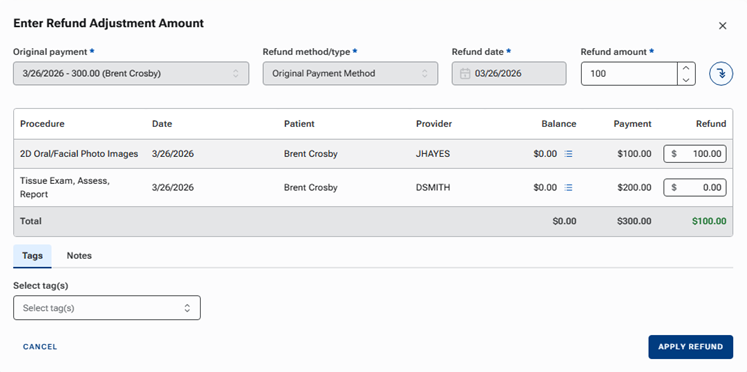
Note: This button is available only if the total at the bottom of the Refund column equals the Refund amount.
A refund adjustment appears in the patient's ledger.
-
If the refund is split between providers, an adjustment appears for each provider.
-
The "Credit Card Partial Refund" adjustment type is used for a refund adjustment.

-