Receiving lab cases
The lab cases list displays the outstanding and received lab cases that are attached to appointments for a specified day or week. You can use the list to contact labs and change the status of lab cases to Received.
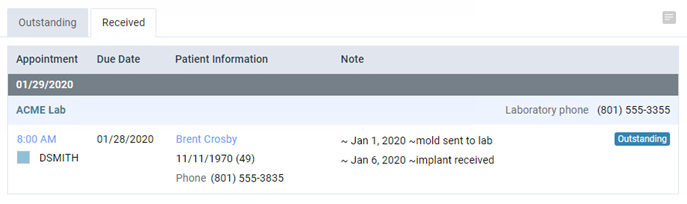
Note: A patient's appointment appears on the Outstanding or Received tab of the Lab Cases page according to the status of the attached lab case.
To receive lab cases
-
Do one of the following:
-
On the Schedule menu, select Lab Cases.
-
On a location's Overview page (dashboard), click (or tap) the Outstanding Lab Cases box.
The Lab Cases page opens.
-
-
Navigate to the day or week of the appointments for which you want to manage outstanding and received lab cases.

-
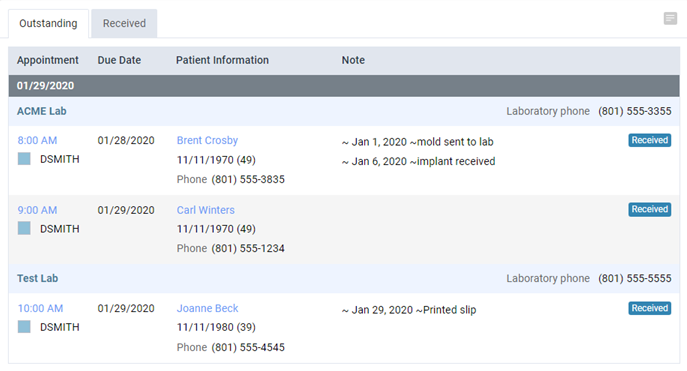
On the Outstanding tab, as you go down the list of appointments, use the phone numbers displayed to contact each lab as needed, and click (or tap) Received next to each appointment whose lab case has been received.
Notes:
-
Appointments are grouped by date and then by lab, and then they are listed in chronological order.
-
For each appointment, the due date of the lab case and any notes that have been entered appear for your reference.
-
On the View menu, you can choose to view appointments for specific providers.
-
Clicking (or tapping) Received changes the status of the corresponding lab case to Received and moves the corresponding appointment to the Received tab.
-
Tip: If you need to move an appointment back to the Outstanding tab, on the Received tab, click (or tap) Outstanding next to that appointment to change the status of the corresponding lab case back to Outstanding.