Manually syncing scheduling templates for online booking
In Dentrix Ascend, after you make changes to your scheduling templates for online booking, you can immediately sync the changes to the online booking website.
Notes:
-
Any of the following changes that you have made to online booking will be synced: added, edited, and/or deleted time blocks of scheduling templates for online booking, configured or changed the available hours for online booking, configured or changed the default recare appointment lengths for online booking, and customized the appointment reasons for online booking.
-
If you do not perform a manual sync, allow up to 24 hours for the automatic sync to occur.
To sync scheduling templates
-
If you are not already viewing the correct location, select it on the Location menu.
-
On the Settings menu, under Location, select Schedule Template.
The Schedule Template page opens.
-
Click (or tap) Online Booking Setup.
The toolbar looks like this image if you have enabled online scheduling.

The toolbar looks like this image if you upgraded to the new online scheduler.

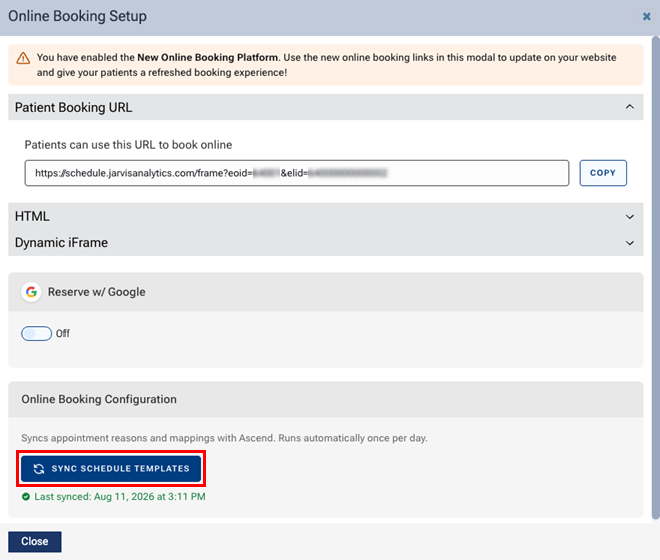
The Online Booking Setup dialog box appears.
-
Click (or tap) SYNC SCHEDULE TEMPLATES.
Notes:
-
The date and time of the most recent sync ("Last synced") appears below the button.
-
In the audit log, a sync is attributed to the logged-in user who triggered it.
-
-
Click (or tap) Close.