Managing your PIN
After your user account is created, you can specify a PIN for you user account, which you can use (instead of password) to authorize the following actions:
-
Unlocking a transaction (procedure, charge adjustment, credit adjustment, or payment).
-
Unlocking a transaction's date.
-
Unlocking a procedure's amount.
-
Unlocking a procedure's insurance estimate overrides.
-
Signing a clinical note.
-
Signing a treatment consent form.
Note: Only you can set up and manage your PIN. Administrators (or, if you are an administrator, other administrators) do not have access to your PIN and cannot therefore change it for you.
To manage your PIN
-
On the User menu, select My Account.
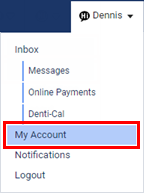
The My Account page opens.
-
Select the PIN tab.
-
Do one of the following:
-
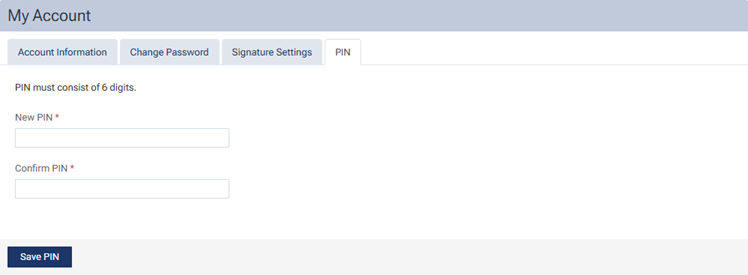
Create a PIN:
-
In the New PIN and Confirm PIN boxes, enter a 6-digit PIN.
-
Click (or tap) Save PIN.
Note: When the PIN is saved, an email message to notify you that your PIN has been updated is sent to the email address that is associated with your user account.
-
-
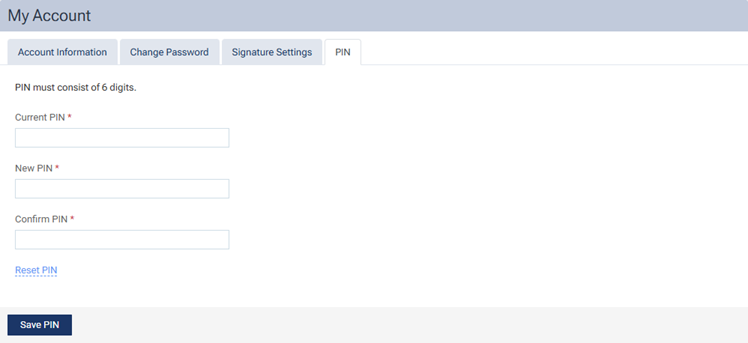
Change your PIN:
-
In the Current PIN box, enter your current 6-digit PIN.
-
In the New PIN and Confirm PIN boxes, enter your new 6-digit PIN.
-
Click (or tap) Save PIN.
Note: When the PIN is saved, an email message to notify you that your PIN has been updated is sent to the email address that is associated with your user account.
-
-
Reset your PIN:
-
Click (or tap) Reset PIN to send an email message to the email address that is associated with your user account.
-
Log out of Dentrix Ascend.
-
Click (or tap) the Set your PIN link in the email message, and then log in to Dentrix Ascend.
-
On the User menu, select My Account to open the My Account page.
-
Select the PIN tab.
-
In the New PIN and Confirm PIN boxes, enter a 6-digit PIN.
-
Click (or tap) Save PIN.
Note: When the PIN is saved, an email message to notify you that your PIN has been updated is sent to the email address that is associated with your user account.
-
-