Managing campaigns
As needed, you can edit, delete, duplicate, pause, and resume campaigns; and you can view the results of campaigns.
To manage campaigns
-
On the Settings menu, under Patient Care, select Patient Communications.
The Patient Communications page opens.
Note: Accessing this page requires the "Review Communications setup" security right.
-
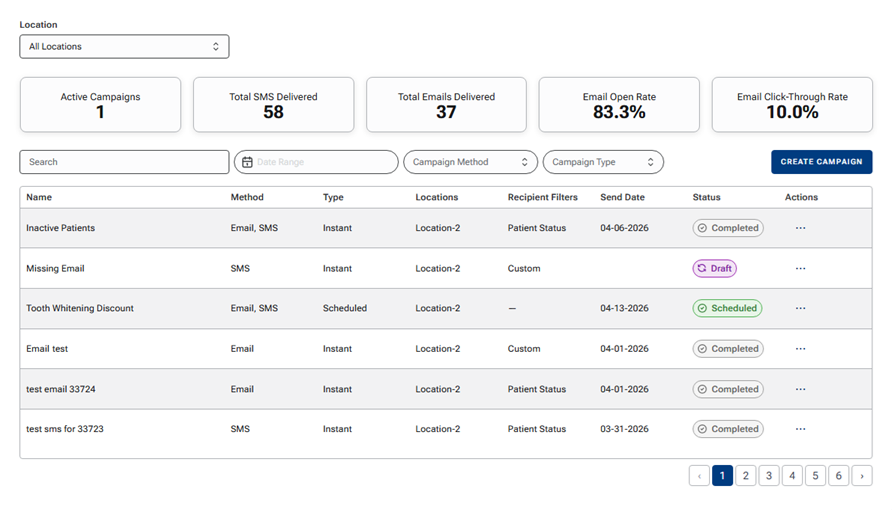
Select the Campaigns tab.
-
To perform a maintenance function on a campaign, select an option on its Action menu.
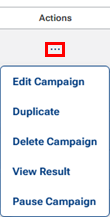
The following actions are available:
-
Edit Campaign - To edit the campaign if it is Paused, Scheduled, or a Draft. You can also edit a campaign that is Completed if you want to change options and then resend messages.
Note: For a campaign that is a Draft, only the user who saved the campaign as a draft can edit it.
-
Duplicate - To create a copy of the campaign (including all parameters and message contents) so you can easily repurpose it and update only certain options without having to re-create everything from scratch. This could be valuable for email templates that you have created because it allows you to easily swap out components, such as logos for a specific location.
-
Delete Campaign - To delete the campaign. On the confirmation message that appears, click (or tap) Delete.
-
View Result - To view the delivery status of email and/or text messages at the patient level.
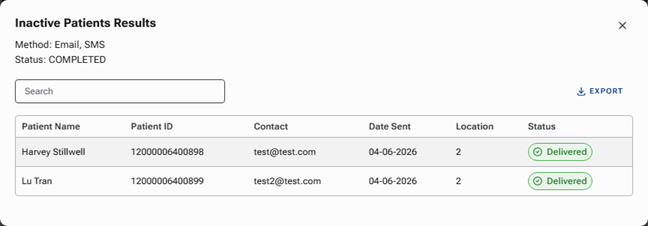
Note: The delivery statuses for email and text messages are specific and granular, giving you greater insight into the outcome of individual communications and helping you more effectively troubleshoot unsuccessful delivery attempts. Possible statuses include, but are not limited to, the following:
-
For text messages:
-
Queued (message is awaiting processing)
-
Sending (message is being processed)
-
Delivered (message was delivered successfully)
-
Not Delivered (message could not be delivered)
-
Opted Out (patient opted out)
-
Failed (message delivery failed)
-
-
For email messages:
-
Not Sent (message awaiting delivery)
-
Sending (message is being processed)
-
Delivered (message was delivered successfully)
-
Deferred (temporary message delivery issue)
-
Bounced (message delivery was rejected)
-
Opted Out (patient unsubscribed)
-
Failed (message delivery failed)
-
Dropped (message delivery dropped)
-
Opened (message was opened)
-
Clicked (patient clicked a link in the message)
-
-
-
Pause Campaign - To pause the campaign if it has a Scheduled status, preventing messages for the campaign from being sent at the scheduled date and time (this option is available only if the status is Scheduled). On confirmation message, click (or tap) Pause. The campaign will remain paused until it is resumed.
-
Resume - To resume the campaign if it has a Paused status (this option is available only if the status is Paused). On the confirmation message that appears, click (or tap) Resume.
Note: Editing, duplicating, deleting, pausing, and resuming campaigns requires the "Manage Communications setup" security right.
-