Magnify tab
On the Magnify tab of the AI panel (the panel on the right), zoomed-in views of AI findings (for caries and PRL only) appear. This tab displays a magnified view for each AI finding on the image being viewed, allowing you to quickly assess areas of concern without having to manually zoom in.
Notes:
-
This tab is available only if Detect AI or Pearl AI has been activated, you are viewing an intraoral X-ray image that is eligible for AI findings, and the Enable Magnify tool setting is enabled for this computer.
-
Depending on the width of the AI panel, the tab's name may be hidden, leaving only an icon to identify the tab.
To use the Magnify tab
-
With Detect AI activated:
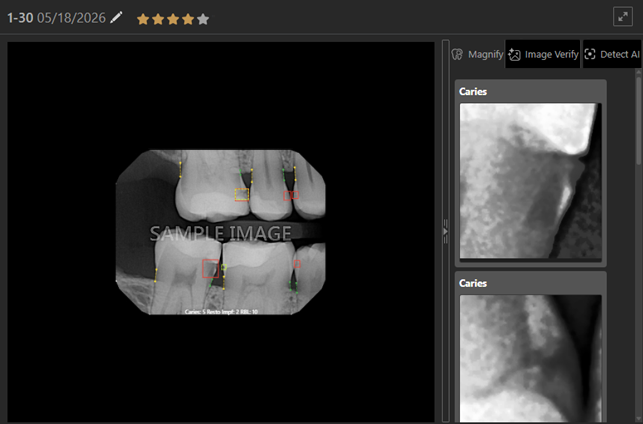
-
With Pearl AI activated:
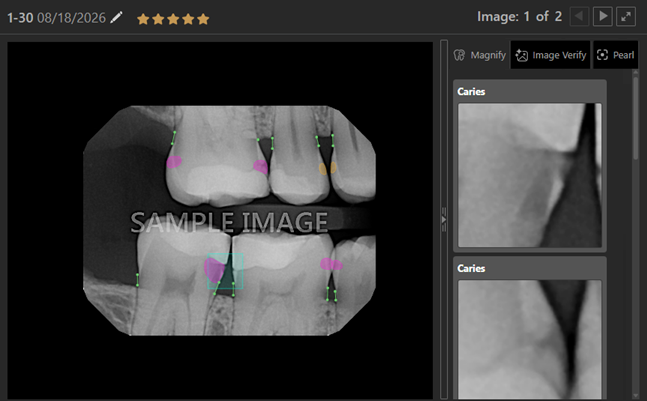
Do any of the following:
-
If you position your pointer over an AI finding on an image in the viewing area, the corresponding magnified view on the Magnify tab is selected automatically (a yellow indicator box appears around that magnified view).
-
With Detect AI activated:
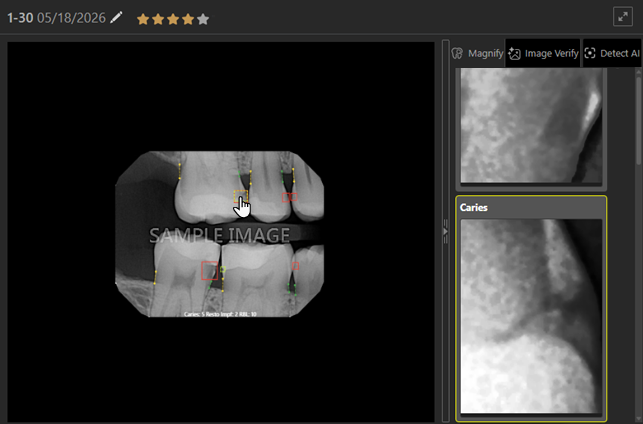
-
With Pearl AI activated:
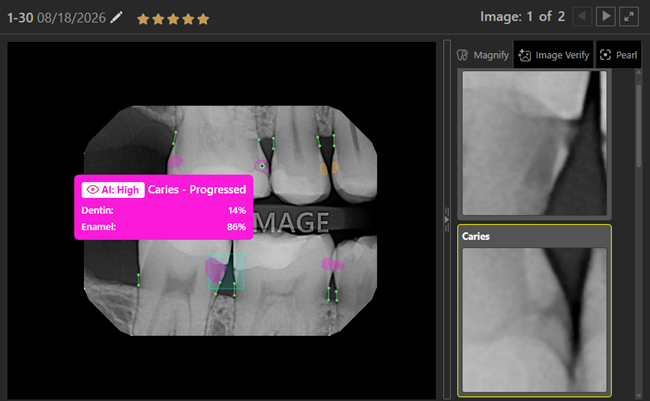
-
-
If you position your pointer over a magnified view on the Magnify tab, the corresponding AI finding on the image in the viewing area is selected automatically (a yellow indicator box appears around that AI finding).
-
With Detect AI activated:
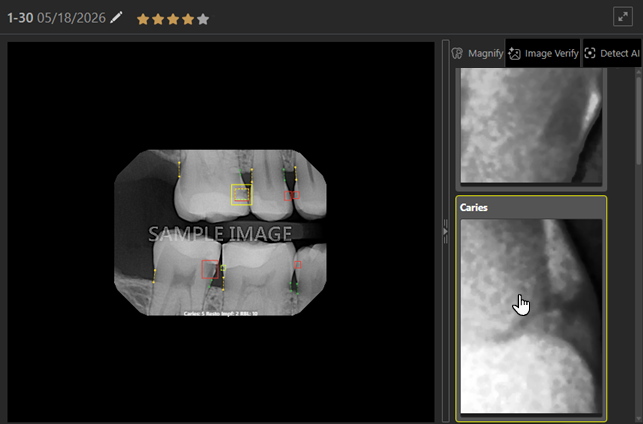
-
With Pearl AI activated:
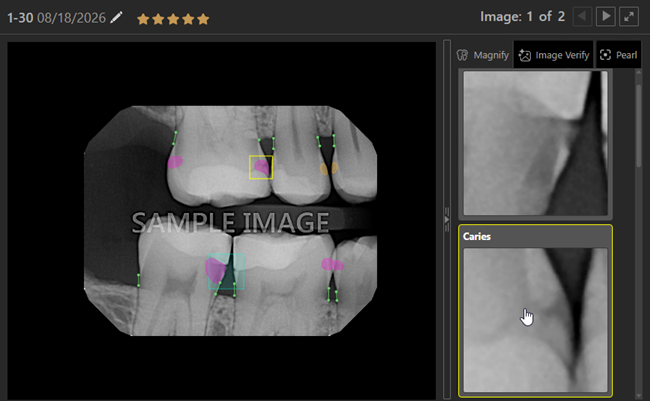
-
Notes:
-
If any tool besides "One Click Tools" is active, the Magnify tab does not display magnified views.
-
If you apply an enhancement (Enhance, Invert, Colorize, or Emboss) to an image in the viewer, the same enhancement is applied to the images on the Magnify tab.
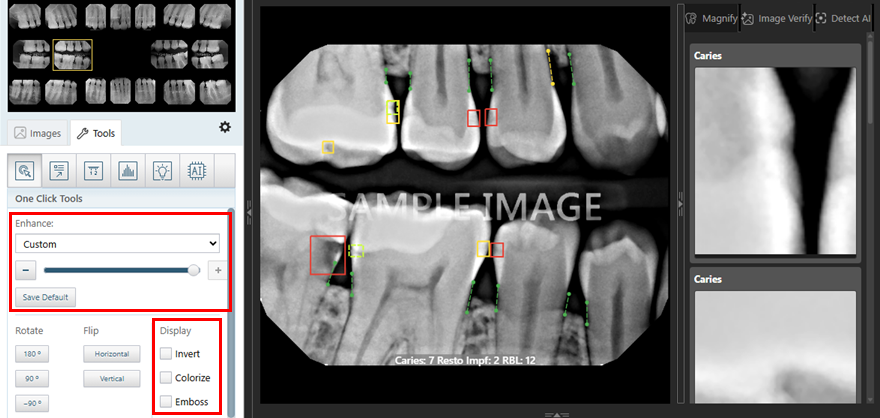
-
If you adjust the brightness or contrast of an image in the viewer, the same adjustment is applied to the images on the Magnify tab.
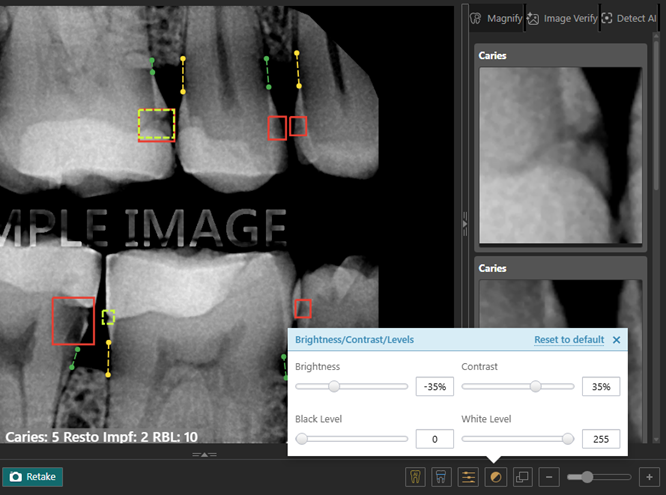
-
If AI findings are turned off, the Magnify tab does not display magnified views.