Image Verify tab
On the Image Verify tab of the AI panel (the panel on the right), a star-based image quality rating appears with contextual issue messaging so you can quickly and confidently assess image quality without ambiguous guidance. Based on the star rating of an image, the messaging that appears clearly explains the detected quality concerns or confirms that no issues were found.
Note: Depending on the width of the AI panel, the tab's name may be hidden, leaving only an icon to identify the tab.
To use the Image Verify tab
A star-based image quality rating appears with contextual issue messaging:
-
An image with possible issues detected:
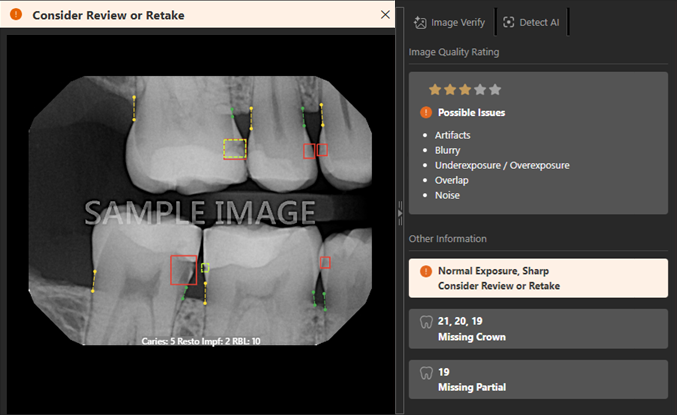
Notes:
-
If the Image Verify tab is selected on the AI panel, while you are viewing an image that has a 3-star rating or less, the "Image Quality Insight Available" banner may appear above the image (according to the "Show quality star rating" setting). This holds true whether the AI panel is currently visible or hidden.
-
If you dismiss the "Image Quality Insight Available" banner, it remains dismissed as you switch between a patient's exams.
-
-
An image with no issues detected:
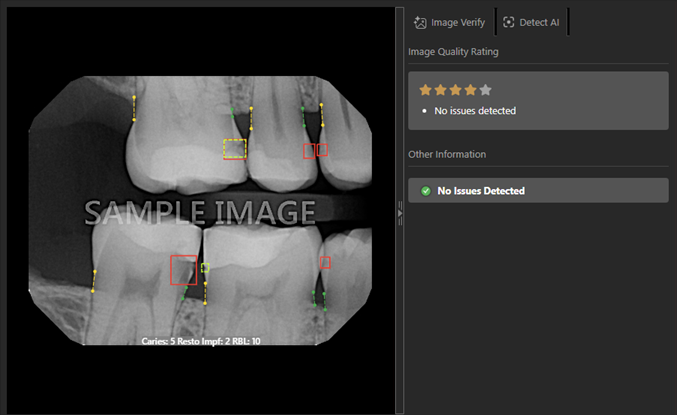
The following Image Quality Rating may appear:
-
A star-based rating from 1 to 5 stars.
-
Depending on the rating, the applicable messaging appears:
-
For a 1-, 2-, or 3-star rating, the following list of Possible Issues appears:
-
Artifacts
-
Blurry
-
Underexposure / Overexposure
-
Noise
-
Contrast
-
-
For a 4- or 5-star rating, the following text appears:
-
No Issues Detected
-
-