GxPicture Device Setup Guide
This guide describes the installation and setup of Gendex imaging devices for use with Dentrix Ascend Imaging via the GxPicture universal driver suite.
Last updated: 1/19/2026
Overview
Dentrix Ascend Imaging supports the acquisition of intraoral images from many Gendex imaging products on a computer running the Windows operating system.
Notes:
-
Prior to the installation of GxPicture, the drivers for the GxPicture device must be installed; otherwise, the device will not be listed as an option in the GxPicture installer.
-
Prior to the installation of GxPicture, the acquisition agent application must be installed on each computer that will acquire images. Refer to Setting up the acquisition agent for instructions on downloading and installing the acquisition agent.
-
Dentrix Ascend Imaging supports the Gendex GXS-700 sensors directly without the need for Gendex GxPicture to be installed. If GxPicture has been installed previously with the option selected for supporting the GXS-700 sensors, reconfigure by running the GxPicture installer again, and do not select the option to support GXS-700 sensors.
-
If you are setting up GxPicture for use with a DEXIS Platinum, DEXIS Titanium, or KaVo IXS sensor, refer to the applicable setup guide for setup instructions.
Installation
To install GxPicture, do the following:
-
Download GxPicture (https://dexis.com/en-us/download-center).
Note: This guide uses the GxPicture 4.2.0 (Web Installer).
-
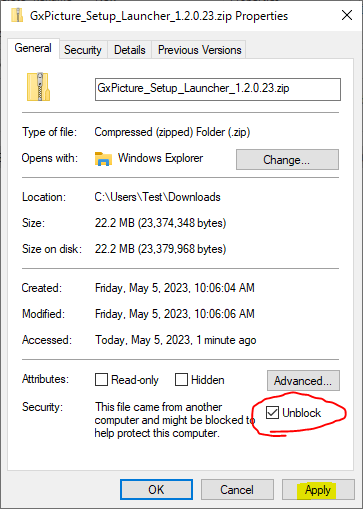
Right-click the downloaded .zip file, and then select Properties. On the General tab of the Properties sheet, clear the Unblock checkbox, and then click Apply and OK.
-
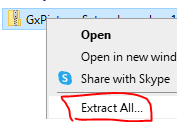
Right-click the zip file, and then select Extract All. Follow the instructions to extract the contents.
-
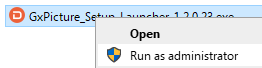
Right-click GxPicture_Setup_Launcher_[xxxx].exe, and then select Run as administrator.
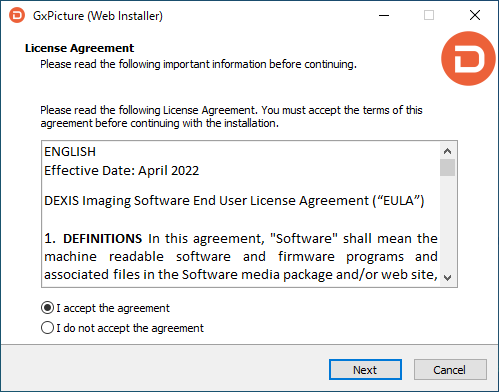
The GxPicture (Web Installer) starts and displays the License Agreement screen.
-
Select the I accept the agreement checkbox, and then click Next.
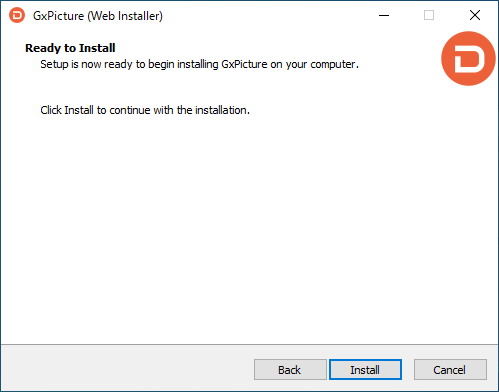
The Ready to Install screen appears.
-
Click Install.
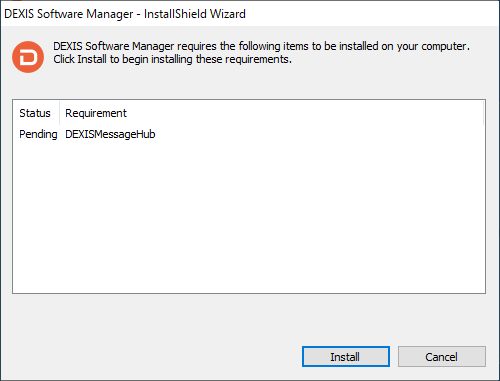
The Status screen appears.
-
Click Install.
After DEXIS Software Manager is installed, drivers are downloaded automatically.
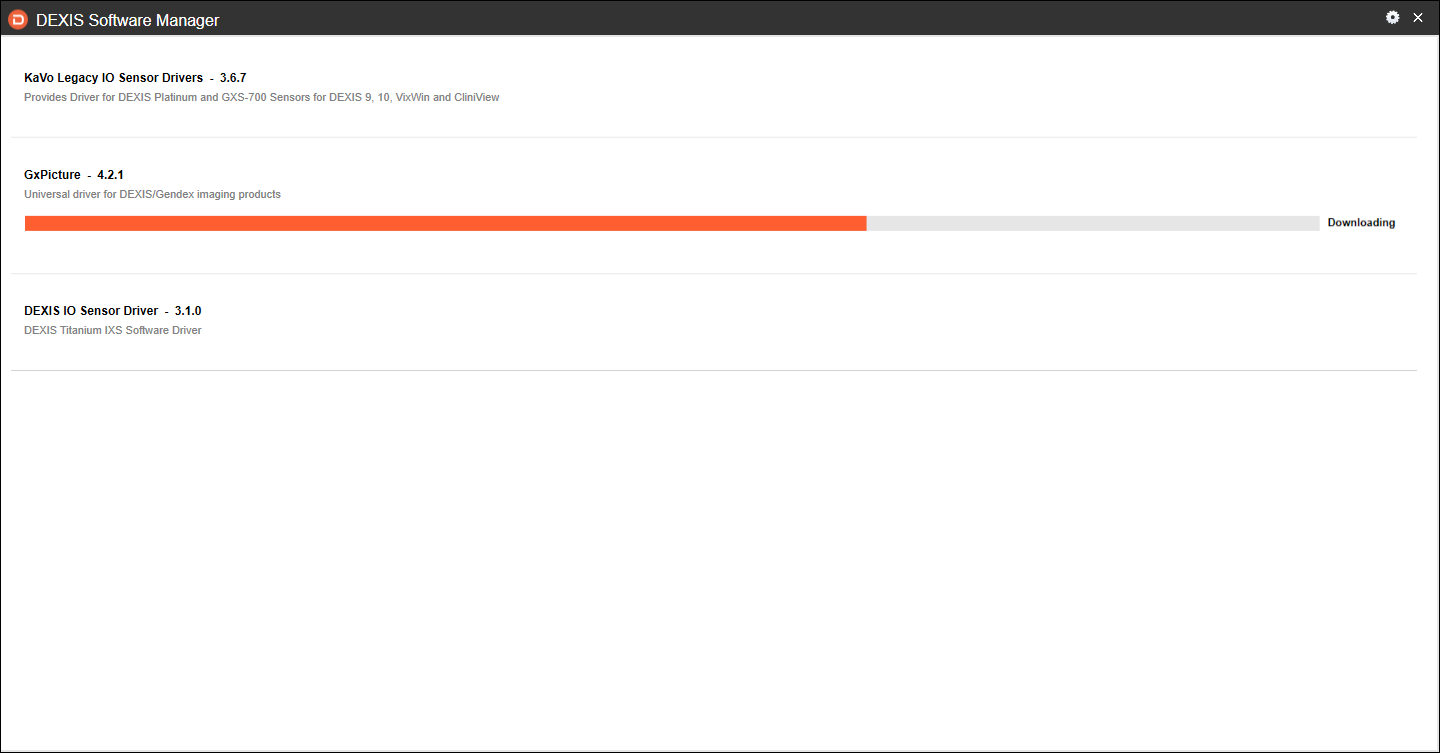
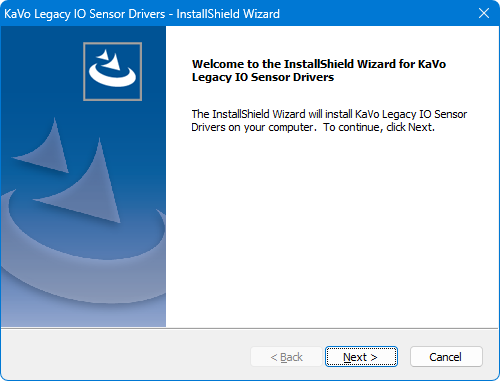
The KaVo Legacy IO Sensor Drivers - InstallShield Wizard starts.
-
Click Next.
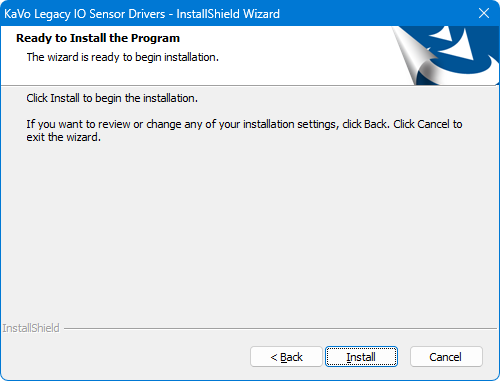
The Ready to Install the Program screen appears.
-
Click Install.
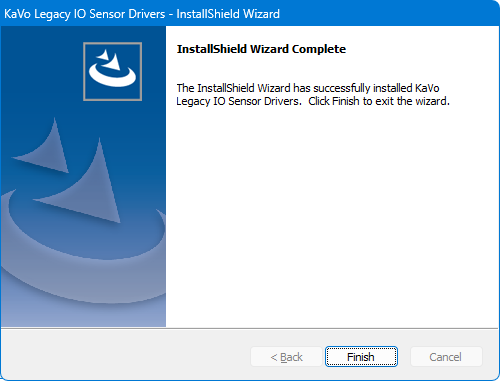
When the installation is complete, the Complete screen appears.
-
Click Finish.
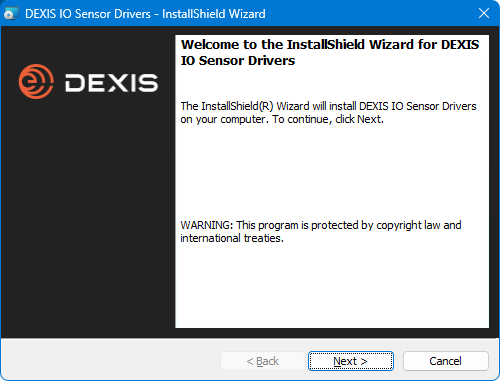
The DEXIS IO Sensor Drivers - InstallShield Wizard starts.
-
Click Next.
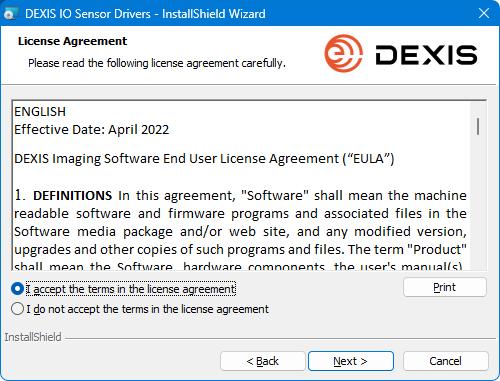
The License Agreement screen appears.
-
Select the I accept the terms in the license agreement option, and then click Next.
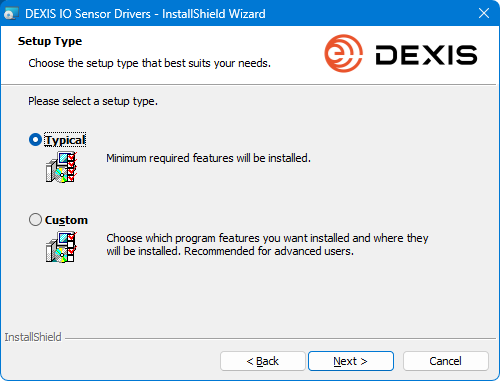
The Setup Type screen appears.
-
Leave the Typical option selected (or select Custom), and then click Next.
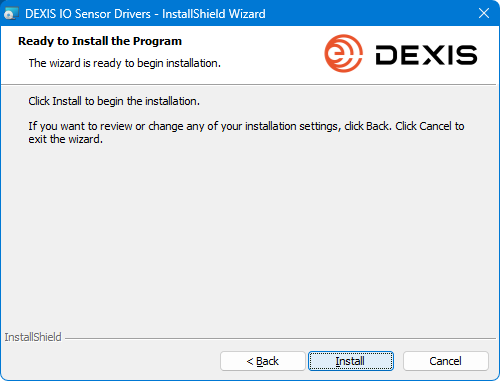
The Ready to Install the Program screen appears.
-
Click Install.
-
If a DEXIS Connect - Sign up dialog box appears, you can join DEXIS with a keycode; otherwise, close the dialog box.

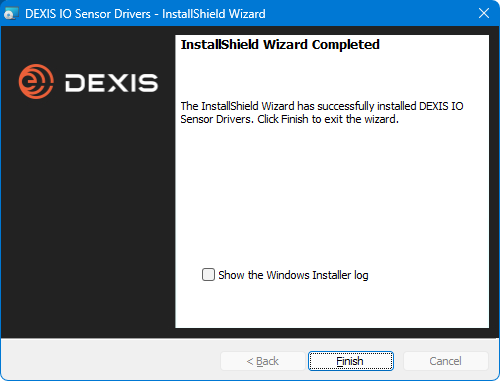
When the installation is complete, the Completed screen appears.
-
Click Finish.
-
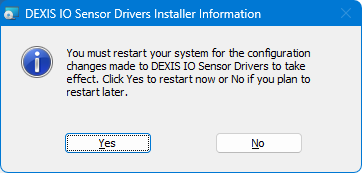
If a message appears and asks if you want to reboot, click No.
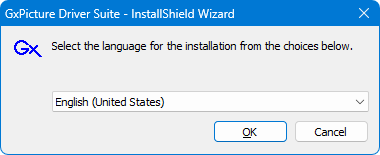
The GxPicture Driver Suite - InstallShield Wizard starts.
-
Click OK.
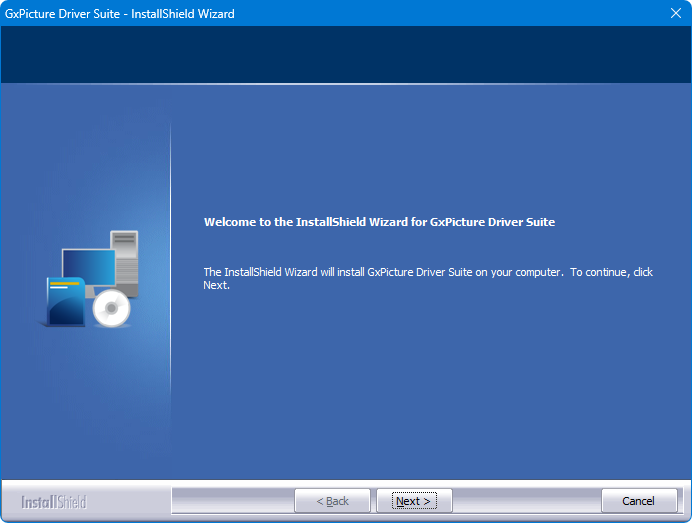
The Welcome screen appears.
-
Click Next.
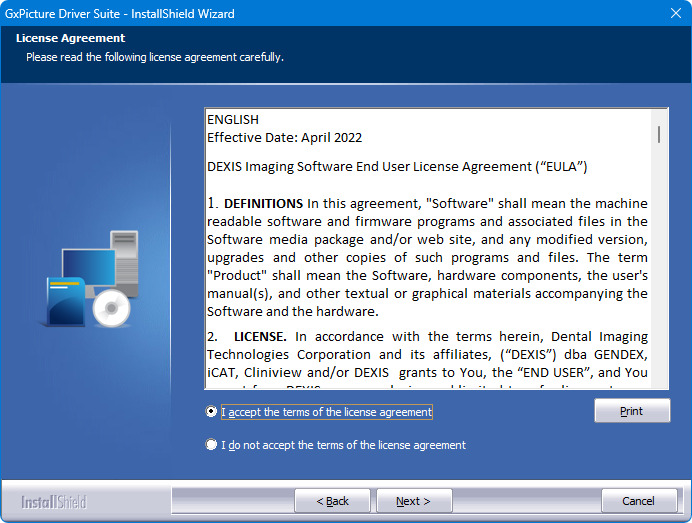
The License Agreement screen appears.
-
Select the I accept the terms of the license agreement option, and then click Next.
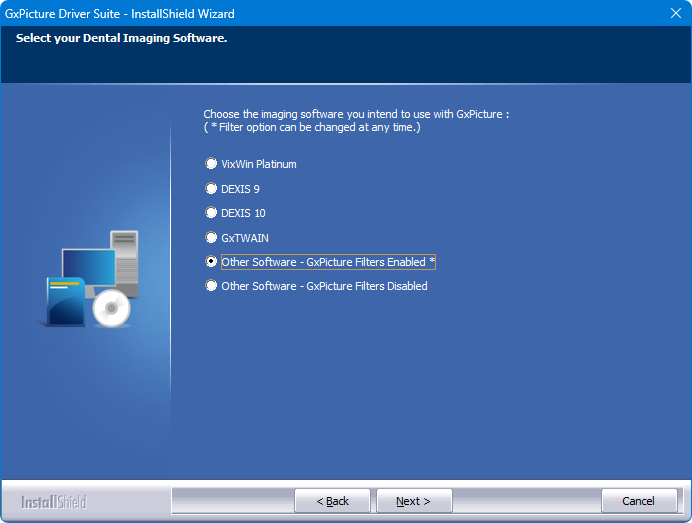
The Select your Dental Imaging Software screen appears.
-
Select the Other Software - GxPicture Filters Enabled* option.
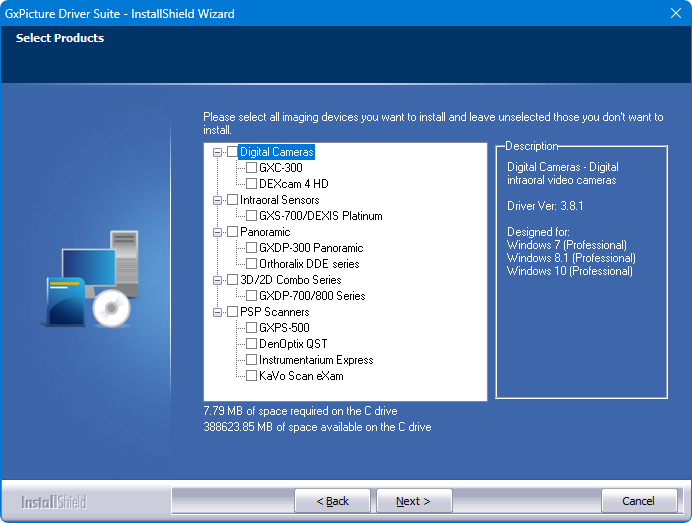
The Select Products screen appears.
-
Select the checkboxes of the devices for which you want to install drivers, and then click Next.
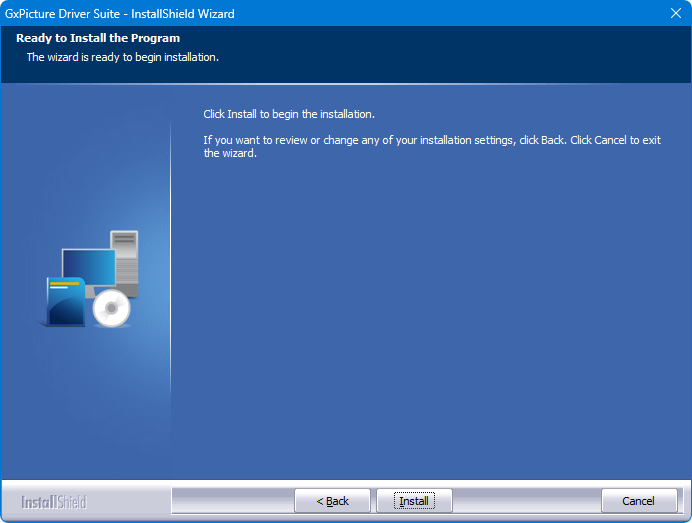
The Ready to Install the Program screen appears.
-
Click Install.
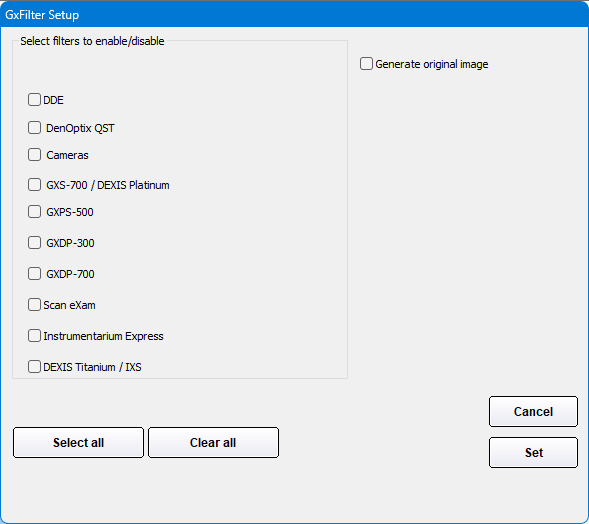
The GxFilter Setup dialog box appears.
-
Select the checkboxes of the devices for which you want to enable GxFilters, and then click Set.
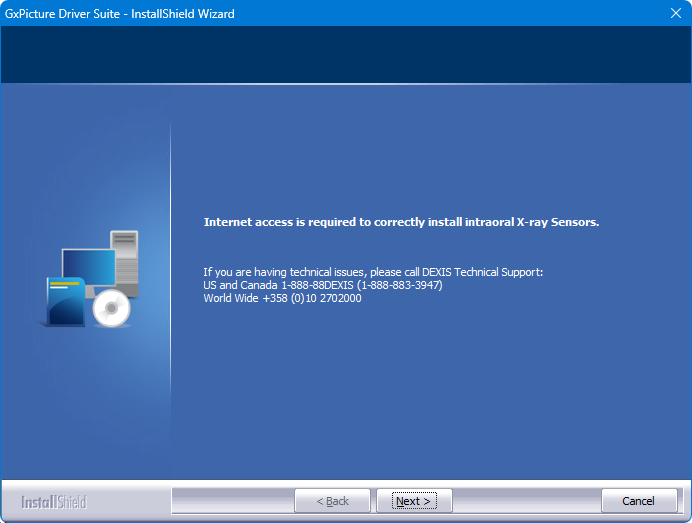
The Internet access is required screen appears.
-
Click Next.
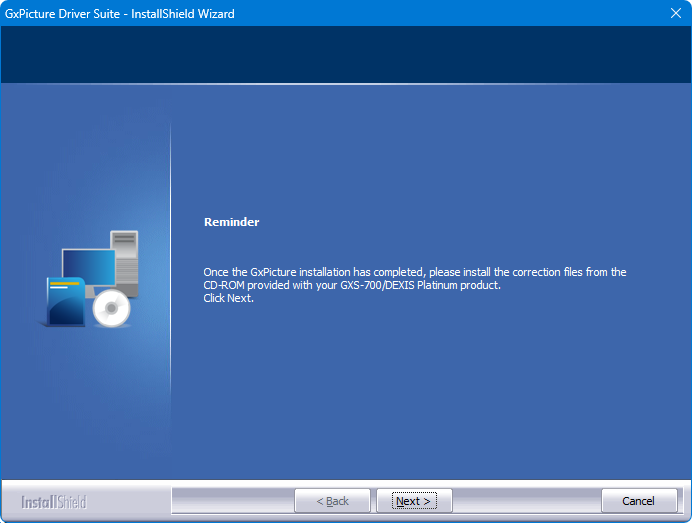
The first Reminder screen, regarding the installation of correction files, appears.
-
Click Next.
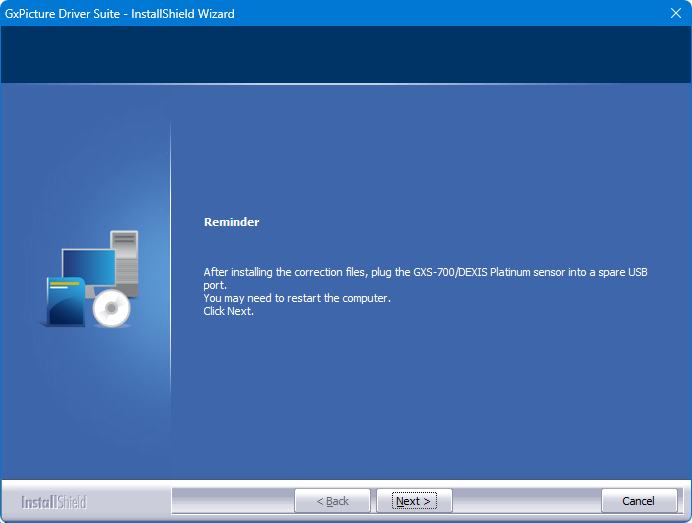
The second Reminder screen, regarding the installation of correction files, appears.
-
Click Next.
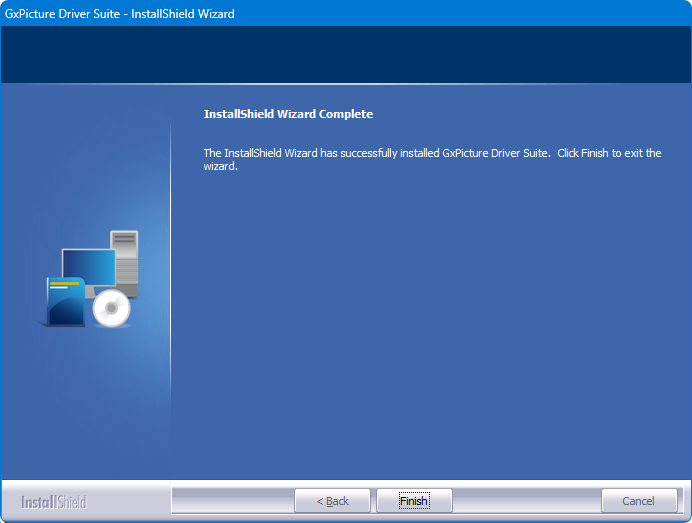
The Complete screen appears.
-
Click Finish.
-
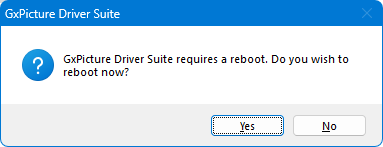
If a message appears and asks if you want to reboot, click Yes.
-
Install the correction files for your device. You may now connect your GxPicture device.
Testing
The GxPicture device is now functional in Dentrix Ascend Imaging. To acquire a test image, do the following:
-
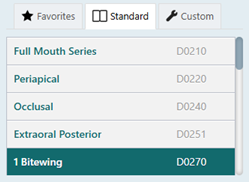
Select the 1 Bitewing imaging procedure.
-
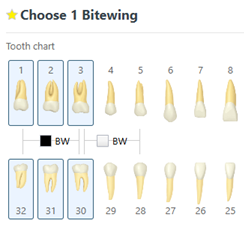
Select any teeth for the test.
-
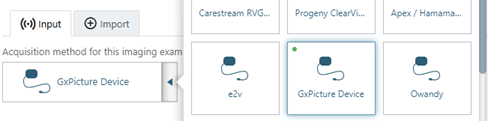
On the Available Devices menu, select GxPicture Device.
-
Click Start.

-
Acquire an image using the GxPicture device.
Note: If an error appears, try restarting the computer to correct the issue.