Distributing treatment consent messages
To help reduce the time-consuming and error-prone administrative task of maintaining consistent treatment consent messages across all locations of your organization, you can copy treatment consent messages from one location to other locations. After add or update a treatment consent message in one location, you can share it with other locations.
Notes:
-
Your organization can still allow for the management of treatment consent messages per individual location.
-
Distributing treatment consent messages requires the "Distribute Treatment Consent Messages" security right.
To distribute a treatment consent message
-
On the Settings menu, select Treatment Plan Settings.
The Treatment Consent Messages page opens.
-
Do one of the following:
-
Select Insured/Uninsured Disclaimers.
-
Select Consent for Dental Treatment.
-
Select a custom treatment consent message.
-
Create a custom treatment consent message, and after creating it, leave it selected.
-
Edit any of the treatment consent messages, and after editing it, leave it selected.
-
-
Click Distribute.
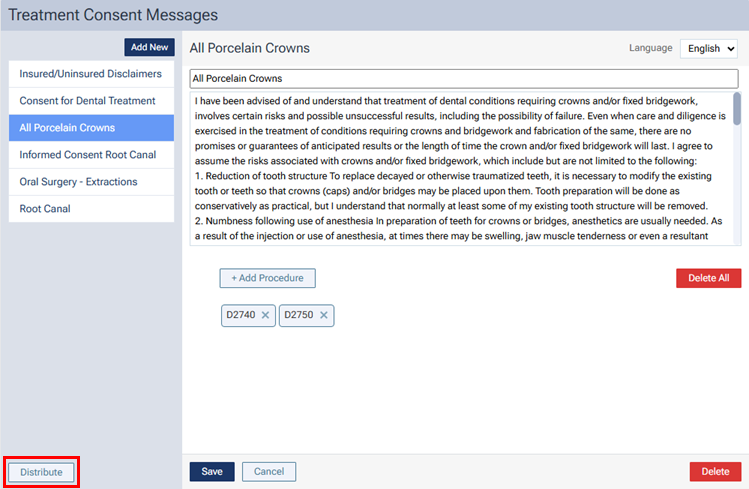
Note: This button is available only if your user role has been granted the "Distribute Treatment Consent Messages" security right.
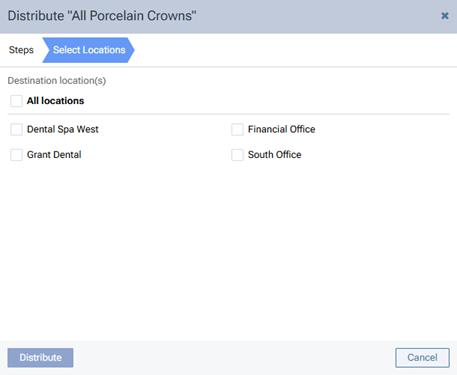
The Distribute "[Treatment Consent Message Name]" dialog box appears.
-
For the Select Locations step, either select the All locations checkbox to copy the selected treatment consent message to all listed locations, or select the checkbox of each location that you want to copy the selected treatment consent message to.
Note: For a location to be available for selection, your user account must have been granted access to that location, and your user role for that location must have been granted the "Distribute Treatment Consent Messages" security right.
-
Click (or tap) Distribute.
-
If an English language version of a treatment consent message with the same name as the one being copied exists in one or more of the selected locations, the Consent Message Conflicts step becomes available.
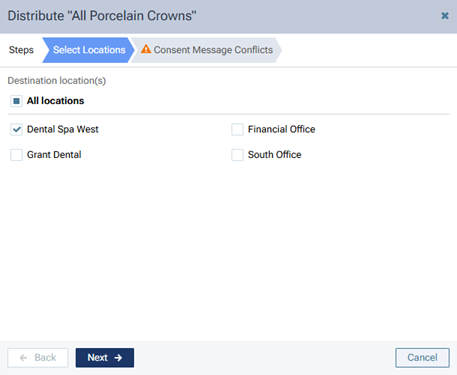
Do the following:
-
Click (or tap) Next.
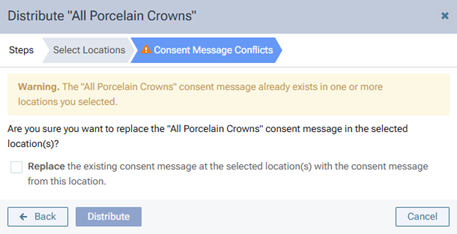
The options for the Consent Message Conflicts step appear.
-
Select the Replace checkbox to have the same-named treatment consent message in each of the applicable locations replaced with the one from the current location.
-
Click (or tap) Distribute.
-
Notes:
-
All aspects of the selected treatment consent message are copied to the selected locations (replacing existing messages where applicable):
-
Title (for the English and Spanish versions)
-
Content (for the English and Spanish versions)
-
Procedures (if any are attached)
-
-
The distribution of treatment consent messages is recorded in the audit log.