Deleting appointments
You can delete an appointment at any time. Do not delete an appointment in cases where the patient cancels or misses his or her appointment; instead, change the appointment's status.
To delete an appointment
-
Do one of the following:
-
Click (or tap) the Schedule menu.
-
On the Schedule menu, select Calendar.
The Calendar page opens.
-
-
Click (or tap) an appointment.
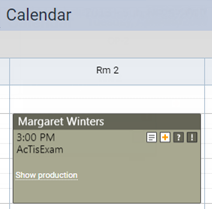
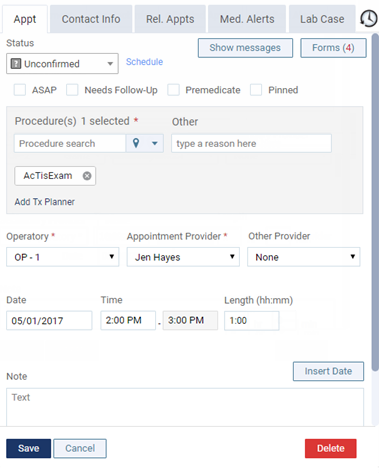
The Appointment Information panel opens.
-
Click (or tap) Delete.
A confirmation message appears.
-
Click (or tap) OK.
The appointment is removed from the schedule. If the appointment was for a new patient, that patient's record remains in your practice database for future use.